How to import sprites into Godot 4
Godot 4 smooths every texture by default, so pixel art turns blurry the moment you scale it up. This guide covers getting a sprite or a sprite sheet into your project, keeping it sharp, and turning a sheet into an animation.
Import
Drop the PNG in, check the Import dock
Show
Slice sheet
SpriteFrames, Hframes or AtlasTexture
Show
Pixel-perfect
Nearest filter, snapping, integer scale
Show
Quick settings
- Default Texture Filter: Nearest (Project Settings ▸ Rendering ▸ Textures)
- Import dock: Compress Mode Lossless, Mipmaps off
- Snap 2D Transforms and Vertices to Pixel: On
- Stretch: canvas_items, aspect keep, scale mode integer
- Nodes: Sprite2D for still sprites, AnimatedSprite2D for animations
Import the PNG
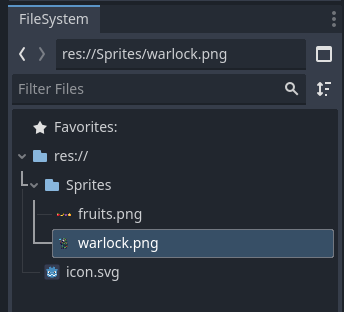
Drag the PNG onto the FileSystem dock, or copy it into your project folder. Godot imports it as a Texture2D right away. To put it in a scene, drag it from the FileSystem into the 2D viewport and Godot creates a Sprite2D with the texture set. You can also add a Sprite2D node yourself and drop the PNG on its Texture property.
Check the import options
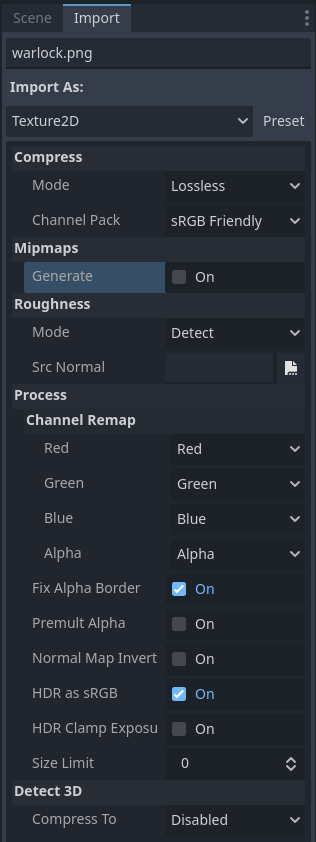
Select the PNG and open the Import tab next to the Scene tab. The defaults already suit pixel art, so this is mostly a check.
- Compress Mode: Lossless. VRAM compression smears small sprites.
- Mipmaps Generate: Off.
- Leave Fix Alpha Border on. It stops dark fringes around transparent edges.
- Click Reimport if you changed anything.
You won't find a filter option here. Godot 4 moved texture filtering to the project settings and to each node, which is why a freshly imported sprite still looks soft. Step 4 fixes that.
Slice a sprite sheet
A sheet stays one PNG. You tell Godot how the grid is laid out, and it reads the frames from there. Pick one of these three ways.
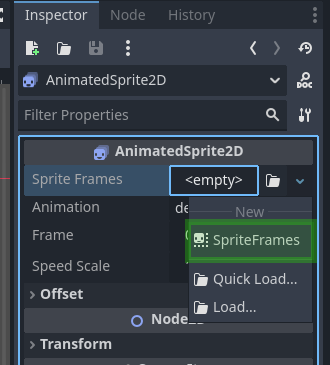
- Add an AnimatedSprite2D node.
- In the Inspector, click the empty Sprite Frames slot and pick New SpriteFrames.
- Click the new resource to open the SpriteFrames panel at the bottom of the editor.
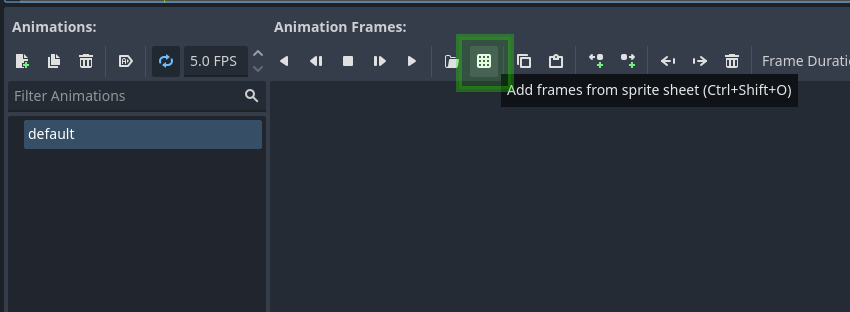
- Click the grid icon, Add Frames from Sprite Sheet, and pick your PNG.
- In the Select Frames window, set Horizontal and Vertical to the number of columns and rows. Click the frames you want in order, or Select All, then Add Frame(s).
- Set the FPS and turn on Loop for idles and walks. Make one animation per row, like idle, walk and attack.
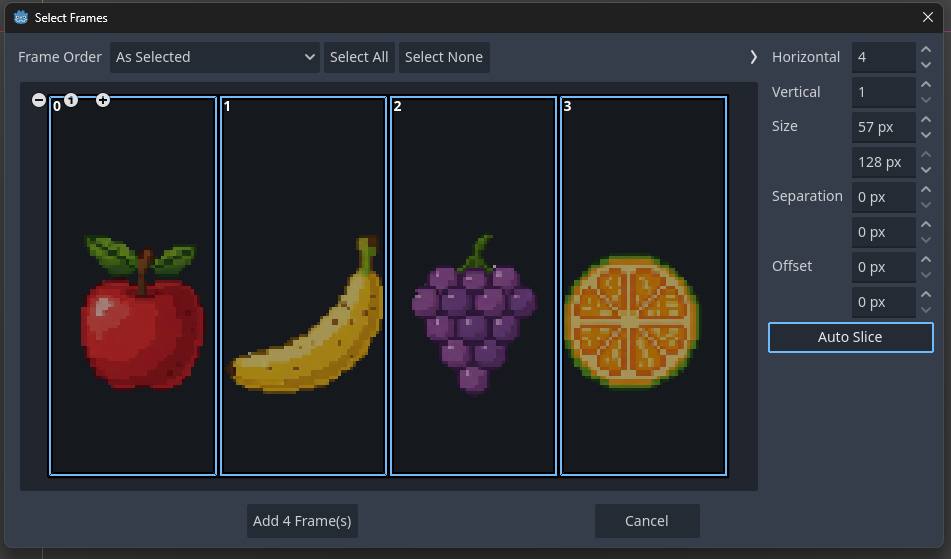
On a Sprite2D, open Animation in the Inspector and set Hframes and Vframes to the sheet's columns and rows. Change Frame to show a different cell. To animate it, key the Frame property in an AnimationPlayer. This is handy when the same timeline also moves a hitbox or plays a sound.
For icons or props packed into one image, give a Sprite2D a new AtlasTexture, set your sheet as its Atlas, and draw the Region around the sprite you want. Save the AtlasTexture as a .tres to reuse it.
Make pixel art stay sharp
These are project-wide, so you set them once. The first one is the setting that fixes blurry sprites.
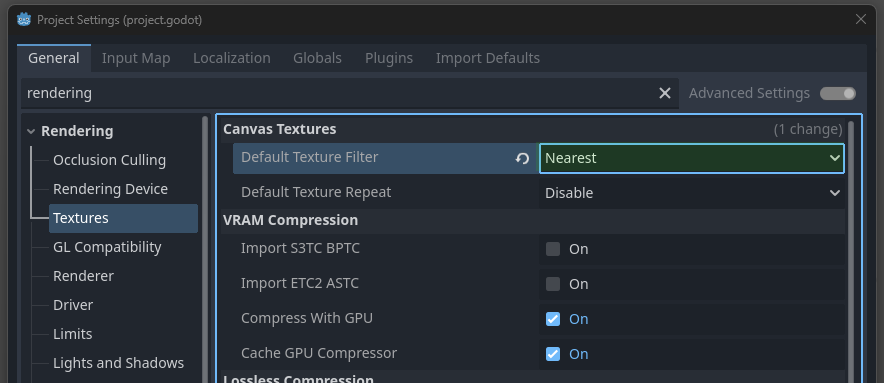
- Project Settings ▸ Rendering ▸ Textures: Default Texture Filter = Nearest. Leave Default Texture Repeat on Disable.
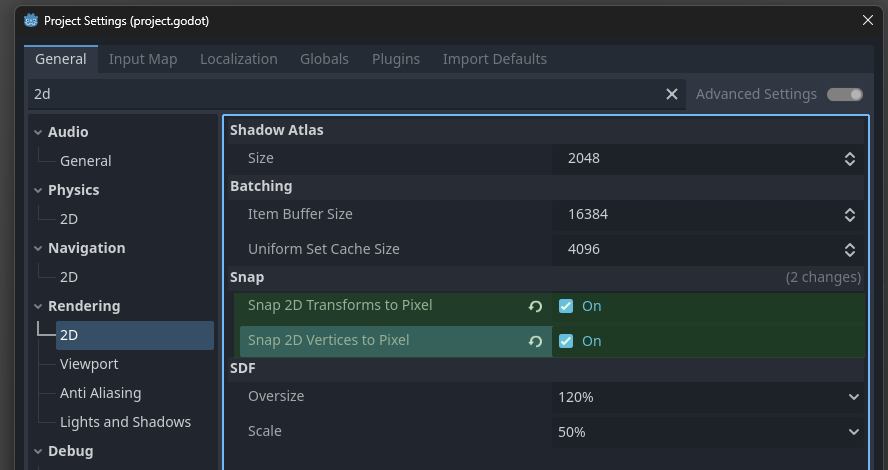
- Project Settings ▸ Rendering ▸ 2D ▸ Snap: turn on Snap 2D Transforms to Pixel and Snap 2D Vertices to Pixel. This stops sprites from wobbling between pixels when they move.
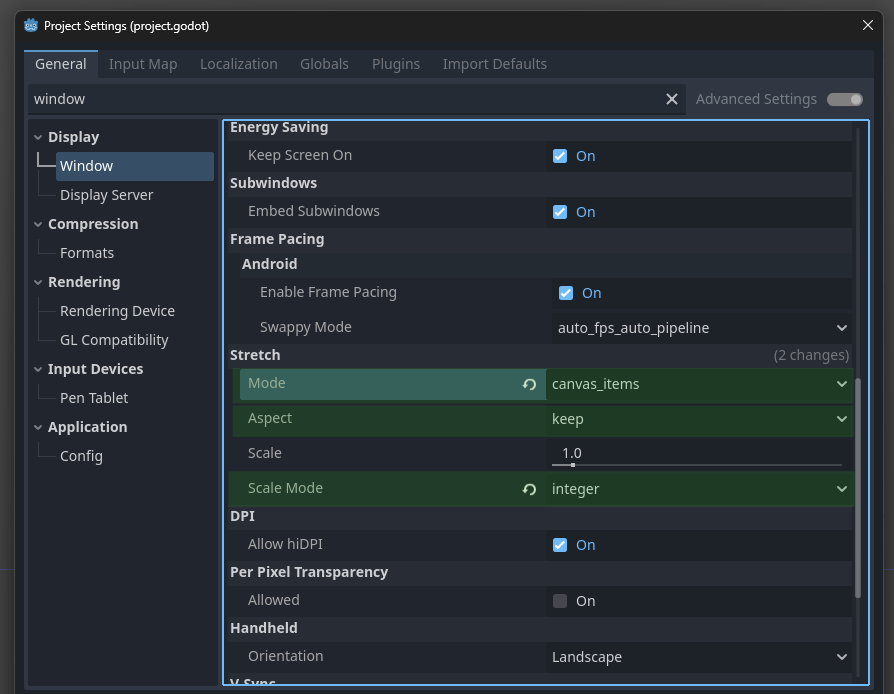
- Project Settings ▸ Display ▸ Window ▸ Stretch: Mode = canvas_items, Aspect = keep, Scale Mode = integer. Integer scaling keeps every pixel the same size. Use Mode = viewport instead if you want the whole game, text included, rendered at your base resolution.
Only some sprites blurry? Set Texture ▸ Filter = Nearest on those nodes. Children inherit it by default.
Keep draw calls low
Godot can batch 2D sprites that share a texture. Keeping a character's frames in one sheet, through SpriteFrames or AtlasTexture, means fewer texture switches than loading every frame as its own PNG.
Common questions
Why is my pixel art blurry in Godot 4?
Godot 4 draws textures with linear filtering by default, which blends neighboring pixels as soon as a sprite is scaled. Set Project Settings ▸ Rendering ▸ Textures ▸ Default Texture Filter to Nearest. If only a few sprites look soft, set Texture ▸ Filter to Nearest on those nodes instead.
How do I add a sprite to a scene in Godot?
Drag the PNG from the FileSystem dock into the 2D viewport. Godot creates a Sprite2D with the texture already set. You can also add a Sprite2D node yourself and drop the PNG on its Texture property.
How do I import a sprite sheet into Godot?
Import the PNG like any other image. Then either load it into a SpriteFrames resource with Add Frames from Sprite Sheet and play it on an AnimatedSprite2D, or set Hframes and Vframes on a Sprite2D. You never have to cut the sheet into separate files.
Should I use AnimatedSprite2D or an AnimationPlayer?
AnimatedSprite2D with SpriteFrames is the quicker setup for character animations like idle, walk and attack. Use a Sprite2D with an AnimationPlayer when the same animation also has to move a hitbox, play a sound or change other properties on one timeline.
What size should pixel art sprites be in Godot?
Any size works. Most pixel games use 16, 32 or 64 pixel tiles with characters around the same size. Pick a small base resolution like 320x180 or 640x360 under Display ▸ Window ▸ Size, and let integer scaling blow it up to the screen.
Skip the slicing
SpriteCook exports characters as a Godot project with the SpriteFrames already built, and tilesets as ready-to-paint TileSet resources.
 Try SpriteCook