How to import pixel art sprites into Unity
Unity imports every PNG with smoothing and compression on, which works for photos and blurs pixel art. These are the settings that keep sprites sharp, plus slicing sheets, picking pixels per unit and packing atlases.
Importer
Sprite type, point filter, compression
Show
Slice sheet
Grid by cell size and naming
Show
PPU (advanced)
Match tiles or character height
Show
Quick settings
- Texture Type: Sprite (2D and UI)
- Sprite Mode: Single or Multiple
- Filter Mode: Point
- Compression: None (try Low, compare visually)
- MipMaps: Disabled; Wrap: Clamp for characters
- Packing: Sprite Atlas
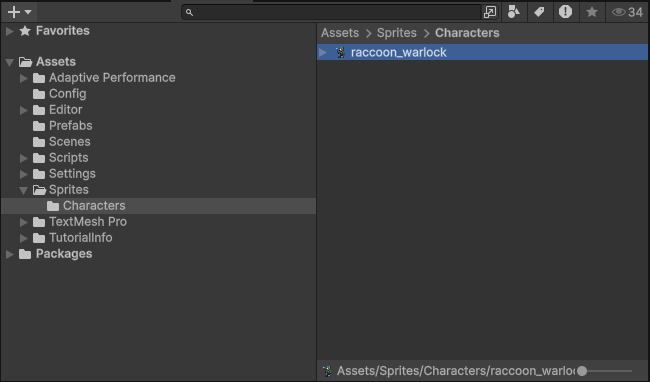
Import the PNG
Drag the PNG into the Project window. Click it to open its import settings in the Inspector. Once it's set up, drag it into the Scene or Hierarchy to get a GameObject with a Sprite Renderer.
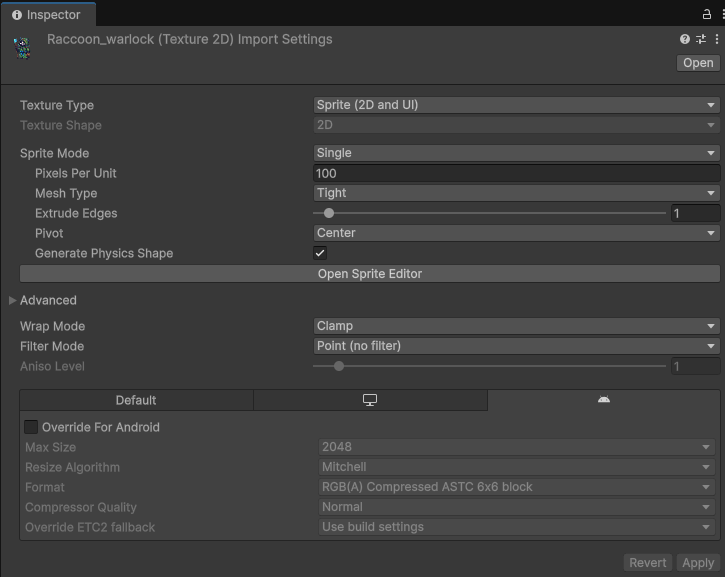
Set the import settings
- Texture Type: Sprite (2D and UI).
- Sprite Mode: Single or Multiple.
- Pixels Per Unit: pick target (see PPU).
- Filter Mode: Point. Aniso: Disabled.
- Compression: None or test Low.
- MipMaps: Disabled. Wrap: Clamp for characters; Repeat for tiles.
Download Import Preset
Get our pre-configured Unity import settings for pixel art. Just drag the .preset file into your Unity project and apply it to your sprites.
Unity 6000.2
Slice a sprite sheet
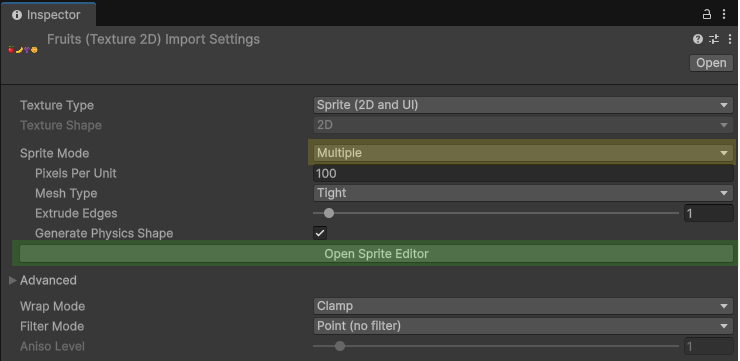
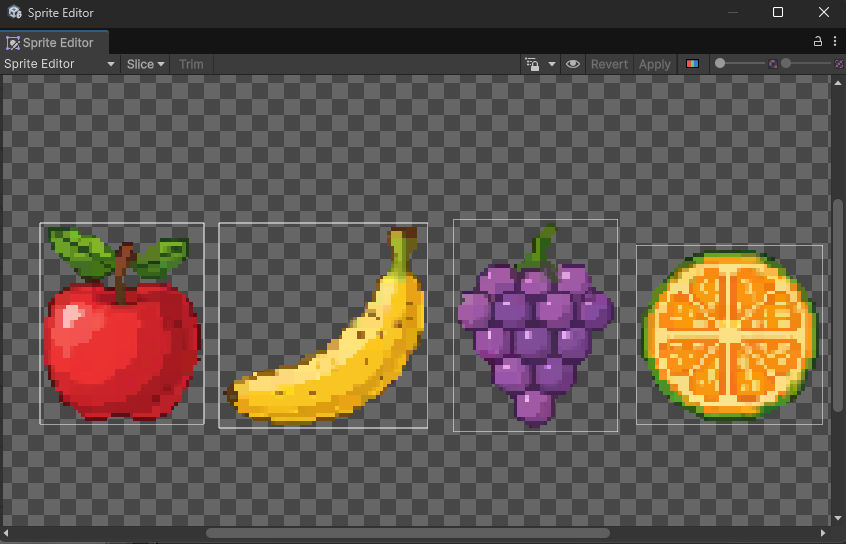
Set Sprite Mode = Multiple and click Apply, then open the Sprite Editor. Under Slice, pick Grid By Cell Size, enter your frame size (16×16, 32×32 and so on), click Slice and then Apply. Each frame becomes its own sprite under the texture. Select a row of frames and drag them into the Scene to make an animation clip from them.
PPU (advanced)
Match tiles or character height to world units.
16px tile → PPU 16. 32px tile → 32. 48px character → 48 ≈ 1u tall.
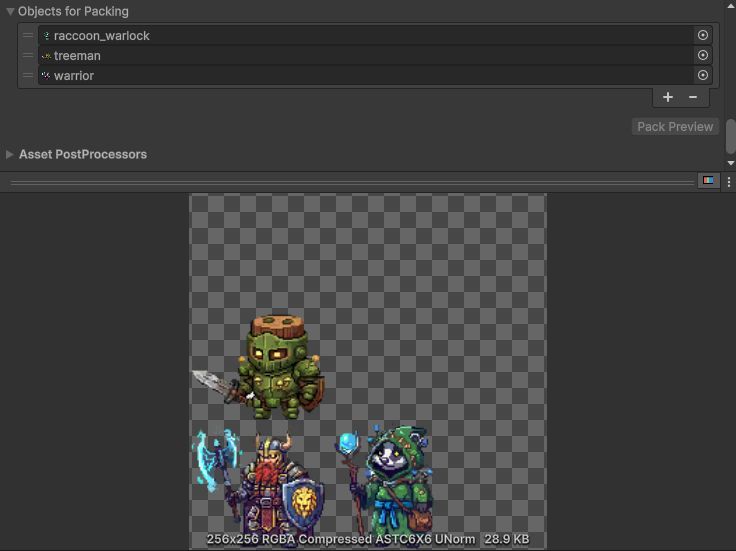
Pack with Sprite Atlas
- Create Sprite Atlas: Create ▸ 2D ▸ Sprite Atlas
- Add sprites or folders. Group by domain.
- Select Tight or Rectangle based on shaders.
- Play Mode builds atlases automatically.
Add a Pixel Perfect Camera
Point filtering keeps each sprite sharp, but a camera between pixels still makes things shimmer when they move, and gaps can show up between tiles. The Pixel Perfect Camera snaps everything to whole pixels.
- On URP with the 2D Renderer, add Pixel Perfect Camera to your main camera. On the Built-in pipeline, install the 2D Pixel Perfect package first.
- Assets Pixels Per Unit: the same PPU as your sprites.
- Reference Resolution: your base resolution, like 320×180 or 640×360.
- Turn on Upscale Render Texture for the cleanest result, or Pixel Snapping if you only need sprites to stop jittering.
More on camera and quality settings in Unity pixel art import settings for crisp sprites.
Save an import preset
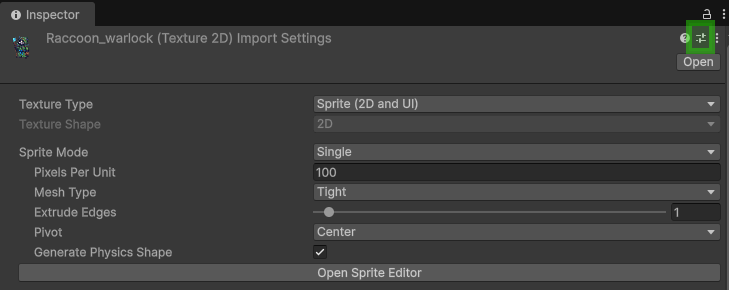
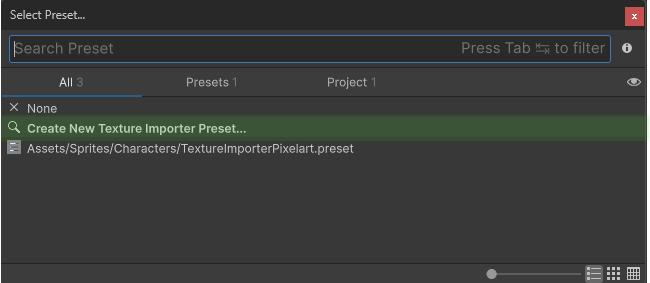
Importer cog → Save as Preset. Name it PixelArt_Import. Apply to new textures.
Common questions
Why are my pixel art sprites blurry in Unity?
Unity imports textures with Bilinear filtering and Normal Quality compression, which is fine for photos and smears pixel art. Select the sprite, set Filter Mode to Point (no filter) and Compression to None, then click Apply. The import preset on this page sets both for you.
How do I import a sprite into Unity?
Drag the PNG into the Project window. Select it and check that Texture Type is Sprite (2D and UI), which is already the default in a 2D project, then click Apply. Drag the sprite into the Scene or Hierarchy to get a GameObject with a Sprite Renderer.
How do I import a sprite sheet into Unity?
Import the PNG, set Sprite Mode to Multiple and open the Sprite Editor. Choose Slice ▸ Grid By Cell Size, enter your frame size like 32x32, then Slice and Apply. Every frame shows up as its own sprite under the texture, ready to drag into an animation.
What Pixels Per Unit should I use?
Use your tile size. With 16x16 tiles, a PPU of 16 makes one tile exactly one Unity unit, which lines up with the default Tilemap grid. Keep the same PPU on every sprite in the game so characters and tiles stay in scale.
Why do I see thin lines between my tiles?
The camera is landing between pixels and the GPU samples a sliver of the neighboring tile. Use Point filtering, pack the tiles into a Sprite Atlas with a few pixels of padding, and add a Pixel Perfect Camera so the camera snaps to whole pixels.
Skip the setup
SpriteCook exports characters as a .unitypackage with the animation clips built, and tilesets with Rule Tiles already set up.
 Try SpriteCook