March 14th, 2026

How to Use SpriteCook's Character Creator from Prompt to Animation

From one prompt to a finished animated character set, with the actual flow and results shown step by step.

How to Use SpriteCook's Character Creator from Prompt to Animation

How to Use SpriteCook's Character Creator from Prompt to Animation

If you want one path from "I need a character" to "I have animations I can ship," start in /characters.

The flow is simple:

  1. Write a prompt for the base character
  2. Review the result and revise it
  3. Pick an animation set and the motions you want
  4. Export the finished animations

The rest of this post follows that exact path.

Who this flow is for

This works well if you are:

  • making a platformer, top-down, or isometric game
  • starting from a text prompt and want a usable base character fast
  • starting from an existing sprite and want to animate it
  • trying to build a small animation set without bouncing between tools

If you already have a finished sprite and only need a custom motion, the dedicated /animate route can still make sense. If you want the full character workflow, start in /characters.

Step 1: Create the base character

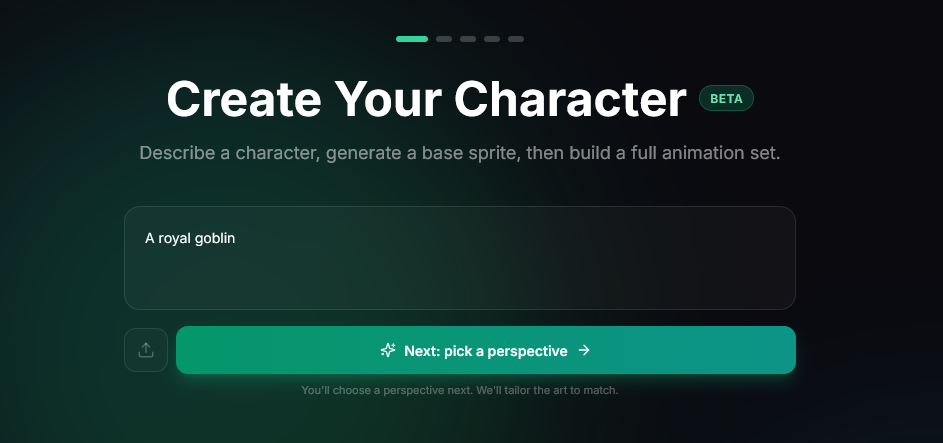
You can start from a prompt, upload a sprite, or reopen an existing asset.

A short prompt is usually enough. Examples:

  • "A forest ranger hero"
  • "A cyberpunk swordswoman"
  • "A tiny druid with a staff"

Character creator start screen

Step 2: Review and revise

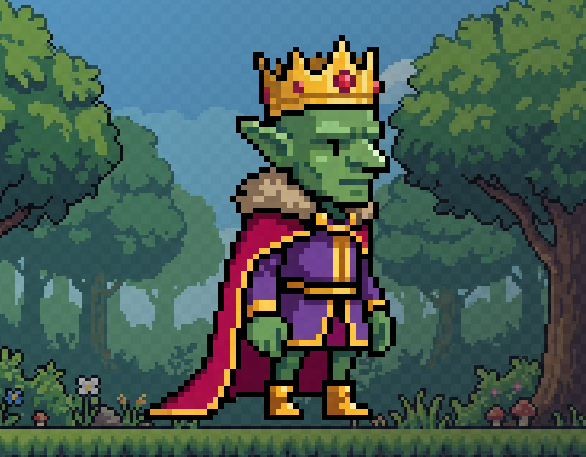
Once the base sprite is ready, you get a larger preview and a revision panel.

This is where you tighten the design without restarting from zero. You can keep the current character and ask for changes like:

  • heavier armor
  • a round shield
  • a colder blue palette
  • a cleaner silhouette

The suggested revisions help when the sprite is close and you want a few fast directions to try.

Review and revise screen

Step 3: Choose the animation set

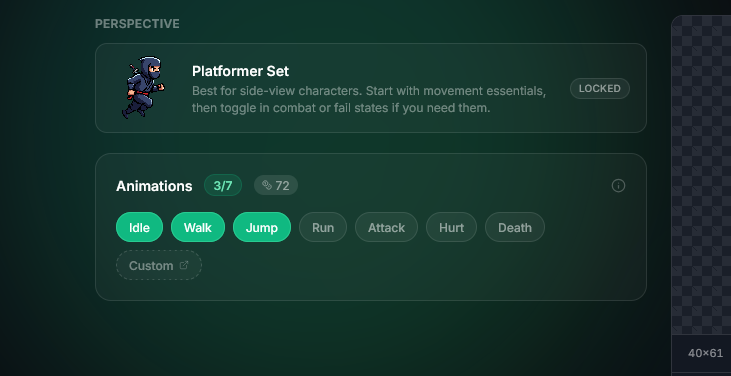
The animation screen is organized into sets:

  • Platformer
  • Isometric
  • Top-Down

Each set starts with a default group of motions, and you can toggle extras on or off.

You also see the credit cost before generating, which makes it easy to start with a smaller set for a prototype.

Animation set selection

Step 4: Generate and export

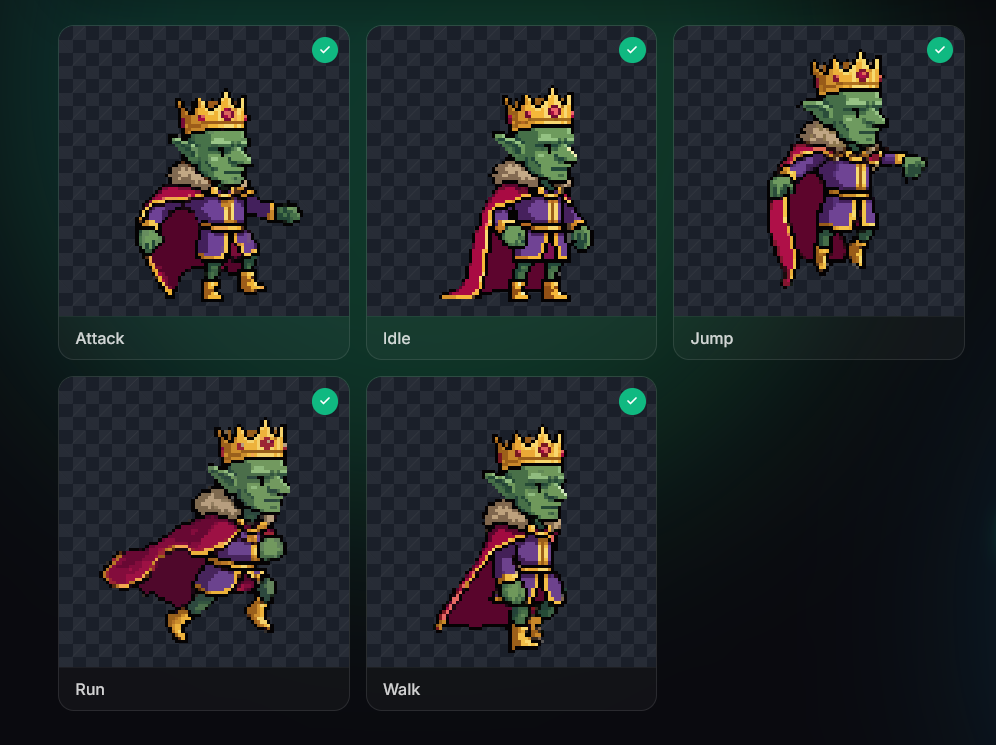
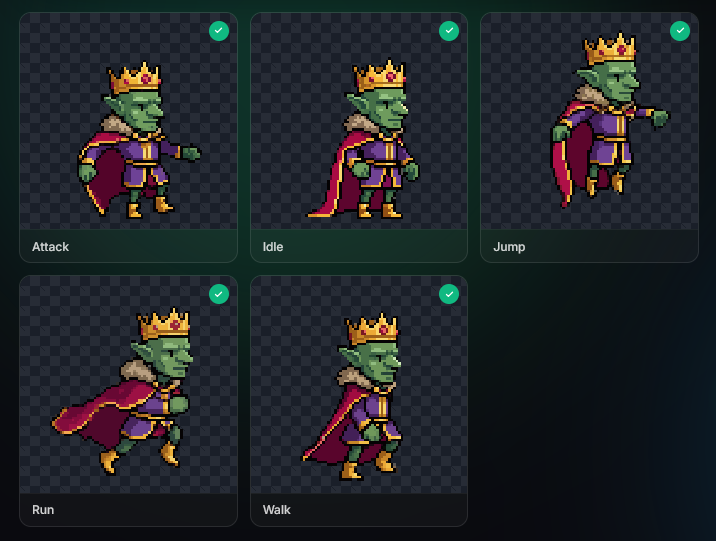
After generation starts, each motion appears in its own card. Completed items can be previewed at true size and exported when the set is ready.

Animation results and export screen

The same flow also works well for larger character sheets. Here is a single preview that cycles through a knight's idle, walk, run, jump, and attack motions:

Knight motion showcase

A few practical tips

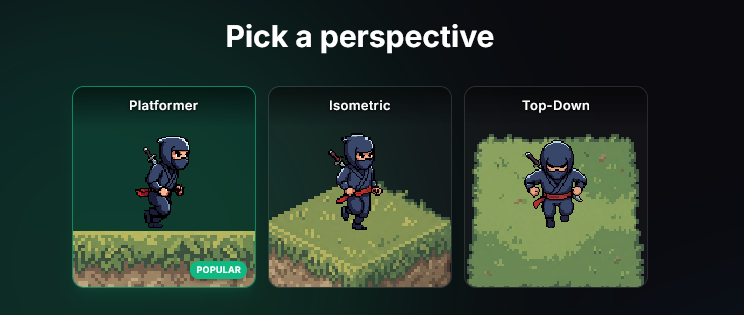
The main thing to get right early is orientation. Your starting image should already match the perspective you want to animate.

If you want an isometric set, start with an isometric-looking character. The same goes for platformer and top-down. Changing perspective later is much harder than revising details on a character that already faces the right way.

Platformer orientation preview
Platformer
Isometric orientation preview
Isometric
Top-down orientation preview
Top-Down

Here is the tiny druid result from start to finish:

Tiny druid animation preview

If you want to try it yourself, open SpriteCook Character Creator and start with one simple prompt. Pick the smallest animation set you need, get it into your engine, and iterate from there.