How to Create Pixel Art Characters with AI
Step-by-step tutorial to generate consistent pixel art character sprites using AI, ready for your game.

How to Create Pixel Art Characters with AI
In this tutorial, you'll learn a fast and repeatable way to create consistent pixel art character sprites using AI. We'll use SpriteCook to go from concept to a usable character in minutes.
Looking for a quick demo of the tool? See the overview: https://www.spritecook.ai/ai-sprite-generator
What you'll build
- A base character sprite at your target resolution (e.g. 32×32 or 64×64)
- A consistent style that you can re-use for more poses
- A simple pipeline you can automate later
1) Set your theme first
The theme locks in the overall style, mood, and visual direction for your entire character set. This is the foundation that keeps all your sprites consistent.
In SpriteCook, set your theme before generating anything. You can use a preset or write your own detailed description.
Example theme:
Futuristic urban dystopia with sleek tech and grime.
Blade Runner-inspired lighting: neon pinks, cyans,
and deep purples cutting through rain-soaked streets.
Surfaces mix reflective chrome with scratched polymer.
Character silhouettes defined by light contrast and geometric fashion.
Once set, the theme stays active for all subsequent generations, so you don't need to repeat style details in every prompt.
2) Describe your character
With the theme locked in, your prompt only needs to describe the character itself. Keep it short and focused on unique traits.
Example prompt:
Female protagonist, left arm fully chromed
That's it. The theme handles the style, lighting, and atmosphere. Your prompt just adds the character details.
3) Configure pixel art settings
Before generating, set your pixel art constraints:
- Pixel Art mode: Enable this for authentic pixel art
- Resolution: Start with 64×64 or 128×128 for characters (you can scale down later)
- Color palette: Choose 4-16 colors for cohesive results (this is guidance, not a hard limit)
- Background: Transparent for sprites, or white for preview
Keep these settings consistent across all characters in your set.
4) Generate and review
Generate your character. Review the result against your theme. If something feels off, make small prompt edits rather than changing the theme.
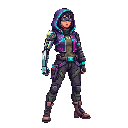
Female protagonist with chromed left arm in cyberpunk style
5) Export and test in engine
Export as PNG. Test in your engine (Unity, Godot, Phaser) at 1x, 2x, and 3x scale to confirm readability and collision boxes.
Creating consistent variations
Once you have a base character you like, you can use it as a reference to create consistent variations. This lets you generate different poses, outfits, or expressions while maintaining the same style and character identity.
We'll cover the reference workflow in detail in a follow-up guide, but the key is: save your first character, then use SpriteCook's "Use as Reference" feature when generating new poses or variations.
Resources
- SpriteCook AI Sprite Generator: https://www.spritecook.ai/ai-sprite-generator
- Animation tips: see the follow-up guide "Animating Sprite Sheets: Tips for Consistency"