Slice sprite sheets and animations into separate assets
Generate a packed sheet of sprites or frames in one go, then slice it into clean individual assets. Auto detect, fixed grid, custom selection, plus a smart alpha mode for overlapping frames.
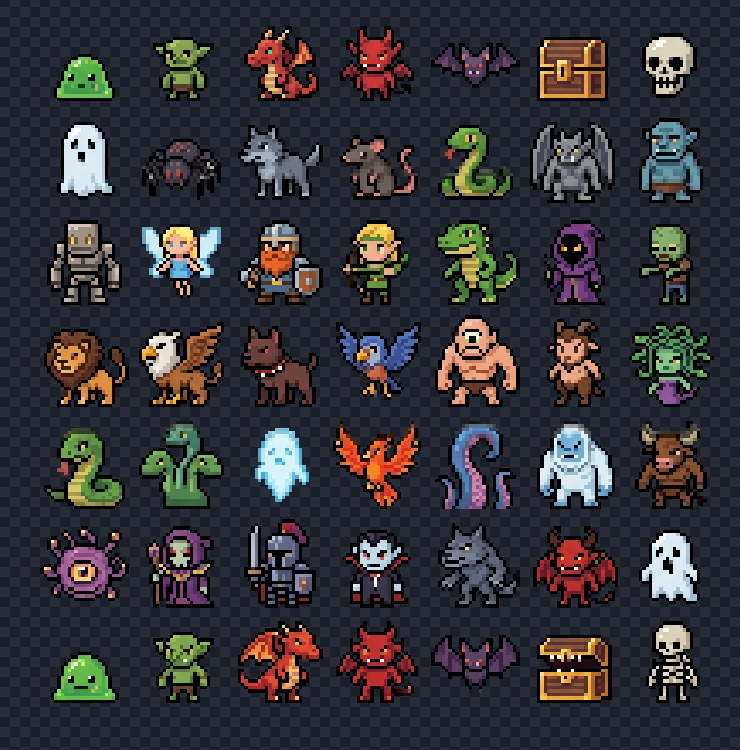
You don't have to generate sprites one at a time. Pack a bunch into a single sheet, generate that, then slice it. One generation, many assets, fewer credits spent.
The Slicer also works on animations. Generate one animation that contains multiple characters or poses side by side, then slice it into separate animated assets.
Want to follow along with the same setup? Open this preset to generate a 7x7 monster grid like the one in the cover image.
Quick demo:
Why slice instead of generating one at a time
A few reasons this comes up a lot.
- Cheaper. One generation that contains 8 characters costs the same as one with 1. The model fills the canvas either way.
- More consistent. Sprites generated together share style, palette, and lighting better than separate runs.
- Faster iteration. One prompt, one preview, eight outputs.
Same idea for animations. If a model can animate a small grid of characters in one pass, you're paying for one animation and getting several usable ones out.
Open Slicer
From your library or feed, open any asset and hit Edit to jump into the fullscreen editor.
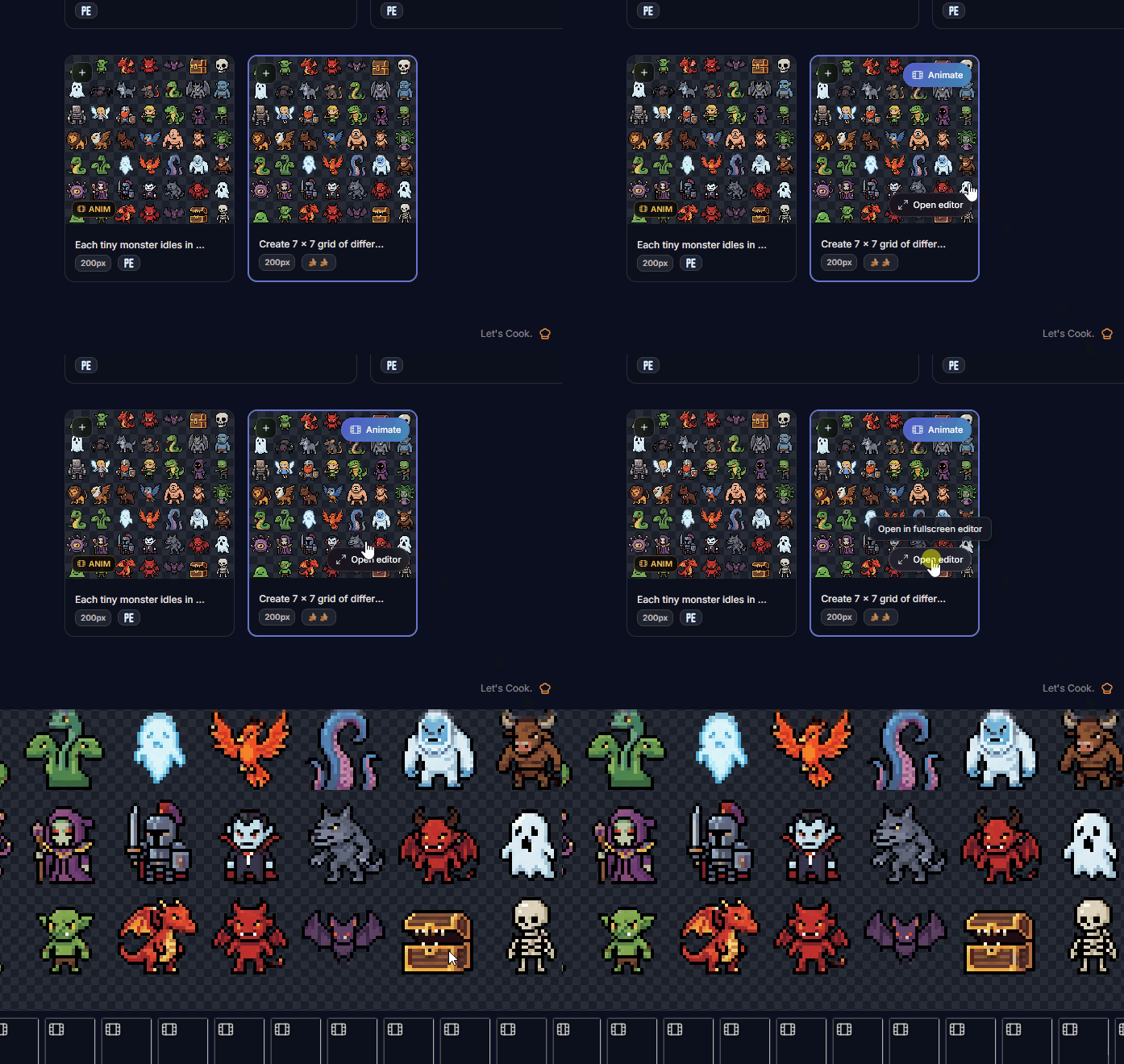
In the editor, scroll down the side rail to Edit & adjust and pick Slicer.
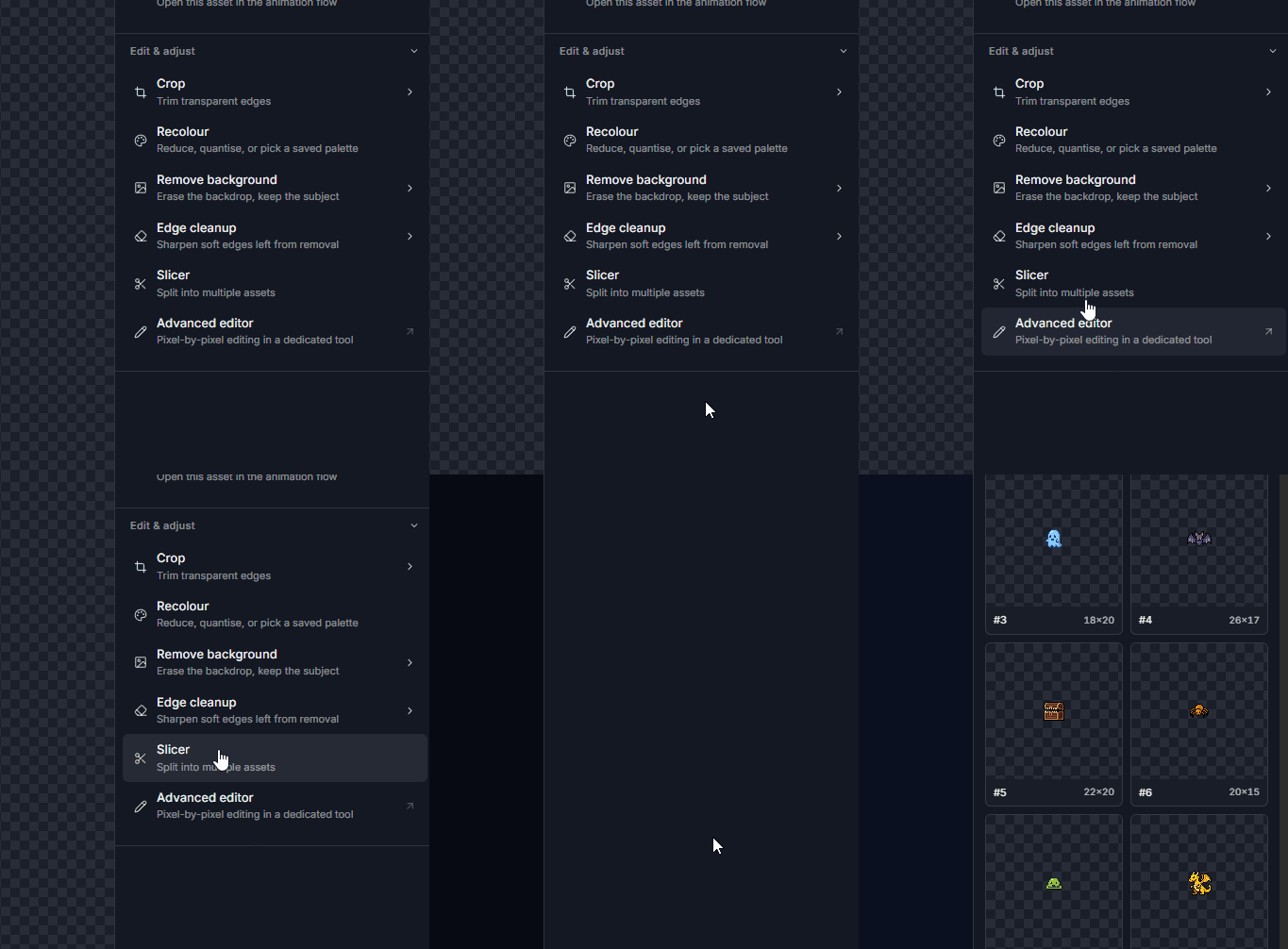
There are three ways to cut a sheet. Pick the one that matches what you've got.
Auto detect
Auto looks at the transparent space around your sprites and figures out where each one starts and ends. Best for sheets the AI generated with clean transparent gaps between sprites.
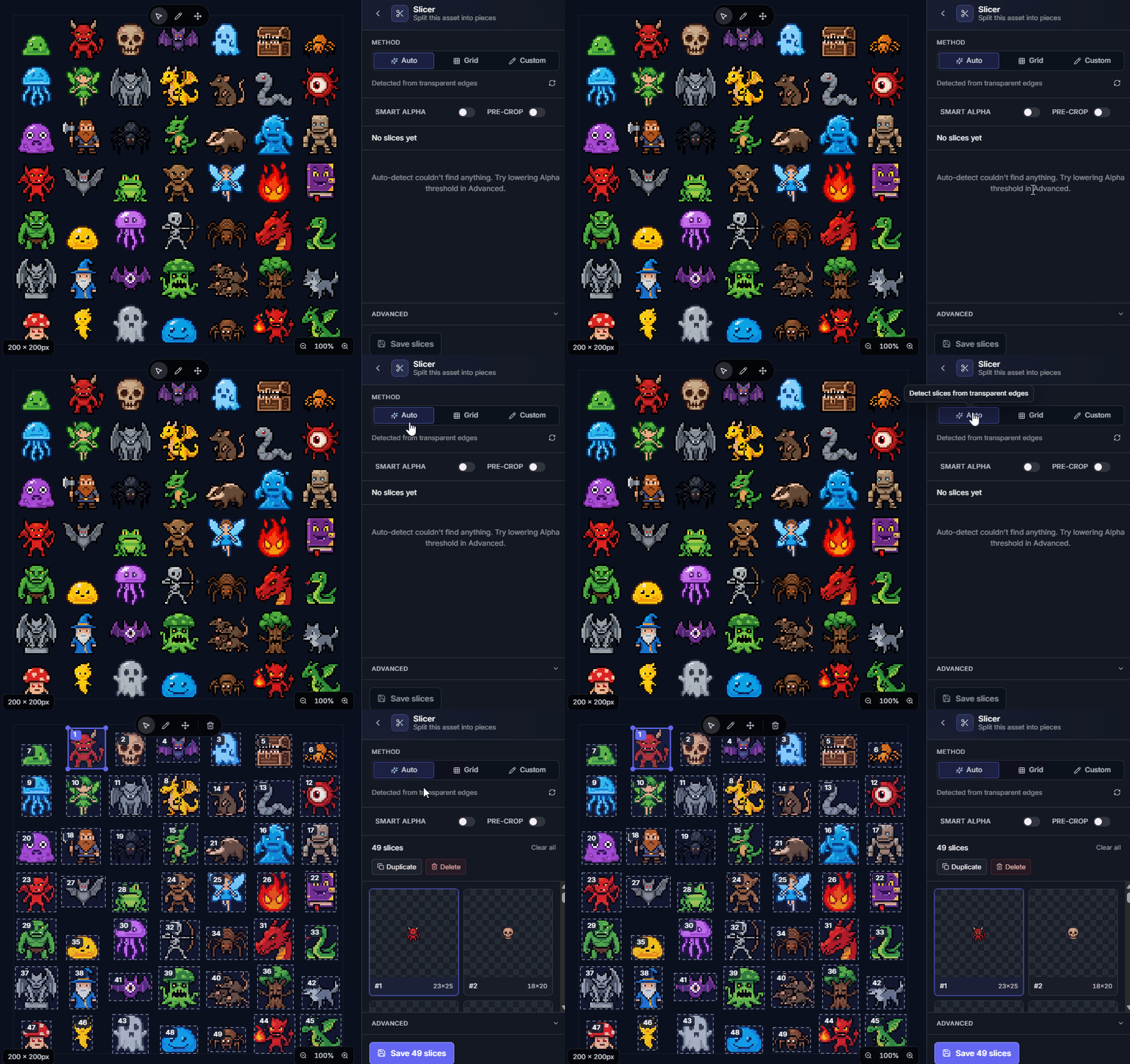
If detection misses a few, nudge the alpha threshold or switch to one of the other modes.
Fixed grid
If your sheet is laid out in even rows and columns (classic spritesheet style), set the columns and rows.
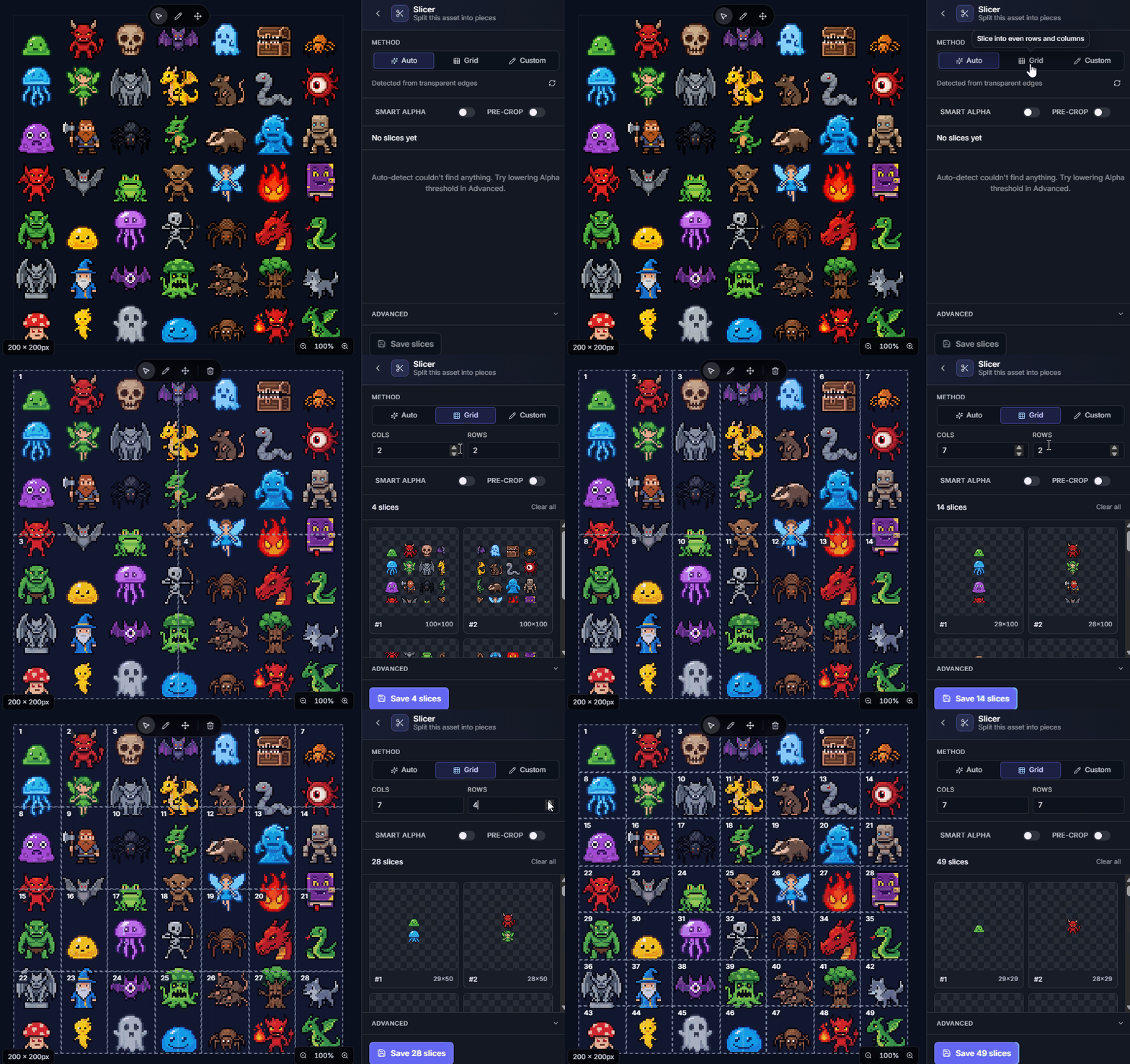
Useful for hand-built sheets, or anything that came out of a tool that already enforces a grid.
Custom selection
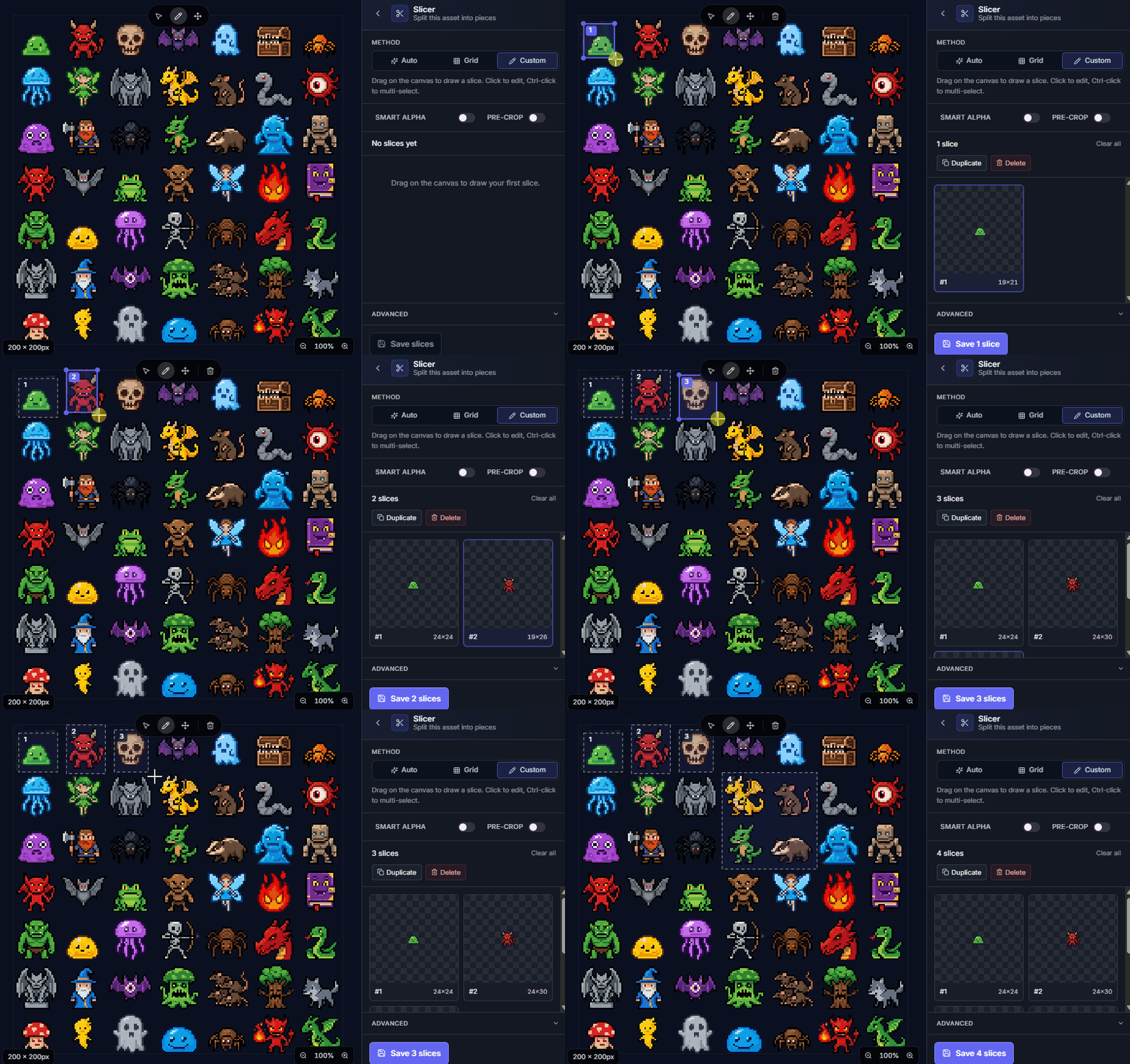
Draw boxes wherever you want. Good for messy sheets, or when you only want a few specific sprites out of a packed image.
Smart alpha for overlapping frames
AI sometimes generates sprites that touch or overlap a little, especially on tight layouts or animated sheets where motion bleeds into the next frame. A regular slice gives you each frame with bits of its neighbours leaking in.
Smart alpha cleans that up. It works out which pixels actually belong to each sprite and zeroes out the rest.
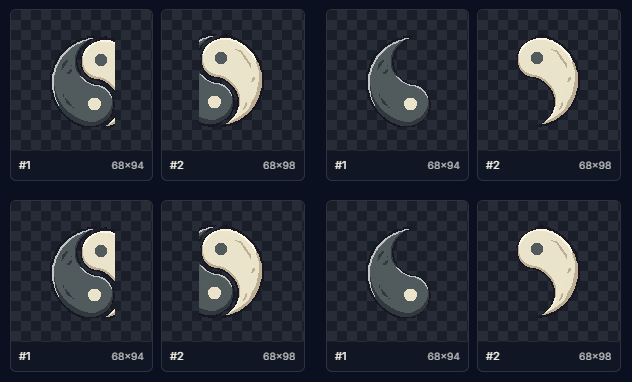
It turns on by default when overlaps are detected. Toggle it off if you want the raw rectangles back.
Slicing animations
The same flow works for animated sheets. Generate one animation with several subjects laid out side by side, then slice. Each box becomes its own animated asset with the original timing preserved.
This is where the credit savings really stack. One animation generation, multiple animated sprites out.
Save the slices

Hit save and each box becomes a separate asset in your library, ready to drop into a project, animate further, or pass through any other tool.
Try it
Open any sheet you've already generated, hit Slicer, and see what auto detect picks up. Switch modes if it misses anything. Most sheets only take a few seconds to dial in.
If you want to start from scratch, head to /create, prompt for something like "8 characters in a grid on transparent background", generate, and slice.