Turning Nano Banana 2 AI Images into Actual Pixel Art
How to prompt Google's Nano Banana 2 model for pixel art and fix the output so it's usable in a game engine.
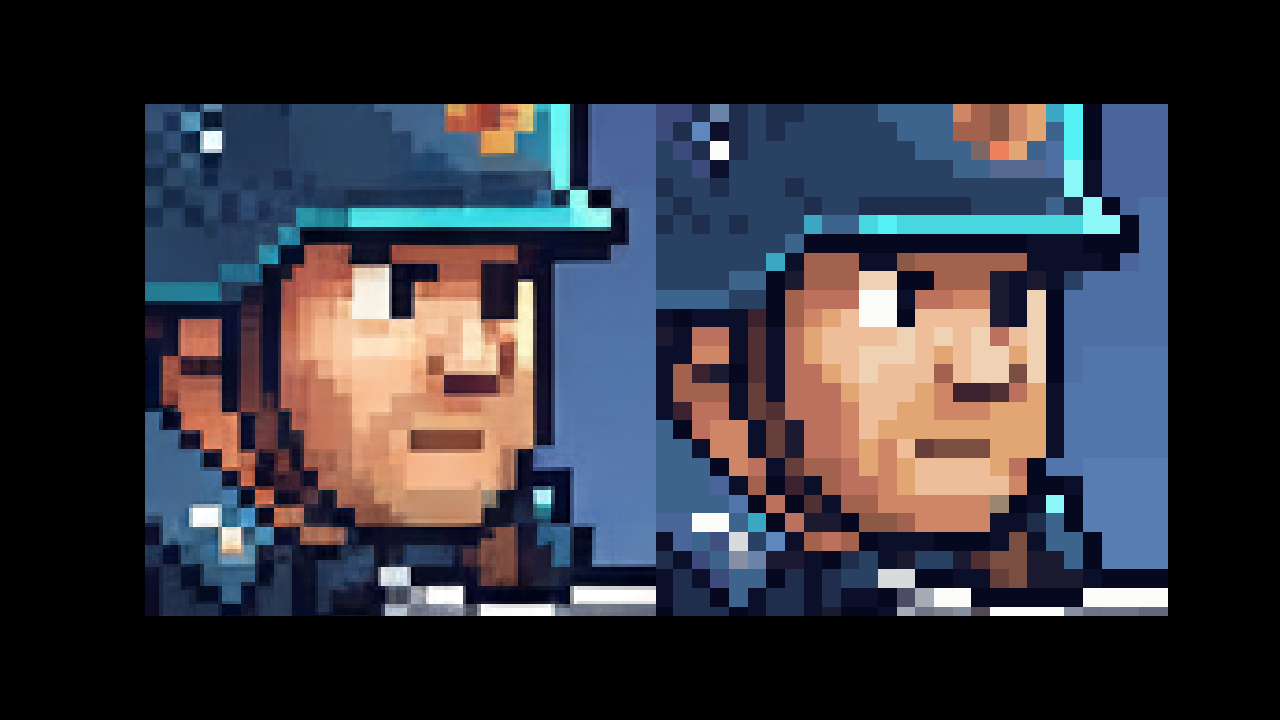
Google's Nano Banana 2 image model is surprisingly good at generating pixel art. You can prompt it through Gemini, and the results look great at first glance. But if you try to use that output in a game engine, you'll run into a problem.
Prompting Nano Banana for pixel art
The model responds well to direct prompts. Something like this works:
"pixel art infantry soldier, side view, 2d game sprite, clean pixel edges, limited color palette, transparent background"
You can also specify a style era if you want a particular look:
"16-bit style pixel art knight, side profile, game sprite, black outline, flat shading"
A few things that help:
- Ask for "side view" or "front view" explicitly. The model defaults to 3/4 angles otherwise.
- Mention "game sprite" or "2d game asset" to keep it grounded.
- "Limited color palette" or "8-color palette" pushes it toward cleaner pixel clusters.
- Specifying a canvas size like "32x32" or "64x64" sometimes works, sometimes gets ignored.
Here's a Nano Banana 2 result for an infantry soldier:
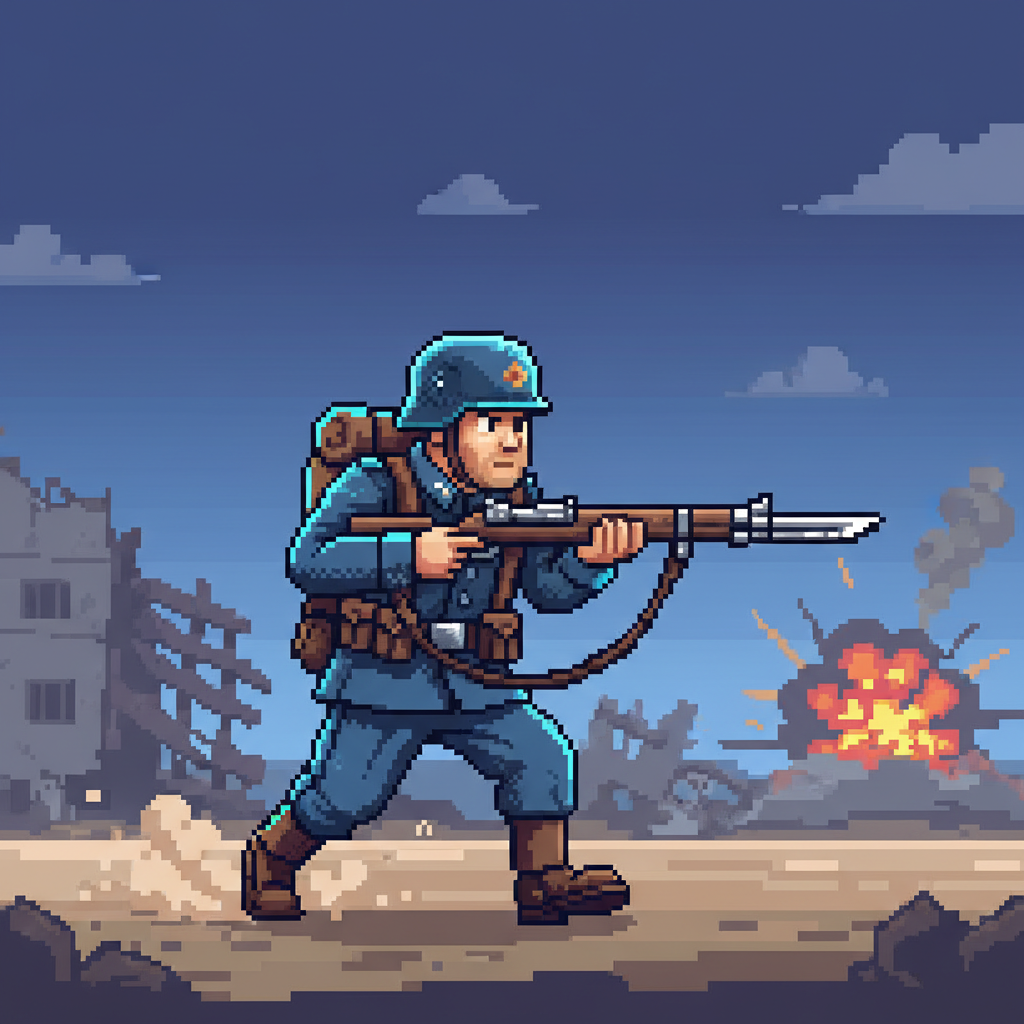
Looks like pixel art, right? The style is there. The shapes read well. But zoom in.
The problem
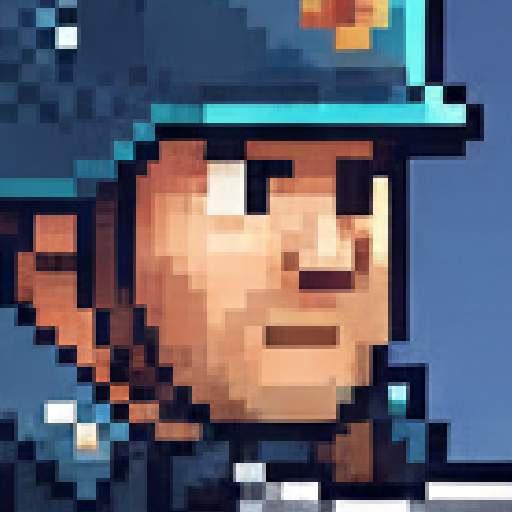
The image is generated at a high resolution (usually 1024x1024), and the model paints pixels that look like pixel art but aren't snapped to a consistent grid. There's sub-pixel noise everywhere. Colors bleed between what should be hard edges. Some "pixels" are 6px wide, others are 7px. The grid is almost there but not quite.
If you drop this into Unity or Godot and scale it down to your target resolution, you get mush. The engine doesn't know where the pixel boundaries are, so it interpolates across them.
This is the same problem you get when someone upscales pixel art with bilinear filtering. The art looks right at a distance, but the grid is gone.
Fixing it
We built a free tool for exactly this. Pixel Grid Detector takes the AI output, detects the intended pixel grid, and snaps every pixel to it.
Drop the image in, and it figures out that your 1024x1024 image is actually a ~64x64 pixel art piece rendered at 16x scale (or whatever the actual grid turns out to be). Then it resamples cleanly so each logical pixel maps to exactly one output pixel.
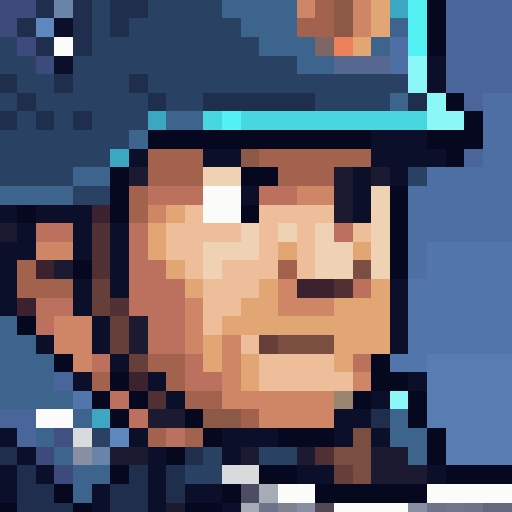
You can also reduce the color count if the model went overboard with gradients. AI models love to add subtle color variations that real pixel art wouldn't have. The tool has presets for 8, 16, 32, 64 colors and so on.
Result
Here's the full infantry sprite after running it through the detector:
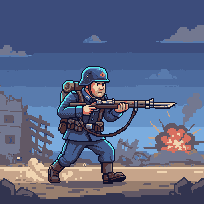
That's a game-ready sprite. Clean grid, consistent pixel sizes, no sub-pixel artifacts. You can import this into your engine with point filtering and it'll render exactly how it should.
Tips for better results
- Prompt for the style, fix the grid after. Don't fight the model trying to get perfect pixel snapping in the prompt. It won't. Focus on getting the right character design, pose, and color palette. Fix the grid in post.
- Generate at the highest resolution available. More source pixels means the detector has more data to find the grid accurately.
- Use color reduction sparingly. If your art style calls for a limited palette, use the tool's color quantization. But if you like the AI's palette choices, keep them.
- Check the grid overlay. The detector shows a grid overlay on the source image so you can verify it found the right grid before downloading.
Works with other models too
This workflow isn't specific to Nano Banana. Any AI model that generates pixel-art-style images at high resolution has the same grid problem. Midjourney, DALL-E, Stable Diffusion, Flux. If it looks like pixel art but isn't on a clean grid, the Pixel Grid Detector can fix it.
If you want to go further and animate the sprite after cleaning it up, check out how to animate custom sprites with SpriteCook.