How to Vibe Code a Browser Game with Phaser.js
A beginner-friendly guide to building a browser game using Phaser.js and an AI coding agent. No prior game dev experience needed.
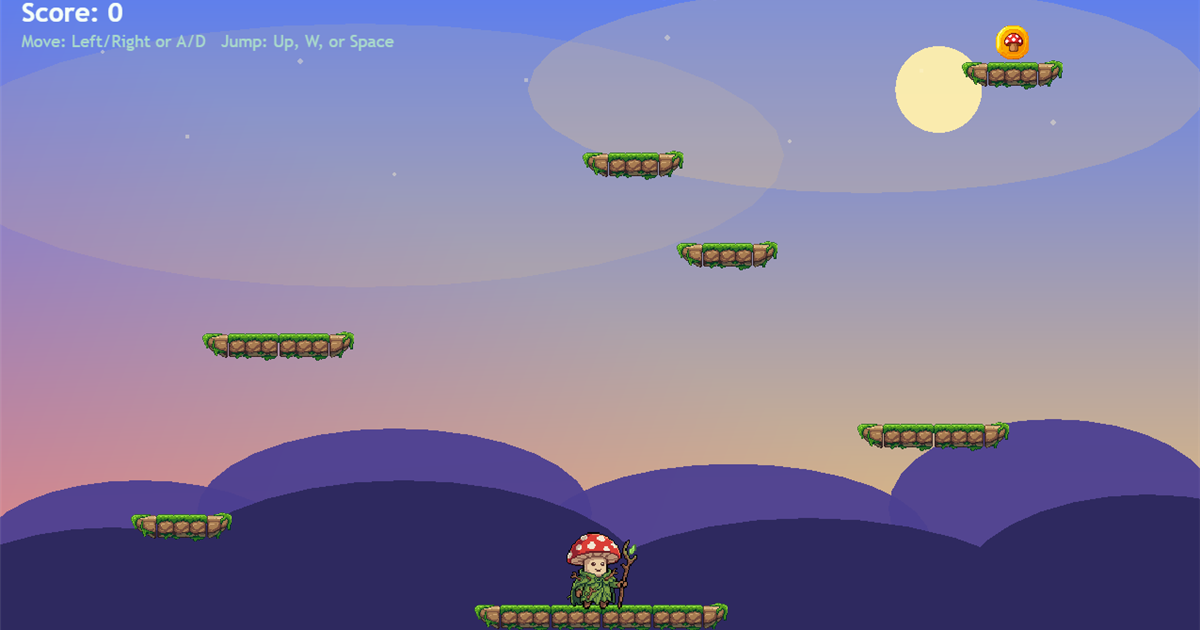
Phaser.js is one of the easiest ways to build a browser game. Add an AI coding agent to the mix and you can go from zero to a playable game in an afternoon, even if you've never touched game dev before.
This guide walks through the whole thing: project setup, game logic, art, and sound.
What you need
- VS Code (or Cursor, Claude Code, Antigravity, any AI-powered editor works)
- Codex or your agent of choice installed
- Node.js (just for running the local dev server)
- A SpriteCook account (use code VIBECODE2026 for bonus credits, limited redemptions)
- No Phaser experience needed
Step 1: Pick your IDE and agent
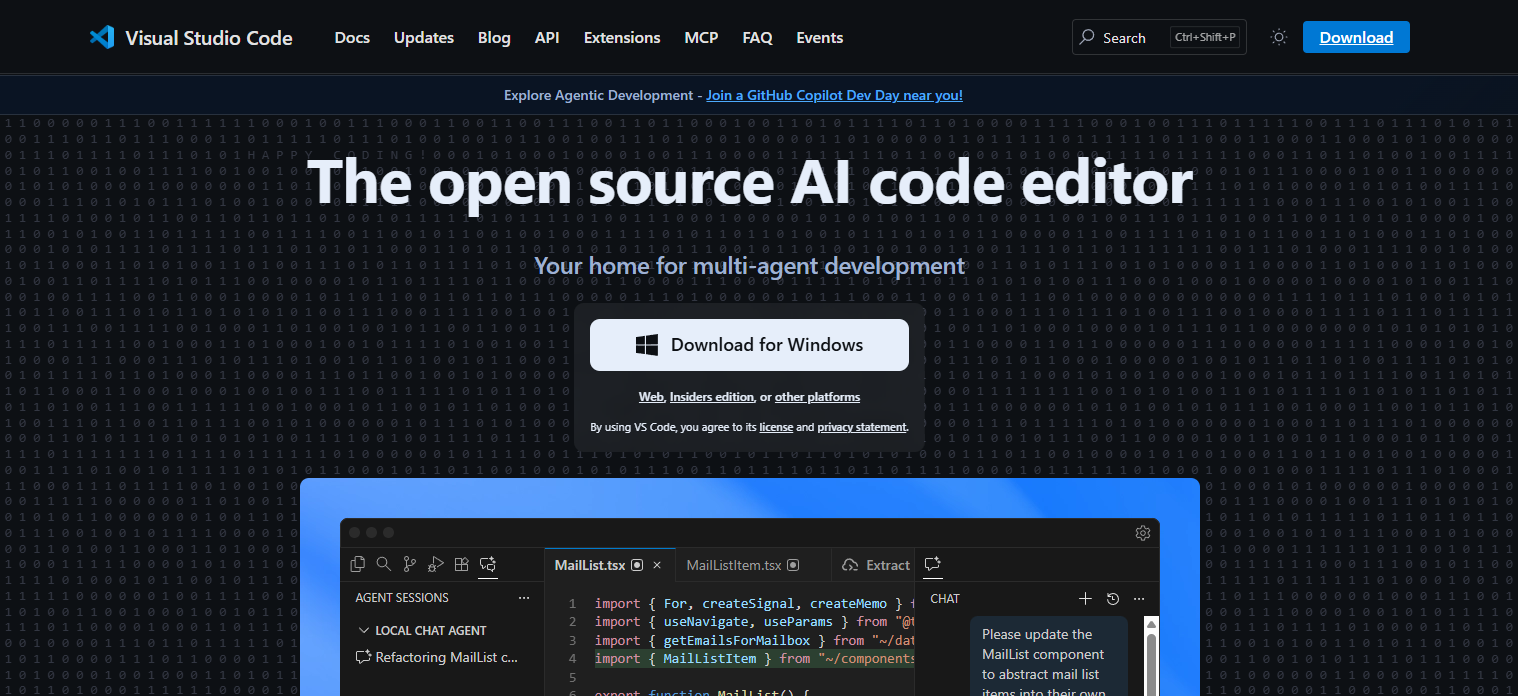
We're using VS Code + Codex in this walkthrough, but the approach is the same in Cursor, Claude Code, Antigravity, or any editor with an AI assistant. Pick what you're comfortable with.

Step 2: Set up the project
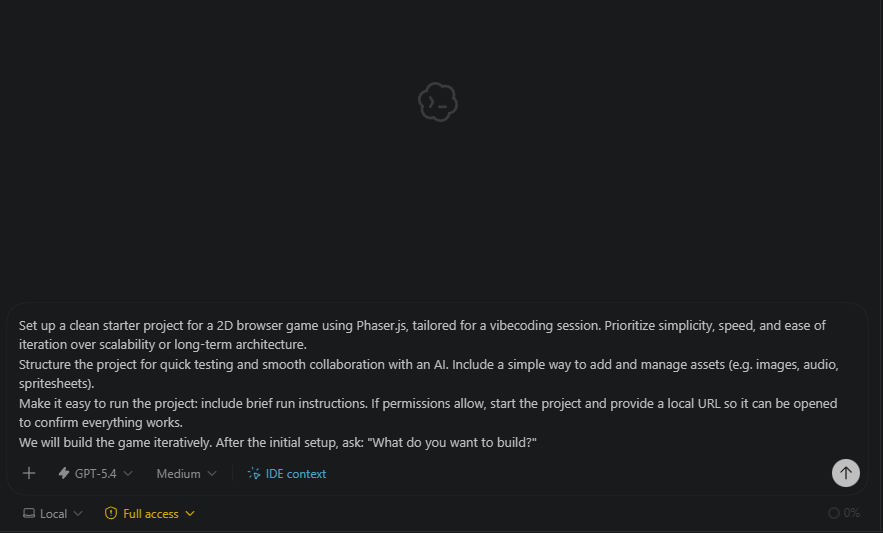
Open your agent and paste in this prompt:
Set up a clean starter project for a 2D browser game using Phaser.js, tailored for a vibecoding session. Prioritize simplicity, speed, and ease of iteration over scalability or long-term architecture.

Structure the project for quick testing and smooth collaboration with an AI. Include a simple way to add and manage assets (e.g. images, audio, spritesheets).

Make it easy to run the project: include brief run instructions. If permissions allow, start the project and provide a local URL so it can be opened to confirm everything works.

We will build the game iteratively. After the initial setup, ask: "What do you want to build?"
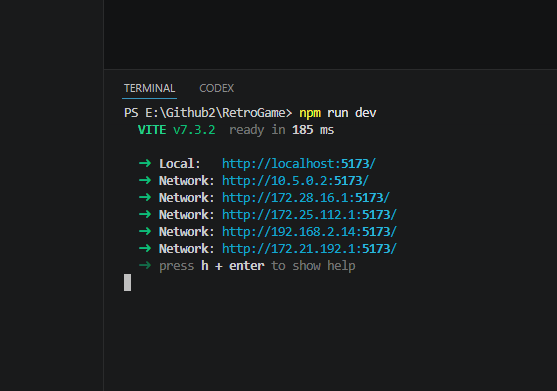
The agent will scaffold a project folder, install Phaser, and spin up a local dev server.
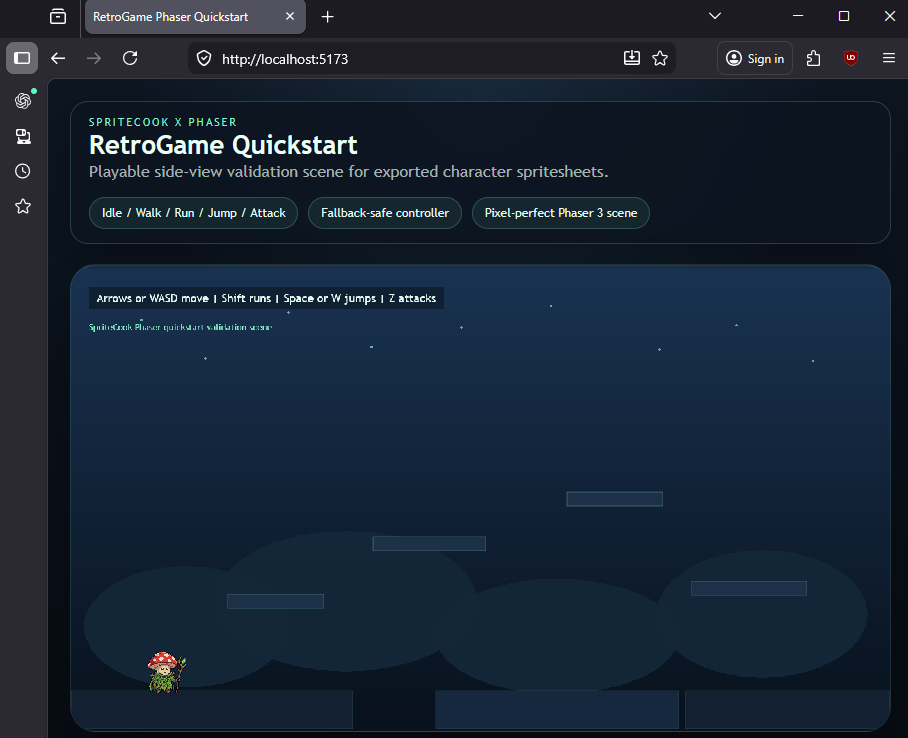
Want to skip setup? Download our pre-configured starter below. It includes a basic platformer character controller. Build whatever you want on top of it.
Step 3: Ask for a game
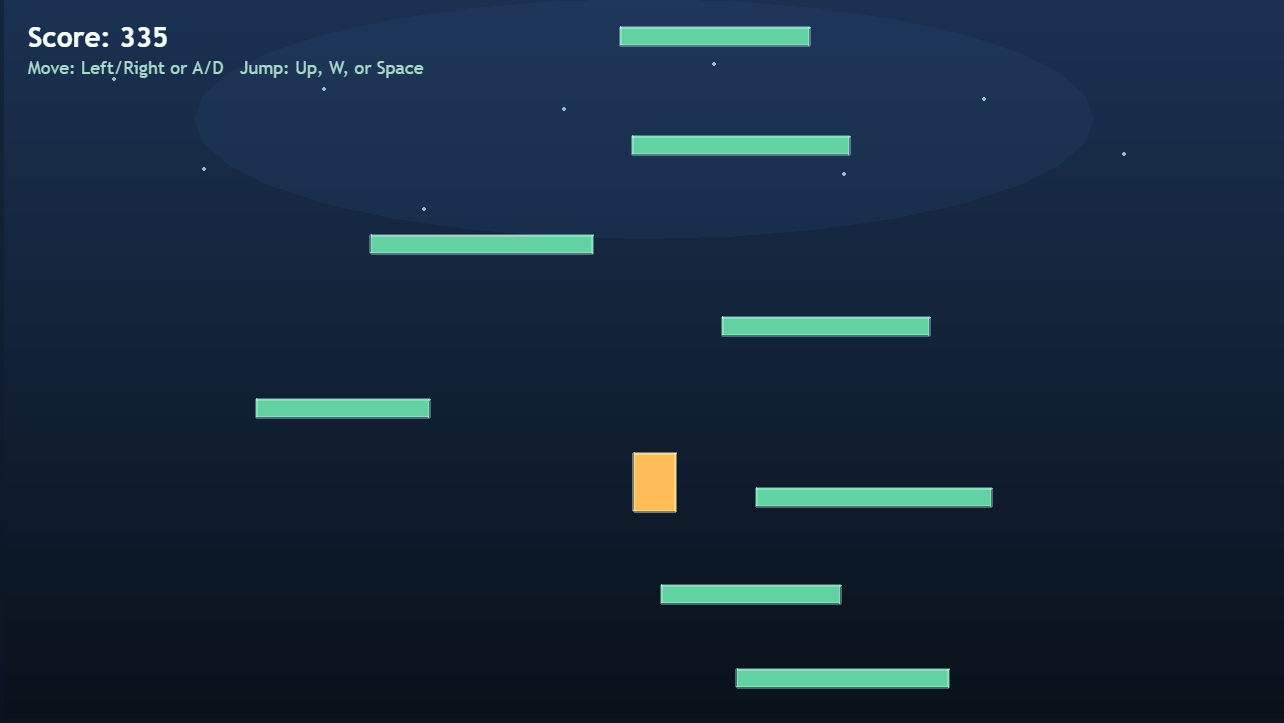
Now tell the agent what to build. We went with a vertical jumper. You control a character that bounces between platforms, the platforms get faster as you go, and falling off the bottom ends the game.
Build a simple vertical platformer game. The player starts at the bottom and jumps between platforms that appear above. Platforms should move downward slowly, increasing in speed over time.
The player dies if they fall below the screen. Add a score that increases the longer they survive.
Use placeholder colored rectangles for the player and platforms for now. We'll swap in real art later.
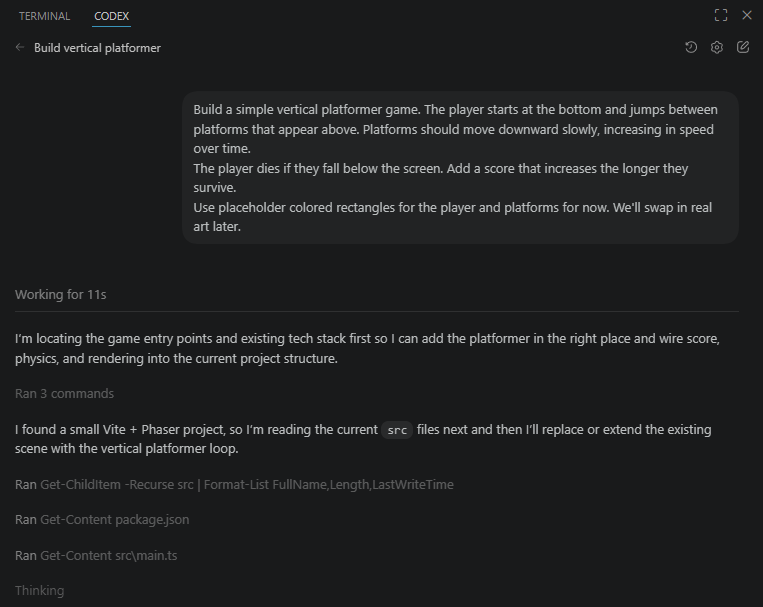
The agent will write the game logic and wire it into Phaser. You'll have something playable in a few minutes.
Step 4: Generate your character
Placeholder shapes work for testing, but let's add real art. We'll generate a character with idle, run, and jump animations.
Head to SpriteCook and generate a character. Use code VIBECODE2026 at signup for bonus credits (limited redemptions). Something like:
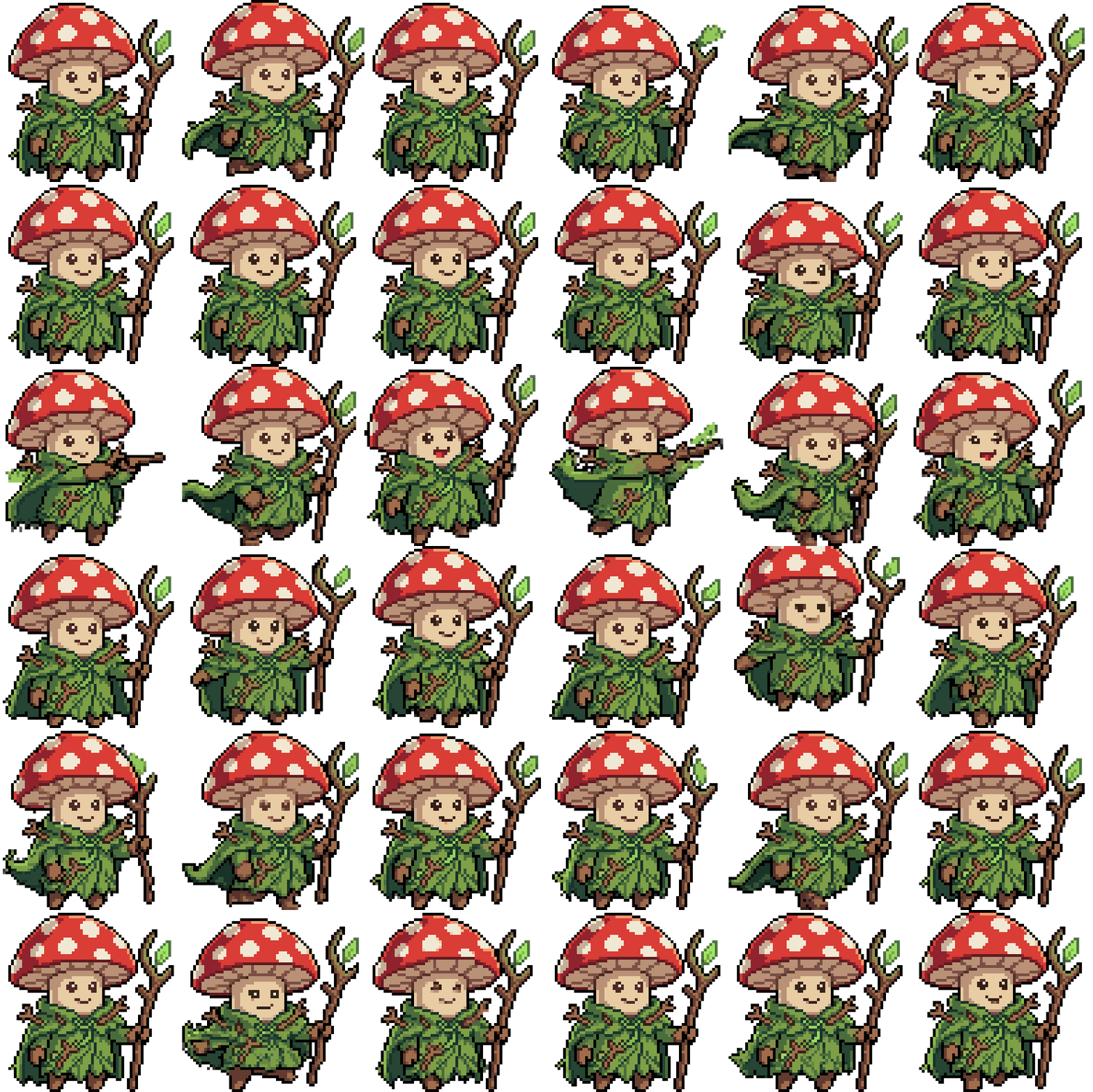
"A small fantasy mushroom creature with a red cap, holding a wooden staff. Pixel art, platformer style."
Then go to Characters and add the Platformer animation set (idle, walk, jump).
Here's the full character creation walkthrough:
Or read the step-by-step guide if you prefer text.
Don't want to generate one right now? You can download this mushroom character and use it directly:
Step 5: Drop the assets in and let the AI wire them up
Drag the sprite sheets into your project's assets folder. Then tell the agent:
I've added a character sprite sheet at assets/character_walk.png.
It's a horizontal strip of 8 frames at 48x48px each.
Replace the placeholder rectangle player with this sprite.
Add idle, run, and jump animations using the correct frame ranges.
Step 6: Generate the rest of the art
Do the same for the other game pieces. Back in SpriteCook, generate:
- Platforms: "mossy stone platform, pixel art, top-down tile"
- Coins: "gold coin, pixel art, spinning animation, 6 frames"
- Clouds: "fluffy white cloud, pixel art, transparent background"
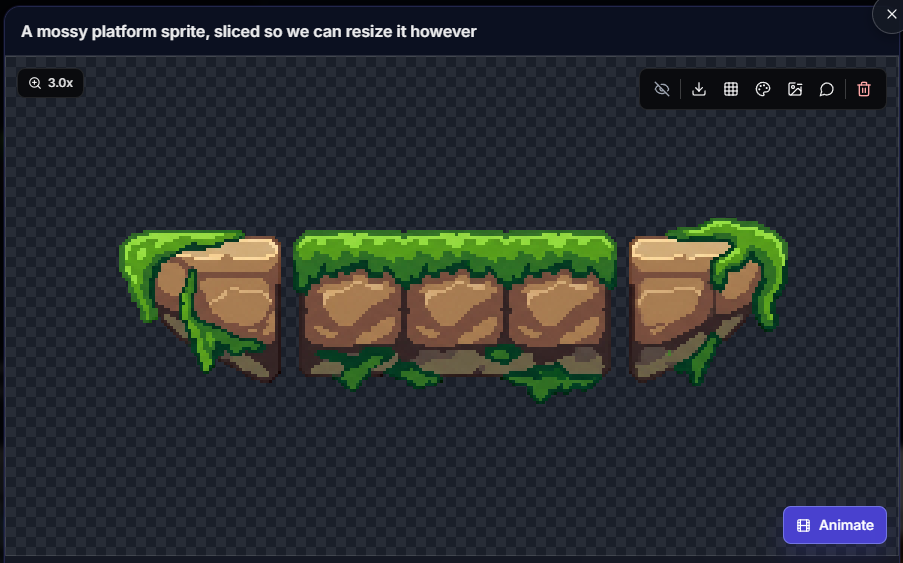
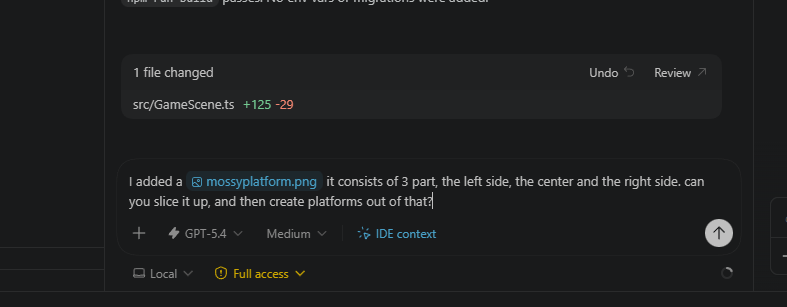
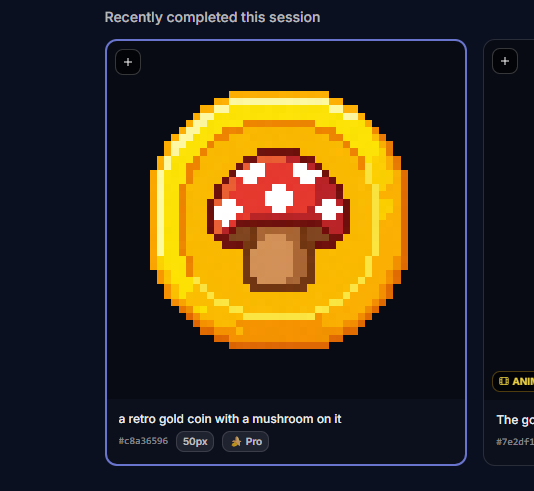
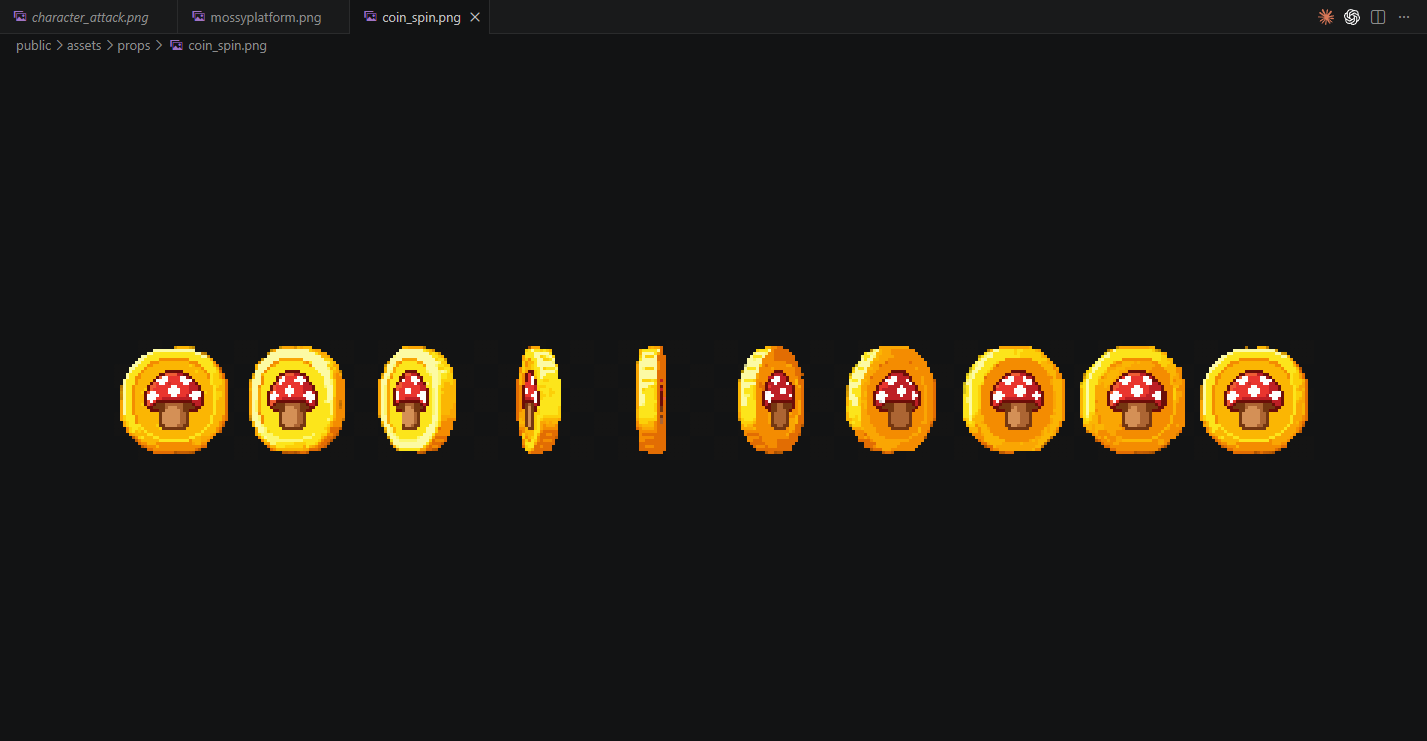
Drop them into your assets folder and tell the agent to swap out the remaining placeholders. If you want to go deeper on the generation options, the pixel art assets guide covers it all.
Step 7: Add sound effects
The Game Audio GDC pack from Sonniss has hundreds of free, high quality SFX. Download what you need from sonniss.com/gameaudiogdc.
Good picks for this kind of game:
- A jump sound
- A coin pickup sound
- A death / game over sound
Drop the .mp3 or .ogg files into assets/audio/ and tell the agent:
I've added these audio files to assets/audio/:
- jump.mp3
- coin.ogg
- death.mp3

Wire them up: play jump.mp3 when the player jumps, coin.ogg when a coin is collected, and death.mp3 on game over.
Final result
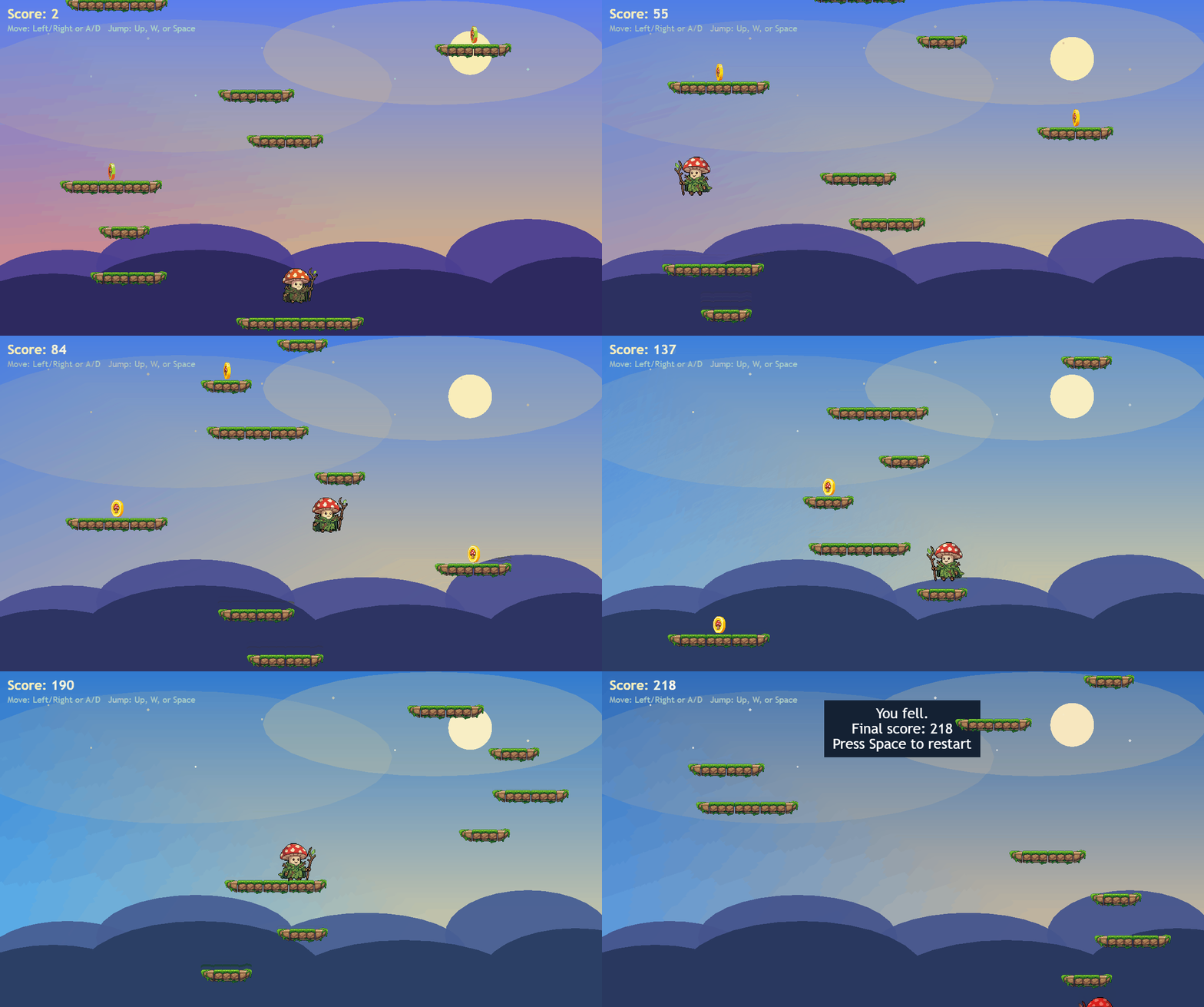
Art, sound, playable loop. Done in one session.
Keep going from here. Ask the agent for more features, a high score screen, better animations. It handles the code while you decide what to build next.
Share what you made
Come post your game in the SpriteCook Discord. Always fun to see what people build.