Let Your AI Agent Generate Sprites and Animations
How to connect your AI coding agent to SpriteCook so it can generate pixel art and animations directly inside your project.
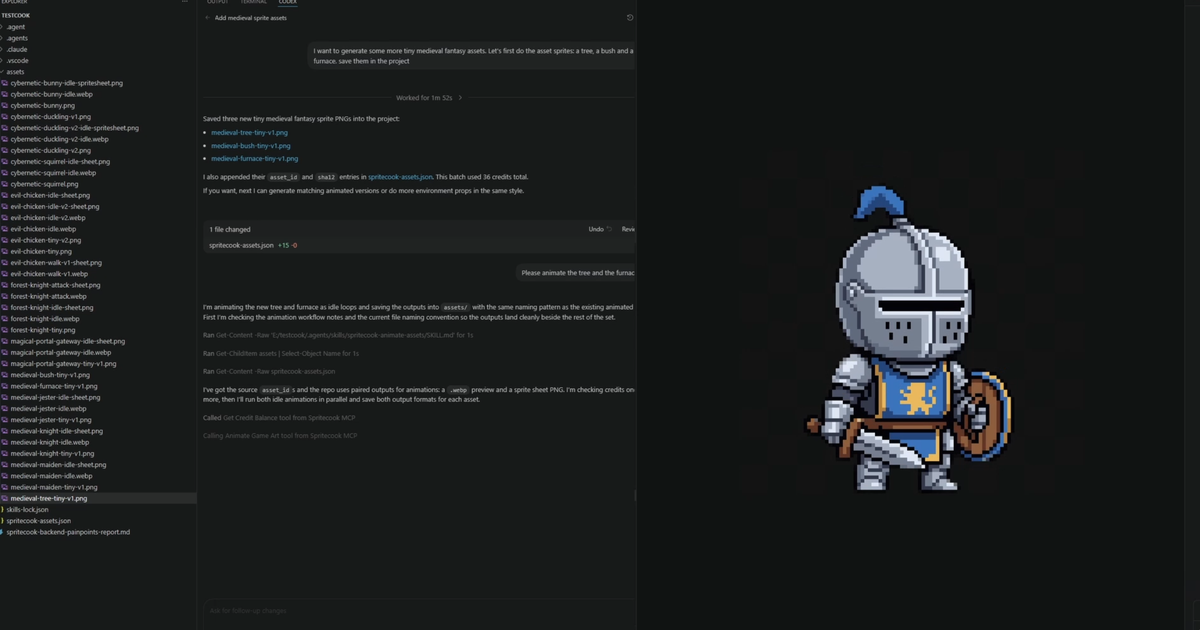
If you're building a game with an AI coding agent (Cursor, Claude Code, VS Code Copilot), you can connect it directly to SpriteCook. Instead of switching tabs to generate assets manually, the agent just does it for you mid-workflow.
This covers how to set that up.
What you need
- A SpriteCook account
- One of: Codex, Cursor, Claude Code, VS Code, Claude Desktop, Antigravity, or any agent with MCP support.
Step 1: Run the setup command
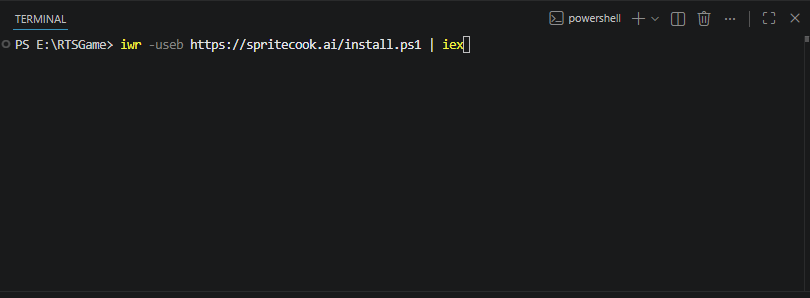
Head to spritecook.ai/agents and run the installer for your OS:
Windows (PowerShell):
iwr -useb https://spritecook.ai/install.ps1 | iex
Mac / Linux:
bash -c "$(curl -fsSL https://spritecook.ai/install.sh)"
The command walks you through four quick steps:
The installer starts and shows you what it's about to do:
It opens a browser tab so you can connect your SpriteCook account:
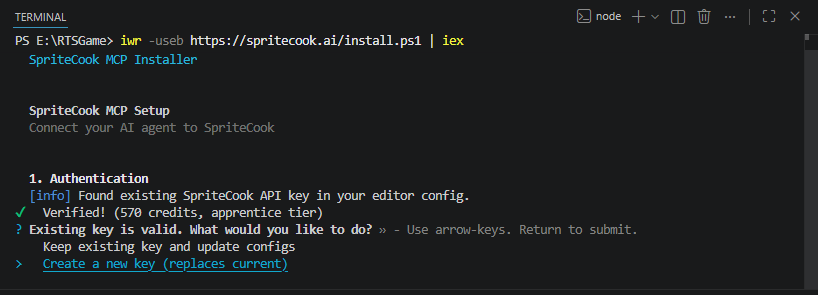
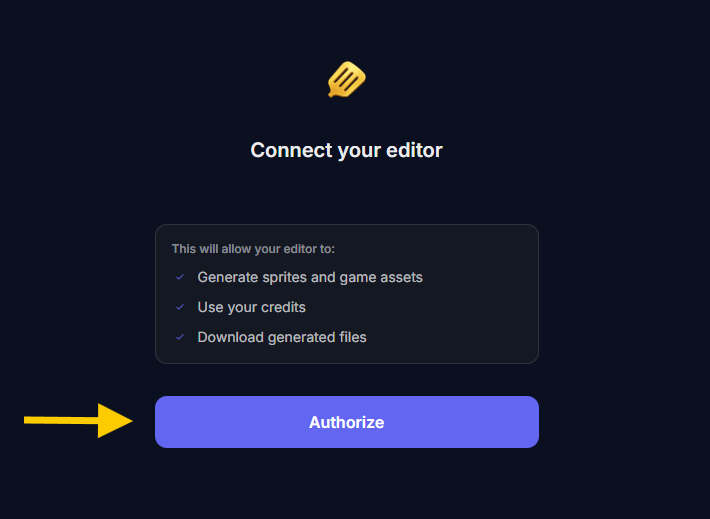
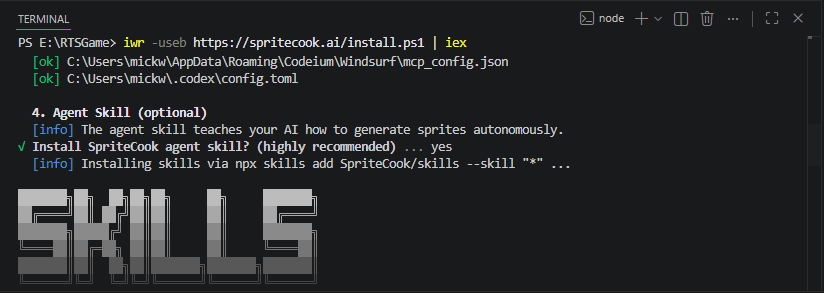
It detects your editors and sets up the MCP connection and agent skill. You can customize which editors to configure, or just hit enter to accept the defaults:
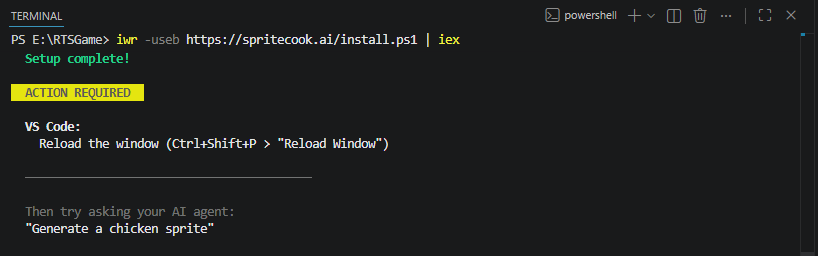
Setup complete. If you're on VS Code, reload the window to pick up the new config. Some editors may also need you to enable the SpriteCook MCP connection in the agent's MCP settings.
That's it! Ready to go
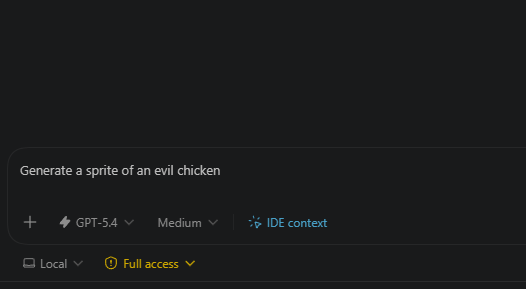
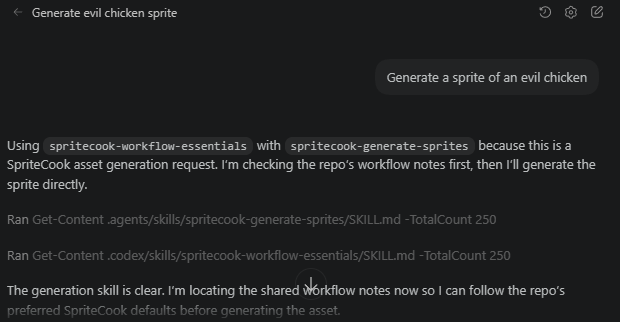
Reload your editor window and your agent will have access to SpriteCook. Ask it to generate a sprite and it'll just do it.
While you're here
Why the skill matters
The setup installs an agent skill alongside the MCP tools. The skill is what tells your agent how to use SpriteCook well.
Without it, the agent knows the tools exist but might use them inefficiently. For example, when generating a full asset set, the right approach is to generate one hero asset first, then use that asset's ID as a style reference for everything else. That keeps your art consistent across characters, items, and props.
The skill also tells the agent:
- Which settings to use for different asset types (characters, tiles, UI, icons)
- How to handle concurrent job limits
- When to use the animation tools vs. the generation tools
- How to download assets into your project automatically
With the skill in place, you can say something like "generate all the sprites for my RPG inventory screen" and the agent will check your credit balance, generate a hero item first, then build out the rest of the set matching that style.
What the agent can do
Once connected, your agent has access to:
- Generate sprites from a text prompt (pixel art or HD)
- Animate sprites from an existing asset
- Check job status for longer-running jobs
- Check your credit balance before generating batches
For a full walkthrough of the generation options, see how to generate pixel art game assets. For animation specifically, see how to animate custom sprites.
Manual config (if you prefer)
If the auto-setup doesn't work for your setup, you can add this to your editor's MCP config manually.
Cursor (.cursor/mcp.json):
{
  "mcpServers": {
    "spritecook": {
      "url": "https://api.spritecook.ai/mcp/",
      "headers": { "Authorization": "Bearer YOUR_API_KEY" }
    }
  }
}
VS Code (.vscode/settings.json):
{
  "mcp": {
    "servers": {
      "spritecook": {
        "type": "http",
        "url": "https://api.spritecook.ai/mcp/",
        "headers": { "Authorization": "Bearer YOUR_API_KEY" }
      }
    }
  }
}
Get your API key from app.spritecook.ai/api-keys.
Stuck or want to share results?
Come drop by the SpriteCook Discord if you run into issues or want to show what your agent built.
