Importing Sprites into Godot
Import, disable filtering, slice sheets, set pixel-perfect defaults.
Godot 4.x
Importer
Preset 2D, filter off, no mipmaps
Show
Slice sheet
SpriteFrames or AtlasTexture
Show
Pixel-perfect
Project defaults and scaling
Show
Quick settings
- Import dock Preset: 2D
- Filter: Off / Nearest, Mipmaps: Off
- Repeat: Disabled (tiles can use Repeat)
- Nodes: Sprite2D or AnimatedSprite2D
1
Import the PNG
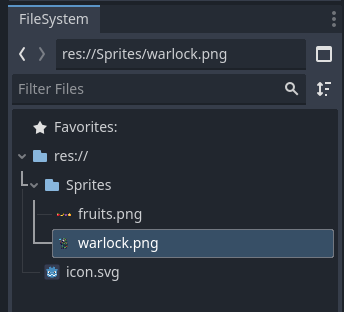
Drag the PNG into the FileSystem. Select it to open the Import dock.
2
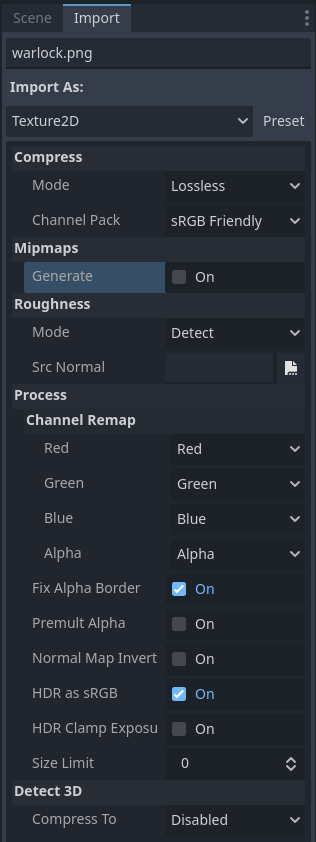
Set import options
- Preset: 2D.
- Filter: Off (Nearest). Mipmaps: Off.
- Repeat: Disabled. Compression: Lossless or Uncompressed.
- Click Reimport.
3
If you have multiple sprites in one image
4
Pixel-perfect setup (advanced)
5
Draw-call tips
Godot 4 batches many 2D draws. For manual atlases, group frames into one texture and use AtlasTexture or a packed sheet via SpriteFrames.