Background Types
Choose the perfect background for your game assets.
Available Background Types
SpriteCook offers three background options to suit different use cases. Choose the one that best fits how you'll use your generated assets in your game.
Visual Comparison
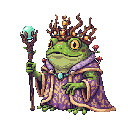
Transparent
No background, perfect for sprites
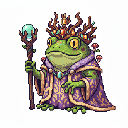
White Background
Solid white for easy preview
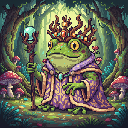
Include Background
Full scene with themed environment
Transparent Background
The background is completely transparent (alpha channel), making it perfect for sprites and characters that need to be placed over other elements. This is the most common choice for game sprites, UI elements, and objects.
Best for:
• Character sprites and NPCs
• Items and collectibles
• UI elements and icons
• Anything that needs to layer over backgrounds
White Background
A solid white background behind your asset. Useful for previewing, editing in external tools, or when you plan to remove the background yourself later. The white background can make it easier to see details during the creation process.
Best for:
• Assets you'll edit in Photoshop or other tools
• Preview and iteration during development
• Assets with complex edges that need manual cleanup
Include Background
The AI generates a thematic background that fits your asset. This creates a complete scene or environment around your character or object. Perfect for character portraits, promotional art, or tile-based backgrounds.
Best for:
• Environment tiles and backgrounds
• Character portraits with atmosphere
• Promotional or concept art
• Full scenes and compositions
Pro Tip
When generating your assets, try each background type to see which works best for your needs. You can always regenerate the same prompt with a different background type if you change your mind. Most sprite work uses transparent backgrounds, but white backgrounds can be helpful during the creation process to see details more clearly.