Why AI Sometimes Can't Match Your Sprite's Resolution
Image models fake pixel art at a simulated grid, and sometimes they pick the wrong grid size. Here's what that breaks in animation, and what to do about it.
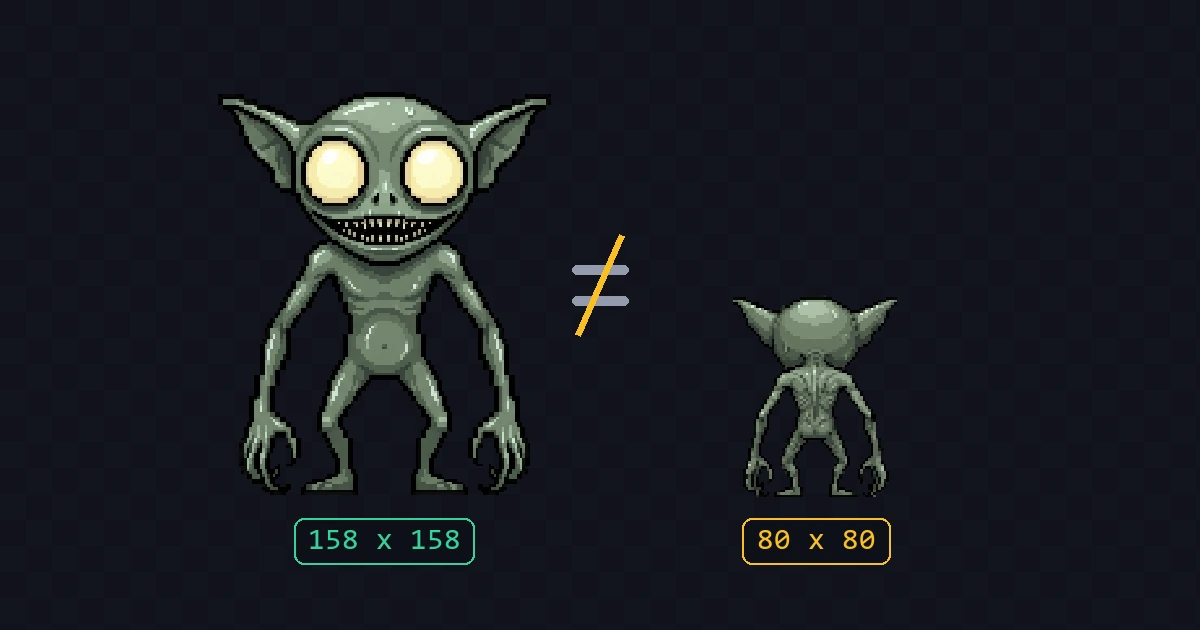
If an animation run just told you "We couldn't animate this character", this post explains what went wrong under the hood, why retrying the same character rarely fixes it, and what does.
The short version. AI image models don't actually draw pixels, they draw pictures of pixels. Sometimes the model draws your character's new pose with pixels that are much bigger than the ones in your original sprite. That pose can't be scaled back to your character's real resolution without turning to mush, so we stop the run and refund your credits instead of generating blurry animations.
AI doesn't draw pixels
Image models render at high resolution, usually around 1024x1024. Ask one for a 64x64 sprite and what comes back is a big image where each "pixel" is a painted block of roughly 16x16 real pixels.
To get a true 64x64 sprite, we detect that block grid and downscale the image so every block becomes one real pixel. That's how all pixel art generation works here, and it's also what our free pixel grid detector does if you want to inspect any sprite yourself.
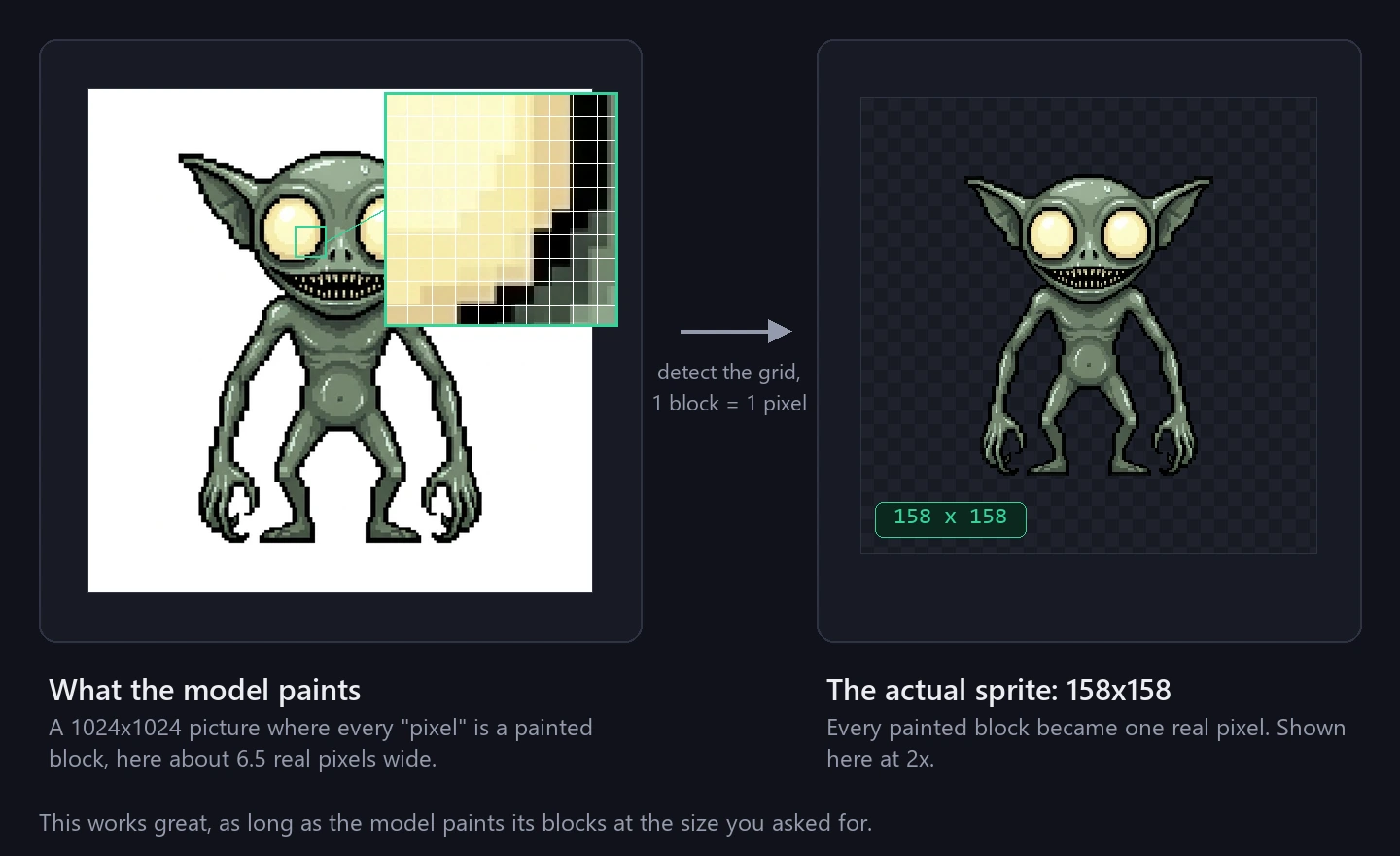
This works well for single images. The trouble starts when the model has to match a grid it didn't choose.
Animations need new poses
Some animations can't start from your character's default pose. A back-facing walk needs a back view, a side attack needs a side view. So before animating, we run a prep step where the model redraws your character in the starting pose the animation needs. The custom animations post covers how you can control this step yourself.
That redraw is where the resolution problem shows up. The model has to invent a new image of your character while keeping the same style and the same pixel size. Style usually survives. Pixel size sometimes doesn't.
Where it goes wrong
Every so often the model draws the new pose with a chunkier grid than your sprite. The gremlin below is a real failed run. The character is a true 158x158 sprite. Its back view came back looking right at full render size, but painted with blocks twice as wide. Snap that image to its real grid and you get an 80x80 sprite, a quarter of the detail the character started with.
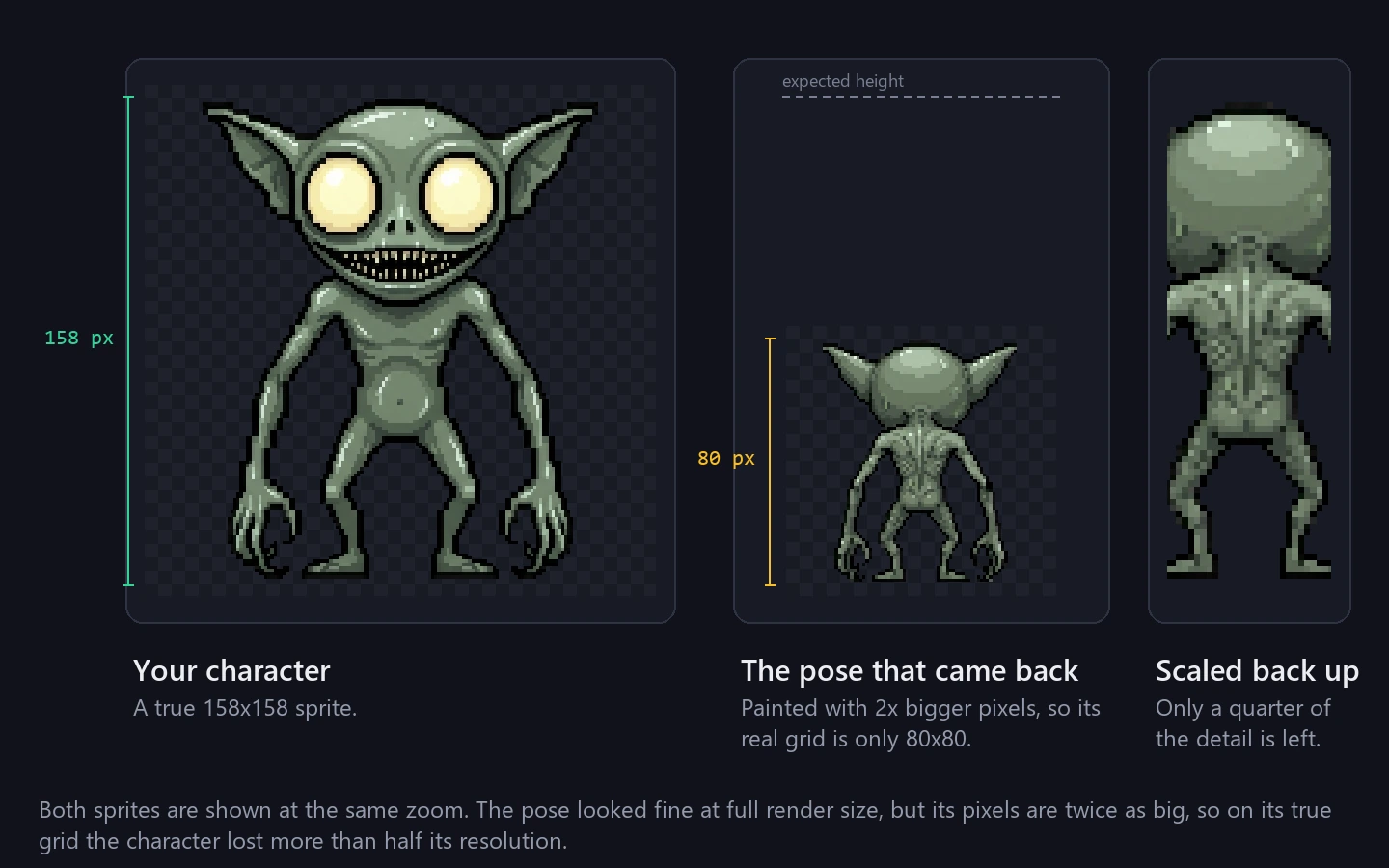
It can also go the other direction, with the pose coming back on a finer grid than the source. Either way, the pose no longer shares your character's pixel size.
Animating from that pose would give you a full set of animations that look softer and blockier than your actual character. Every frame inherits the degraded resolution.
Why we fail the run instead
We check every prep pose against your character's real resolution before any animation starts. If the pose's true grid is too far off, we mark the run as failed, refund the credits automatically, and flag it to our team.
That feels worse in the moment than getting something, but the something would be a pack of mushy animations you paid for and can't use. Failing early is the better deal.
Why retrying rarely helps
The grid the model picks isn't random. It's a reaction to your specific character: its proportions, its level of detail, how readable its pixel edges are. Feed it the same character again and it tends to make the same call. That's why the app pushes you toward picking a different character instead of offering a retry button for this failure.
What actually works
A few things that get you unstuck:
- Retry with the Pro model. When a run fails this way, the app offers to rerun the pose step once with our strongest model. It costs a bit more, and the price is shown on the button, but it locks onto the right grid more often.
- Change the character. Even small design changes can flip the outcome. Regenerate the character, or pick a different one and try again.
- Add detail. Sprites with a few flat color areas and simple silhouettes give the model little to anchor its grid on. A design with more internal detail pins the pixel size down better.
- Check uploaded sprites. If you uploaded your own character, run it through the pixel grid detector first. Sprites that were upscaled unevenly or exported slightly off-grid make the pose step guess, and it guesses wrong more often.
If you keep hitting this with characters you'd expect to work, tell us in the Discord. Failed runs are flagged to us automatically, but hearing what you were trying to make helps us tune the models.