The Frame Editor
Add, arrange, and generate individual frames in your animation.
The frame editor is the horizontal strip of frame cards that appears below your source sprite when you're in Animate mode. Each card represents one frame of your animation.
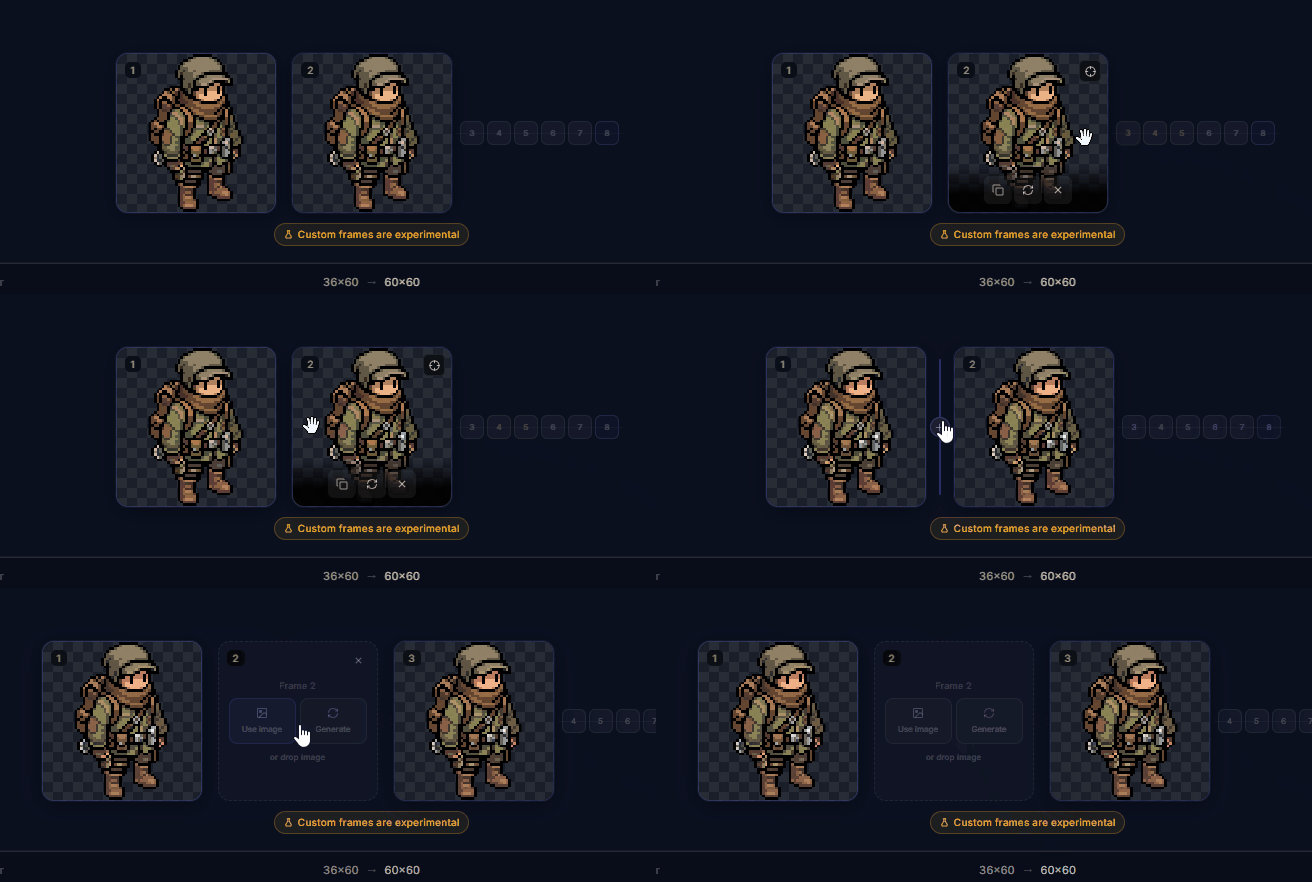
Frame states
Each frame slot can be in one of these states:
Empty
No image assigned yet. The model will generate this frame based on the surrounding frames and your prompt.
Filled
Has a reference image. This frame acts as a keyframe that guides the generation.
Generating
Currently being generated. You'll see a progress indicator while it works.
Marked for regen
Tagged to be regenerated on the next run. Useful for fixing specific frames without redoing everything.
Adding frames
Click the + button between any two frames to insert a new empty slot. You can also add frames at the end of the strip. The total frame count updates automatically as you add or remove slots.
Assigning reference images
There are two ways to fill a frame with a reference image:
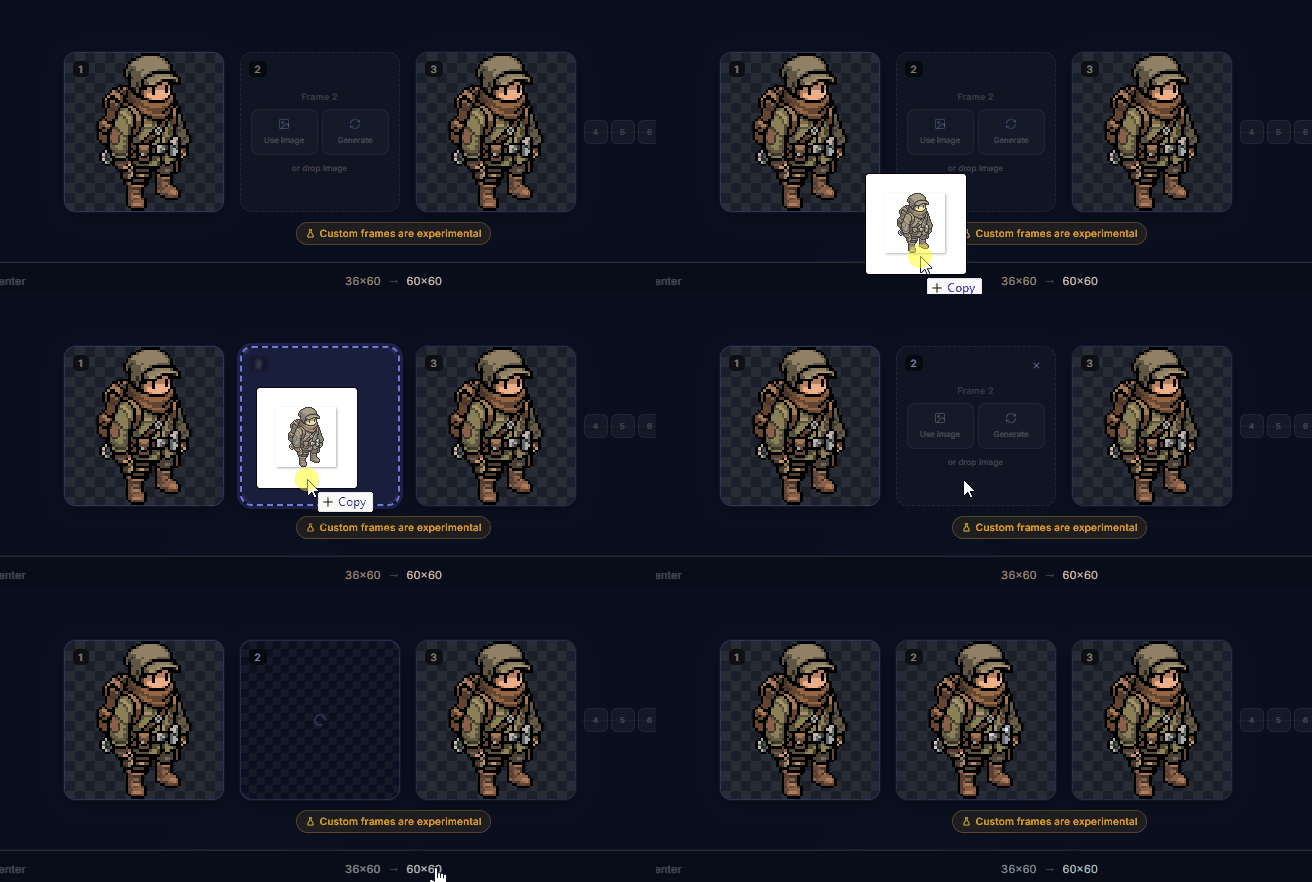
Upload or drop
Drag an image file onto any frame card, or click the upload icon on an empty frame.
Pick from your library
Click a frame card and choose an asset from your existing library. Only images that match the size constraints will show up.
Per-frame prompts
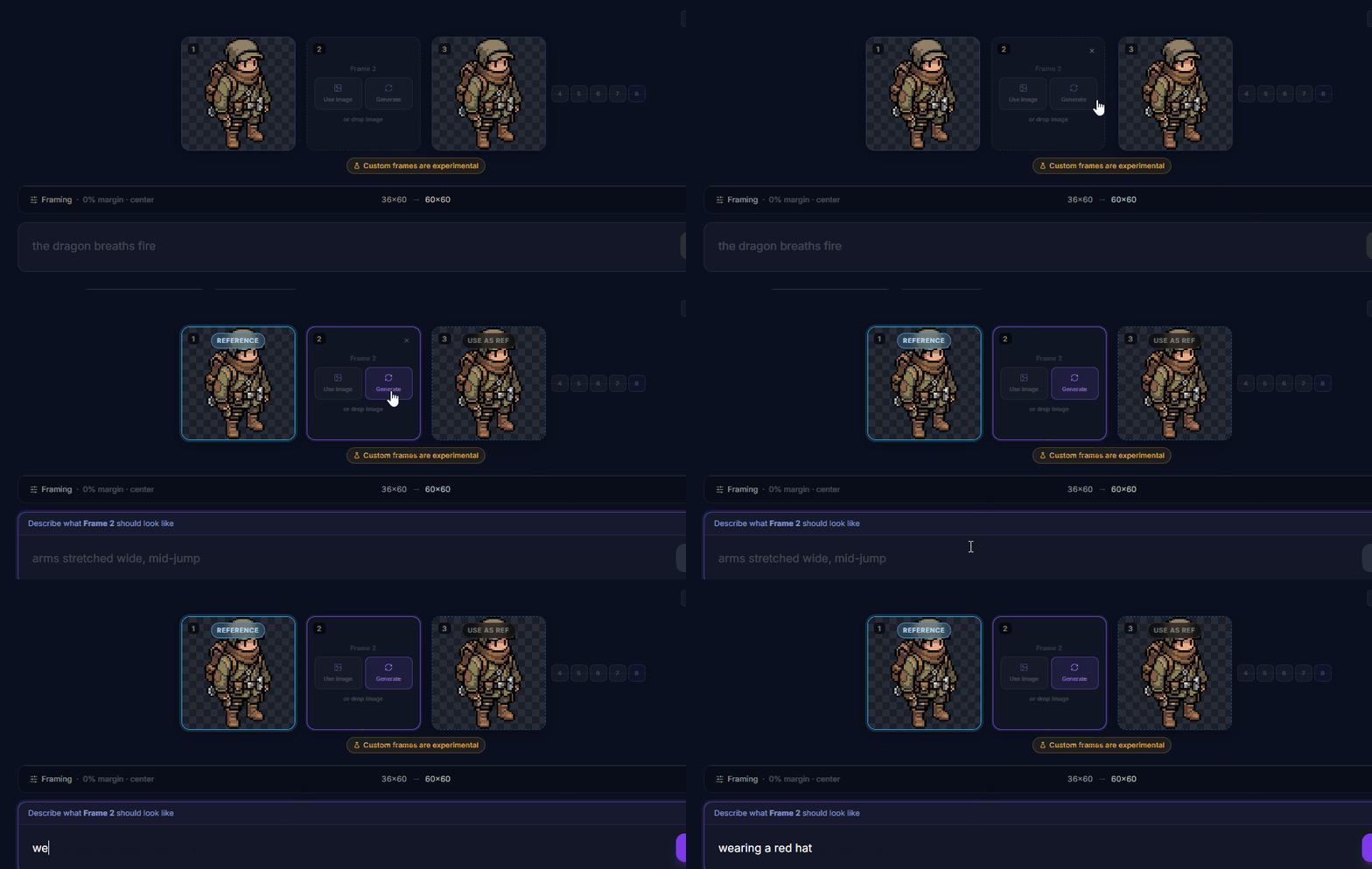
Instead of uploading a reference, you can generate an image for a specific frame. Click "or generate" on any empty frame card, and the prompt bar switches to frame-specific mode. Write what that frame should look like, and it generates just that one frame.
Reordering frames
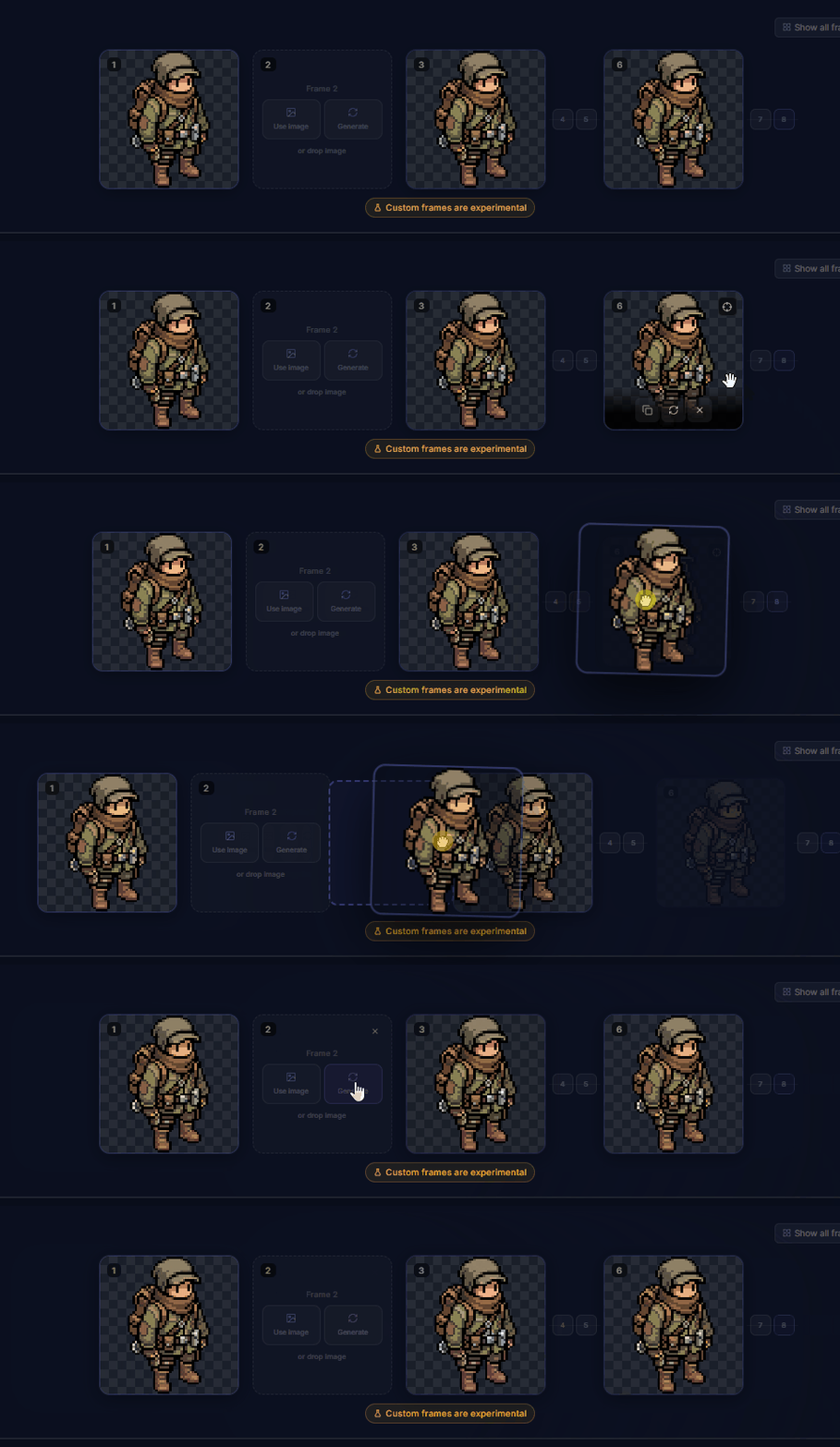
Drag any filled frame to a new position in the strip. The frame numbers update automatically. This is useful for rearranging the sequence after generating or uploading frames out of order.
Regenerating frames
After generating an animation, some frames might not look right. Instead of starting over, hover over the frame you want to redo and click the refresh icon. This marks it for regeneration.
You can mark multiple frames at once. When you re-run the animation, only the marked frames get regenerated. The rest stay exactly as they are.
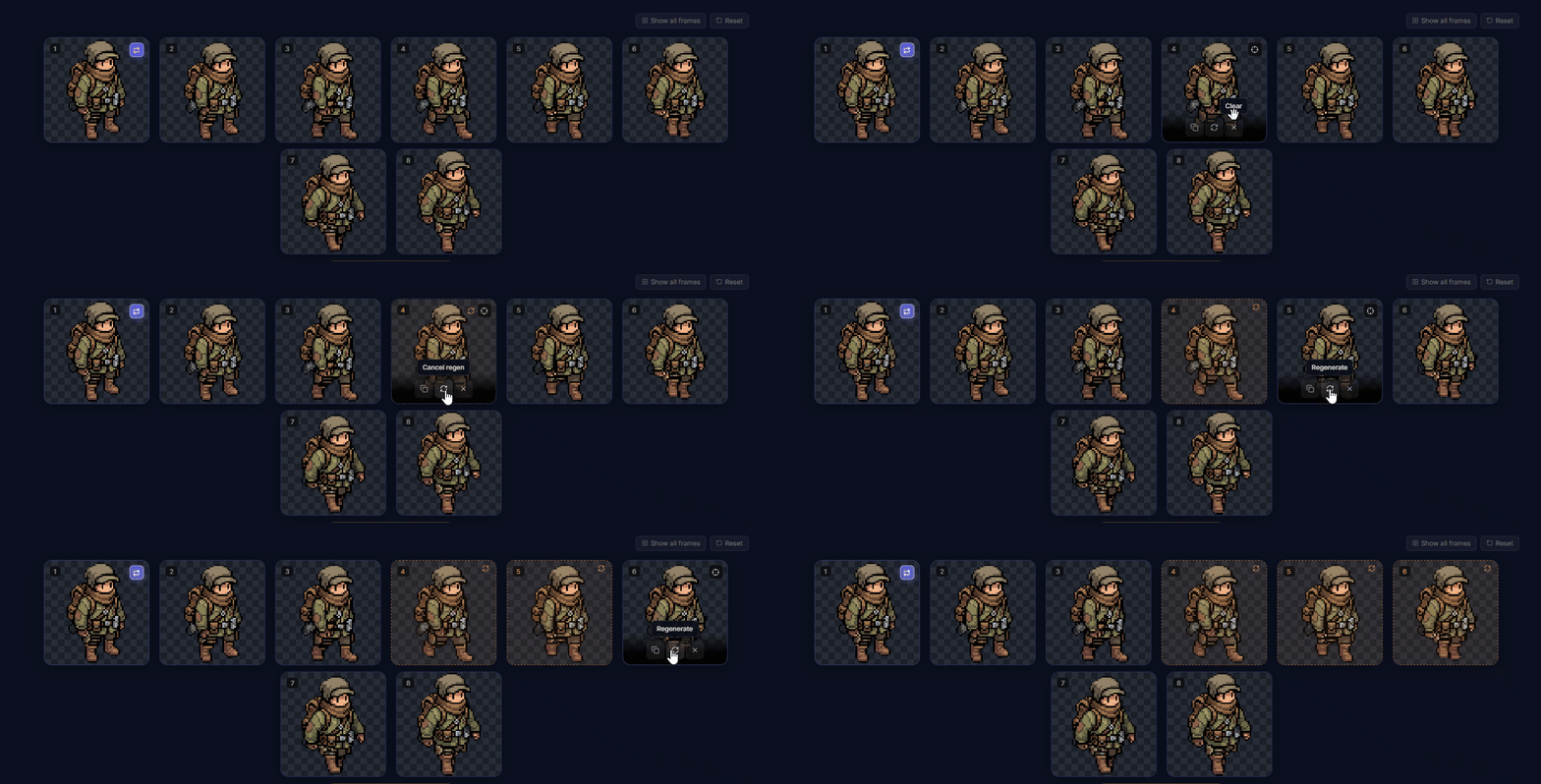
Removing frames
Click the X on any frame card to remove it from the strip. If you want to keep the slot but clear its contents, use the clear button instead. Frame 1 (your source sprite) can't be removed, but you can swap it out.
Tips
Start with the extremes. Place references on the first and last frames of a motion (like the start and peak of a jump), and let the model fill in the middle.
Don't overload it. You can place up to 8 reference frames. In practice, 2 to 4 keyframes gives the model enough guidance without boxing it in. Leave room for it to create smooth transitions.
Use presets as a starting point. Select a preset (Idle, Walk, Run, Attack) and then customize individual frames from there. Faster than building every frame from scratch.
Framing & Alignment covers canvas settings, margins, positioning, and the onion-skin alignment tool.