Framing & Alignment
Control how your sprite sits on the animation canvas.
Before generating an animation, you can adjust how your sprite is positioned within the animation canvas. This matters because the model needs space around the sprite to show motion. A jump needs headroom. A swing needs room to extend past the body.
All framing settings apply to every frame in the animation. This keeps the canvas consistent so sprites don't shift between frames.
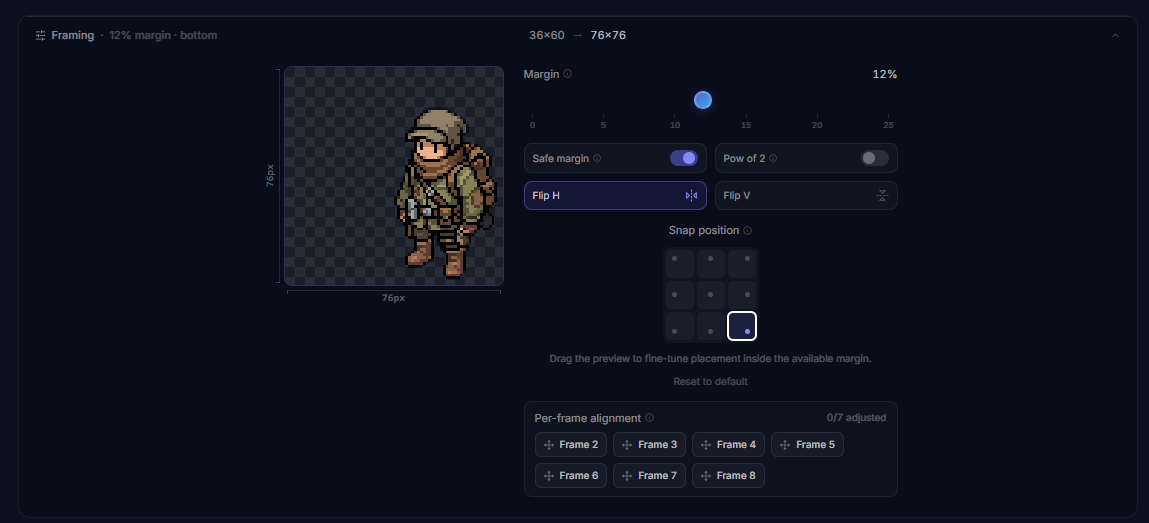
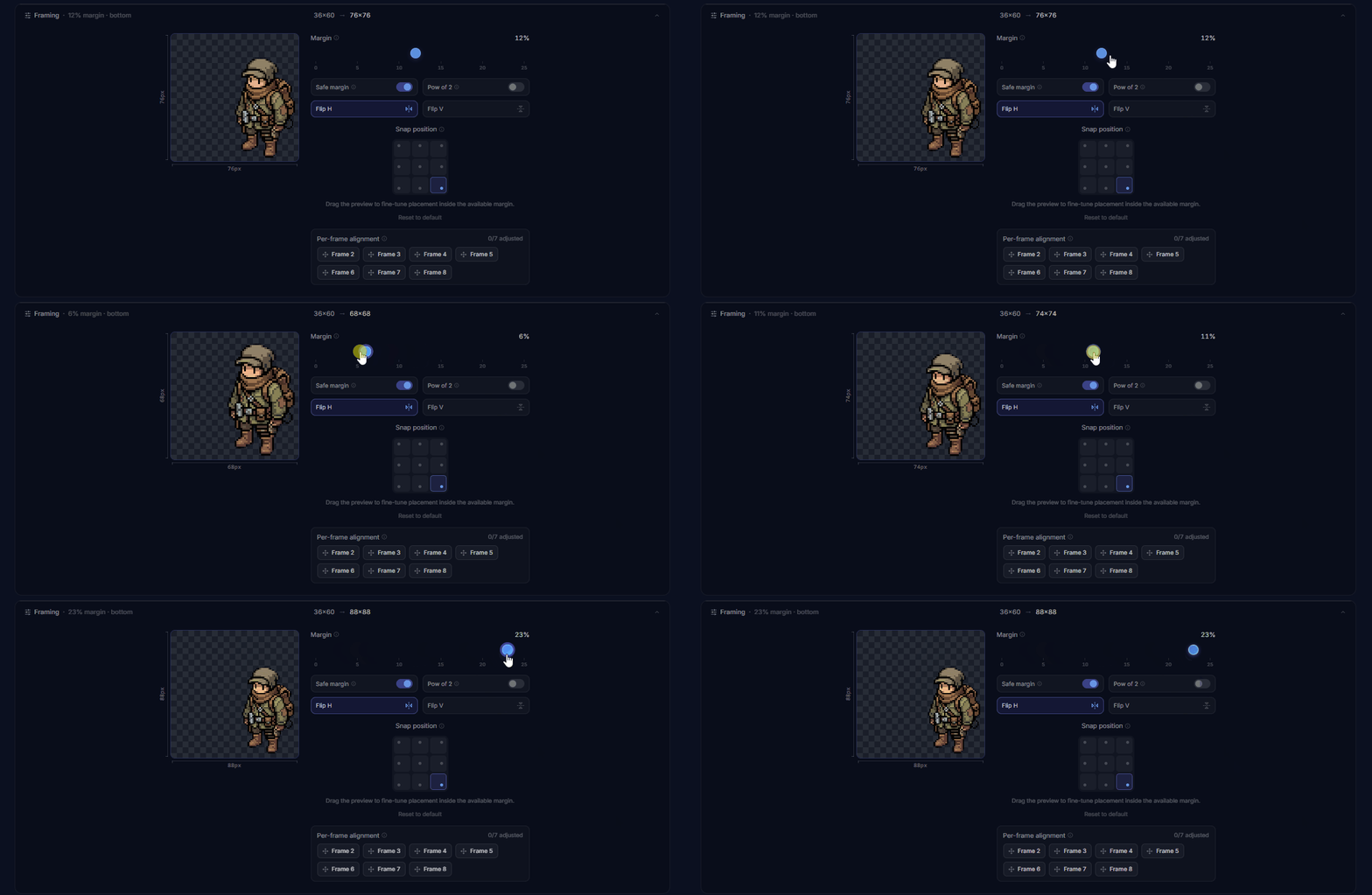
Margin
The margin slider adds empty space around your sprite, from 0% to 25%. More margin means more room for the motion to breathe, but also means the sprite takes up less of the canvas.
Safe margin
When safe margin is on, the system guarantees at least 3% padding around the sprite. This prevents the sprite from touching the edge of the canvas, which can cause clipping artifacts in some game engines.
Safe margin is on by default. You can turn it off if you want the sprite right at the edge.
Alignment
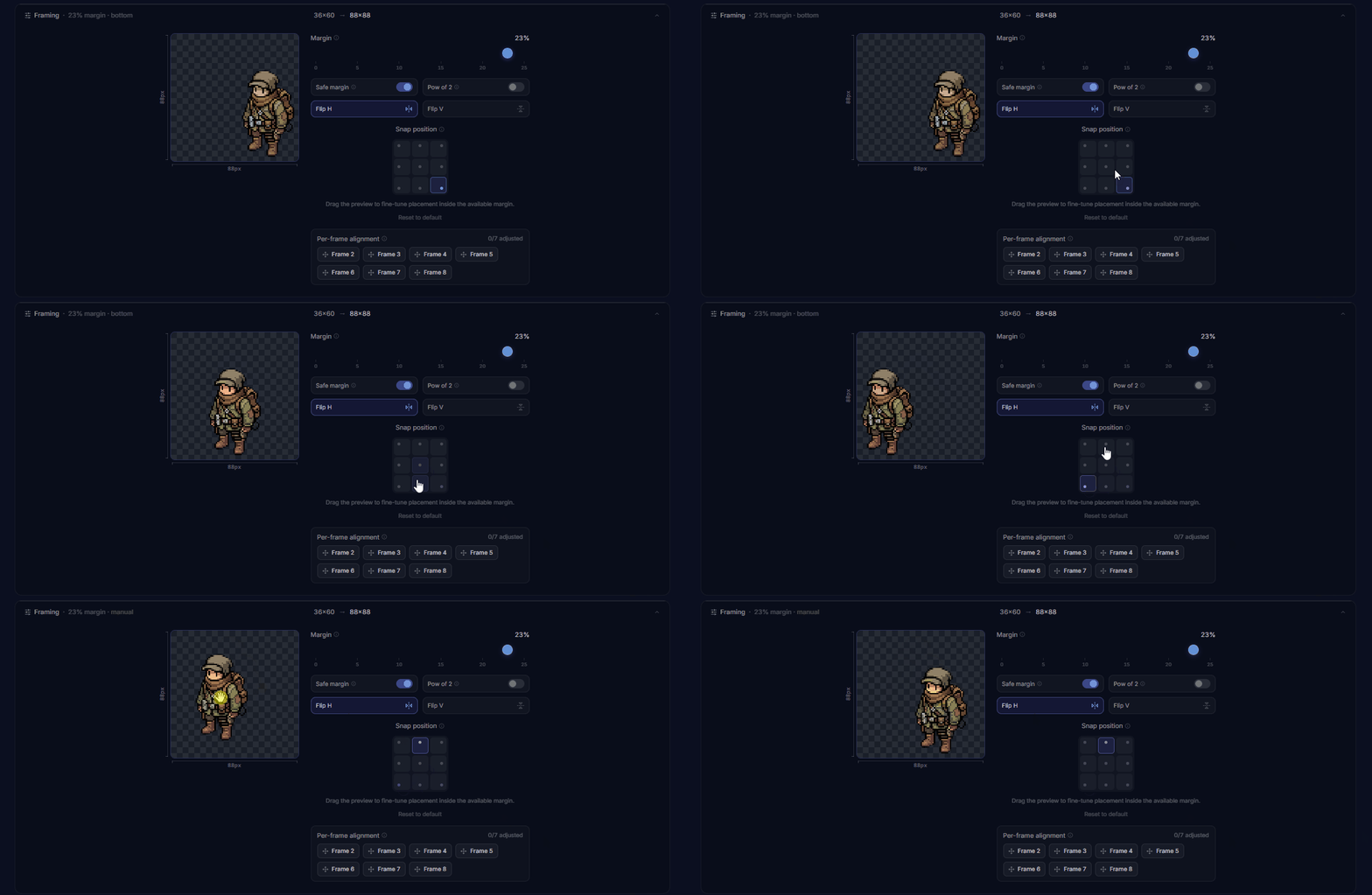
Alignment controls where the sprite sits within the canvas. You have two axes:
Horizontal
Left, center, or right.
Vertical
Top, center, or bottom.
You can also drag the sprite directly in the preview canvas for precise positioning. The position snaps to pixel boundaries so everything stays crisp.
Mirroring
Flip the sprite horizontally or vertically before generating. Useful if you need a left-facing version of a right-facing sprite, or an upside-down variant for a death animation.
Mirror H
Flips horizontally (left to right).
Mirror V
Flips vertically (top to bottom).
Power-of-2 snapping
When this is on, the canvas size rounds up to the nearest power of 2 (64, 128, 256, 512, 1024, or 2048). Many game engines perform better with power-of-2 textures, so this is a good option to turn on if you're exporting sprites for Unity, Godot, or similar.
Common canvas sizes after snapping:
Onion-skin alignment
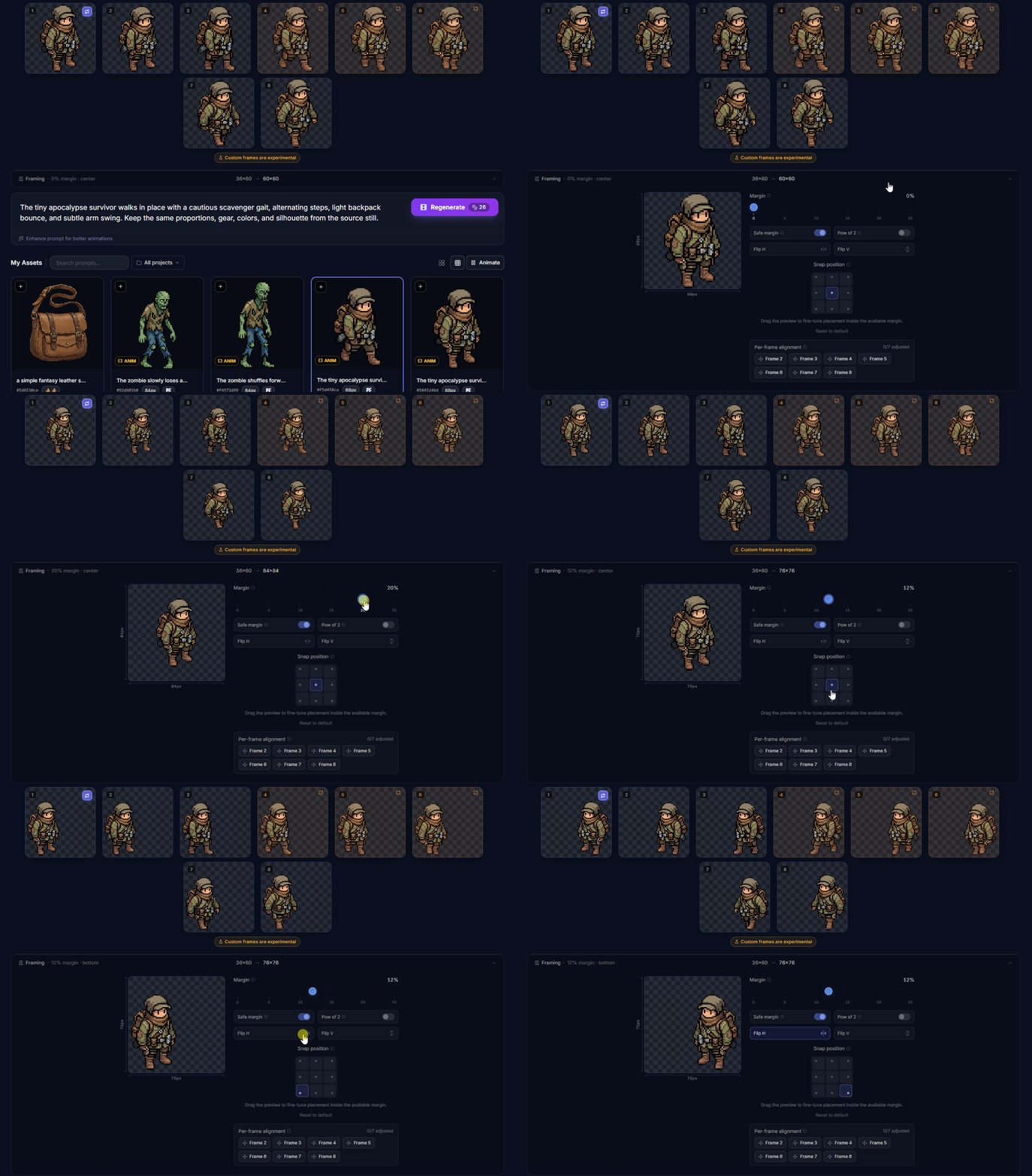
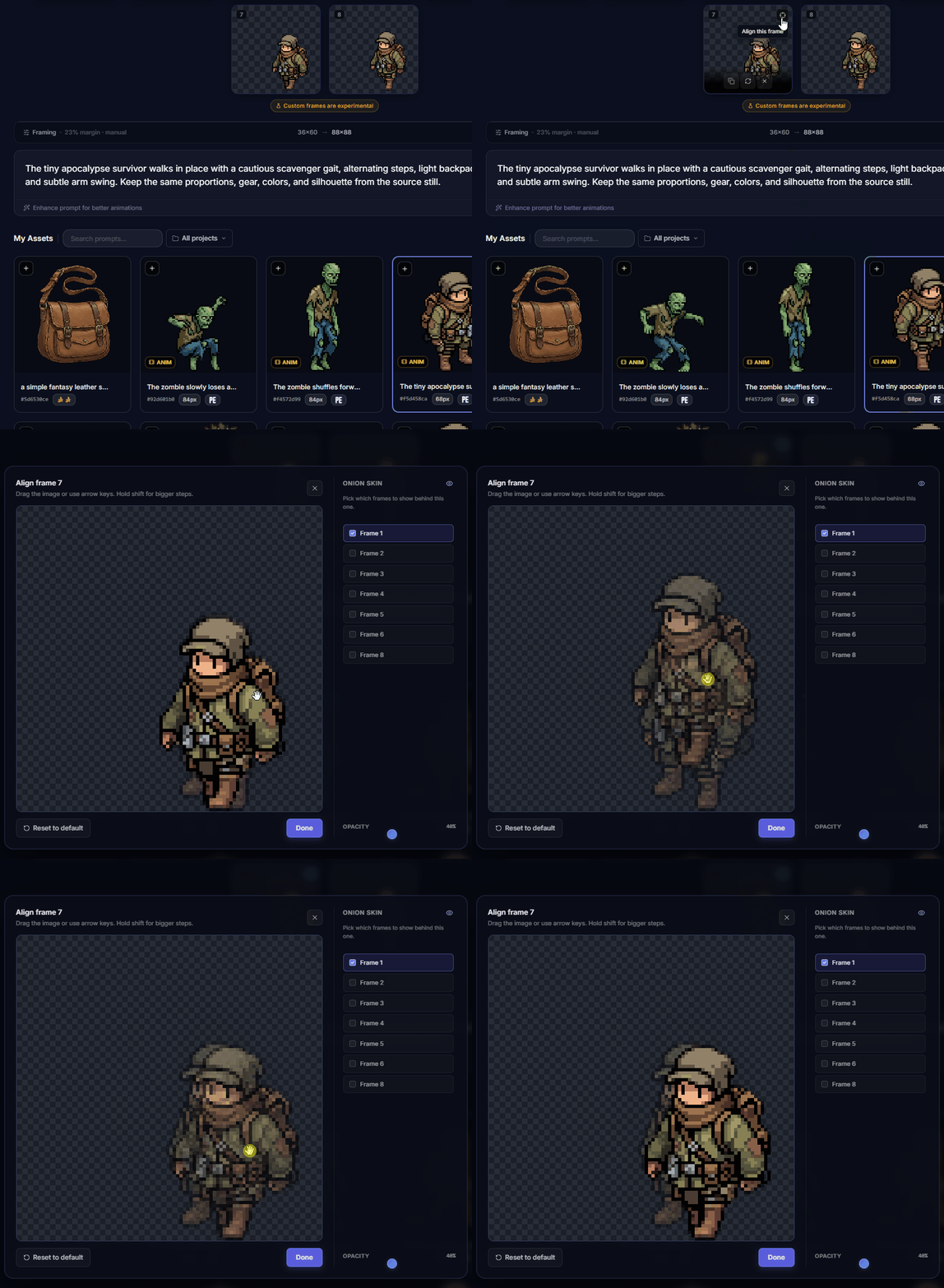
When you have multiple filled frames, you can open the alignment editor on any frame to fine-tune its position relative to the others.
The editor shows a semi-transparent overlay (onion skin) of your other frames so you can see how they line up. Drag the target frame to reposition it. The overlay updates live, so you get instant feedback on whether limbs, heads, and feet stay consistent across frames.
Onion-skin opacity is adjustable. You can also choose which frames to show in the overlay. By default, it shows Frame 1 (your source sprite).
The preview canvas
The framing preview shows your sprite on a canvas with ruler guides. It updates live as you change settings. The checkerboard background represents transparent areas, so you can see exactly where the sprite sits.
The preview also shows the final canvas size in pixels. If you have Power-of-2 on, you'll see it snap to the nearest valid size.
Common setups
Idle / sway animations
Low margin (0-5%). Center alignment. No mirror. The motion is small and stays within the sprite bounds.
Jump / leap
Higher margin (10-15%). Bottom-center alignment. This gives headroom for the upward motion.
Attack / swing
Medium margin (5-10%). Center alignment. Weapons and arms extend past the body, so some extra space helps.
Game engine export
Turn on Power-of-2 and Safe margin. This gives you clean, engine-friendly textures with no clipping.
Animate a Sprite for the simpler single-prompt animation workflow.