Generate Sprites
Full control over theme, palette, and resolution.
Overview
Use the image editor to generate pixel art sprites with AI. Set a theme for consistency, describe what you want, configure your pixel art settings, and download the result.
Step-by-Step
Set your theme
A theme locks style and mood so later sprites match. Use a preset or write your own.
Example theme:
"Futuristic urban dystopia with sleek tech and grime. Blade Runner-inspired lighting: neon pinks, cyans, and deep purples cutting through rain-soaked streets. Surfaces mix reflective chrome with scratched polymer. Density of signage and holograms high. Character silhouettes defined by light contrast and geometric fashion. Emphasis on wet reflections, digital haze, and layered depth. Environment feels alive, noisy, and slightly oppressive."
Describe your character
One line is enough. Focus on silhouette and a few unique details.
Example prompt:
"Female protagonist, left arm fully chromed"
Choose pixel-art settings
Select Pixel Art mode. Use a transparent background and start around 128px output.
Background
Select Transparent (checkerboard) for character sprites
Tip: Keep settings consistent for a set of sprites.
Generate and download
Generate. If needed, iterate with minor prompt edits or use the result as a reference.
Example result
Using the theme and prompt above, a sample output might look like this:
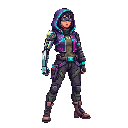
Female protagonist with chromed left arm in cyberpunk style
Pro tips
Start with a theme: reuse it across a character set.
Be concise: 1-2 unique traits beat long prose.
Create variations: use “Use as Reference” for poses/outfits.
Iterate lightly: small prompt edits change results fast.
Frequently asked questions
What is SpriteCook?+
Is SpriteCook free to use?+
Can I use SpriteCook assets in my game commercially?+
What game engines work with SpriteCook?+
Can my AI coding agent use SpriteCook?+
Ready to try this workflow?
Jump into the app and start generating your own pixel art characters. Or learn how to create poses, outfits, and variations with our advanced guide.