Presets
Save your generation setup as a one-click starting point. Use your own, or browse what the community has shared.
Why use them
If you keep rebuilding the same setup, that's the cue. Save it once, reapply any time. The community library is also a fun way to see how other people are using SpriteCook.
What gets saved
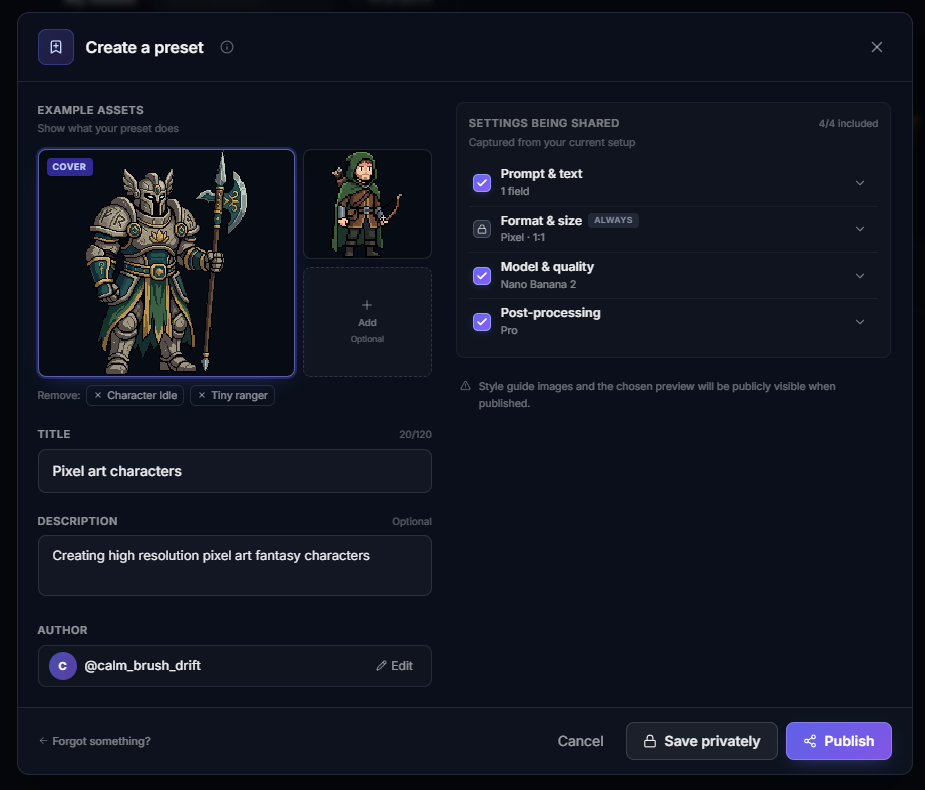
A preset captures the sidebar settings:
- • Model (Nano Banana 2 Lite, Nano Banana 2, GPT Image 2, etc.)
- • Aspect ratio and size
- • Color palette
- • Background mode and removal settings
- • Smart crop settings
- • Style guide references
- • Pixel-perfect mode
- • Reference image or edit base image (if you have one set)
Heads up: if your preset includes a reference or edit image, it becomes publicly visible when you publish.
Your prompt and theme stay per-generation. Those don't get baked into the preset.
Apply one
Click the preset picker at the top of the sidebar, or hit "Browse all" to open the full library. Tabs split things up by Official, Community, Favorites, and your own (Mine).
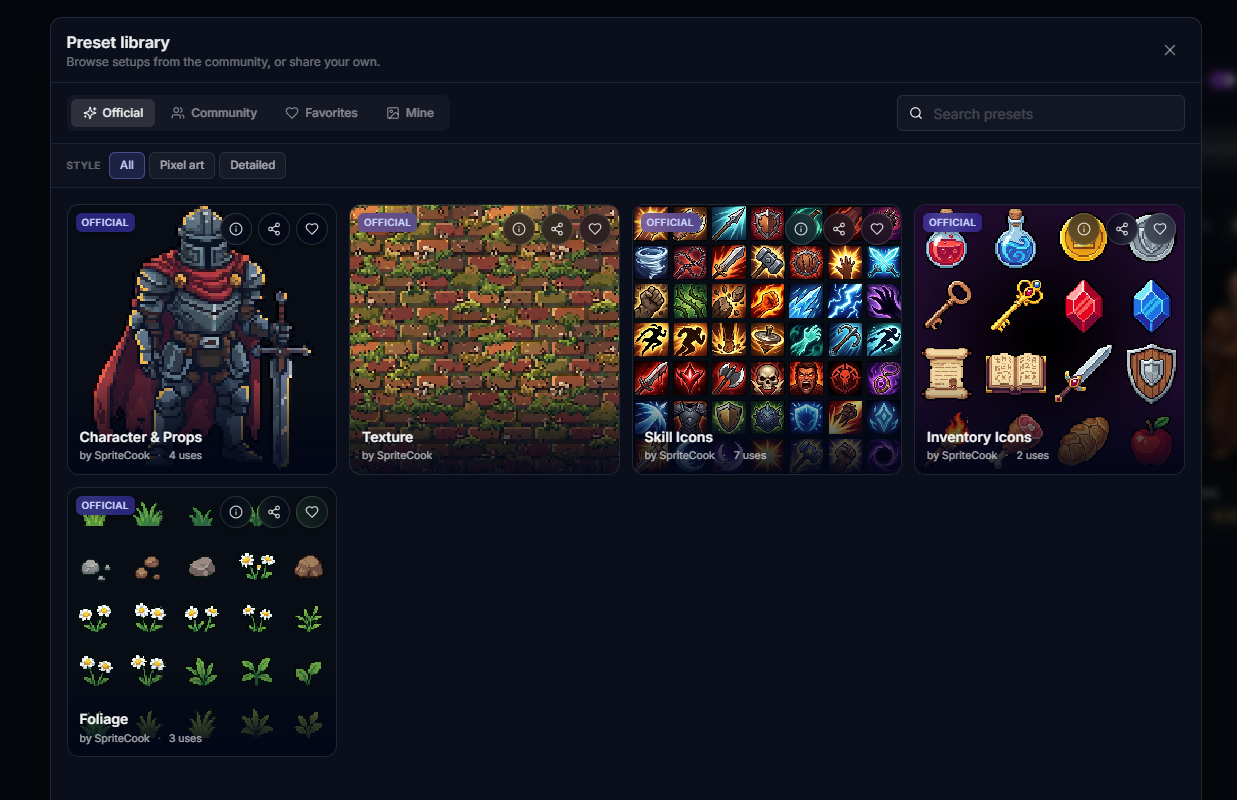
Click any card. The sidebar updates to match. The active preset sits at the top of the sidebar with a small action row underneath.
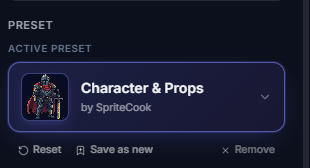
Tweak from a preset
A preset is a starting point. Change any setting after applying. The action row gives you three options:
Reset
Undo your tweaks. Snap back to the preset's original settings.
Save as new
Capture your current setup (preset plus your tweaks) as a fresh preset.
Remove
Stop using the preset. Your current settings stay as-is.
Make your own
Open the Mine tab in the library and hit "Create preset", or use the "Create preset" button under the picker in the sidebar. Add a title, a short description, and pick a cover image from your recent generations.
Private preset limits
- • Free accounts can save 1 private preset
- • Paid accounts can save as many as they want
Sharing publicly
Publishing puts your preset in the Community tab where anyone can apply it. A few simple limits keep the catalog clean:
- • New accounts (under 24 hours) can't publish yet
- • Under 30 days old: 3 publishes per week
- • After 30 days: 10 publishes per week
Same rules for everyone. You can edit a published preset's title and description any time without losing its place in the library.
Right-click for shortcuts
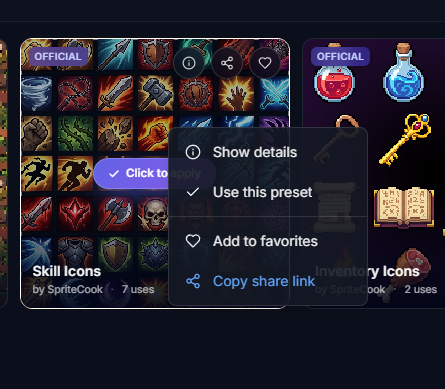
Right-click any preset card (or sidebar tile) for the context menu. Show details, Use, Favorite, Copy share link. On your own presets, Edit details and Delete also show up.
Editing a published preset
Found a typo or want to swap the cover? Right-click your preset on the Mine tab and pick "Edit details". Hit Resubmit to push the updated version live.