Smart outline repair for AI pixel art sprites
Background removal can eat the dark outline around a pixel art sprite. Smart outline repair puts it back, closes small gaps and cleans up the edges, for free.
If you've made pixel art sprites with a transparent background, you've probably seen this one. The sprite looks great on the white background it was drawn on, then the background gets removed and the dark outline comes back with holes in it. A few pixels missing on the bottom edge, a gap on one side, sometimes a whole stretch gone.
At 32 pixels that's very visible. The outline is what makes a small sprite read against a busy game background, so a broken one makes the whole thing look unfinished.
SpriteCook now fixes this on its own. It's called Smart outline repair, it's on by default, and it doesn't cost anything.
Why the outline breaks
Background removal works on the full resolution image and decides, pixel by pixel, what's subject and what's background. The outline sits right on that border. Where the outline is dark and the background is light, the edge pixels end up half in and half out, and a cutoff has to pick a side. Some outline pixels get thrown away with the background, and you get gaps.
You can fix it by hand in a pixel editor, but it's slow, and if you're making 30 sprites for a game you're not going to do it 30 times.
What it looks like
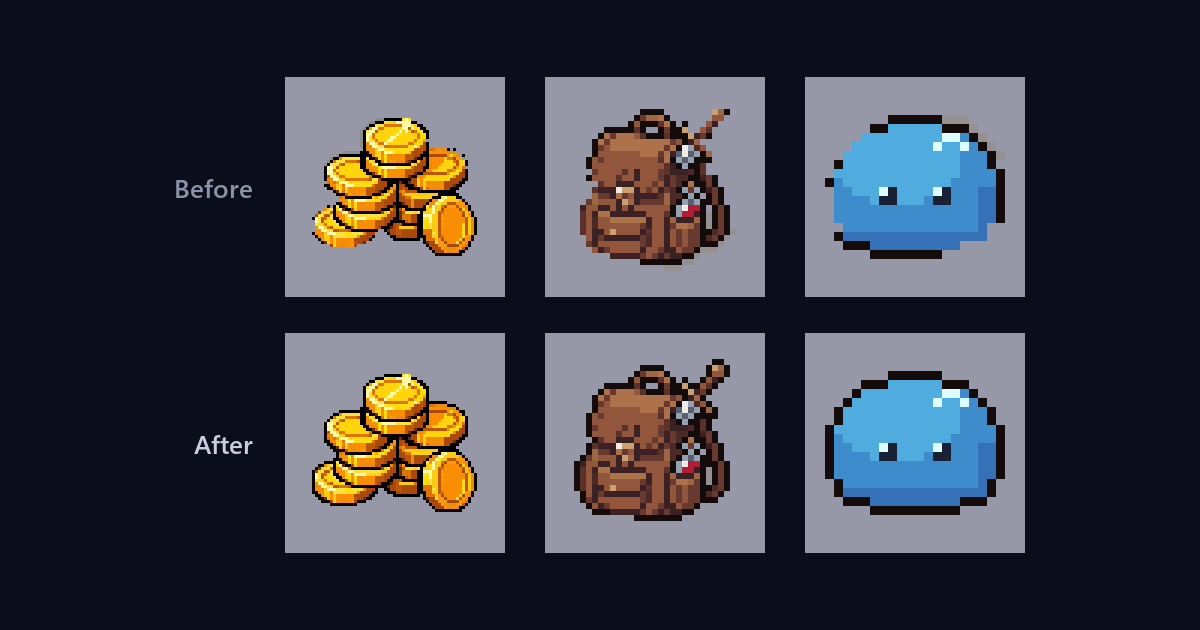
Here are three sprites whose outlines were damaged by background removal, before and after Smart outline repair. In the last image, pink marks the outline pixels it put back and blue the leftover background it removed.


The coin stack lost a big part of its outline along the left and bottom, and kept a light rim of background on one side. The repair put the outline back and cleaned off the rim.


The backpack got most of its outline back, with a few pixels on the very bottom edge left for a quick touch-up. The slime came back exactly as drawn.
What it does
It runs right after the background is removed. First it checks whether the sprite has an outline at all, and sprites without one, like soft painterly art, glows or smoke, are left alone. If there is an outline, it puts back the missing pieces, closes small gaps and cleans leftover background off the edges, in the sprite's own colors.
It never draws a new outline where the art didn't have one, and bigger gaps that are part of the drawing, like the space between a sword and a hand, stay as they are.
Where it runs
- New pixel art with a transparent background. In Create, the switch sits in the Remove BG card and is on by default.
- Animations. Every frame gets the same decision about whether there's an outline, so frames don't flicker between repaired and not.
- Remove background on an asset you already have, with Basic or Pro.
- Edge cleanup in the fullscreen viewer has the same switch.
- Assets you made before this existed. Open one in the fullscreen viewer and pick Smart outline repair under Edit & adjust. It checks the sprite right away, shows the repaired version on the canvas, and Apply saves it.
- MCP and the API.
generate_game_art,animate_game_artandremove_backgroundrepair by default. If your coding agent uses an older version of the plugin it still gets the repair, since the server treats a missing setting as on.
It's for pixel art only, so Detailed art, tilesets and textures are skipped. It's free on every plan and doesn't use credits.
When to turn it off
Almost never. The one case is when you want the raw cutout, for example because you're doing your own cleanup pass and want to compare. Turn off the Smart outline repair switch before you generate, or leave out the repair when you call the API with outline_repair: false.
If a sprite still has a gap after the repair, a few clicks with a 1 pixel pencil closes it.
How we tested it
Before turning it on for everyone, we ran it over about 2,000 real SpriteCook generations and animations and checked the results side by side, so sprites that already looked good stay that way.
Try it
Make a small sprite in the AI pixel art generator with Remove BG on, or open an older one in the fullscreen viewer and run Smart outline repair on it. If you're making whole sets, animating your sprites works the same way and keeps every frame's outline in one piece.