The new SpriteCook Pixel Editor, with layers, animation and Aseprite files
SpriteCook has a new Pixel Editor built in. Layers, an animation timeline, onion skin, selection tools, cleanup for AI sprites and Aseprite export, free on every plan.
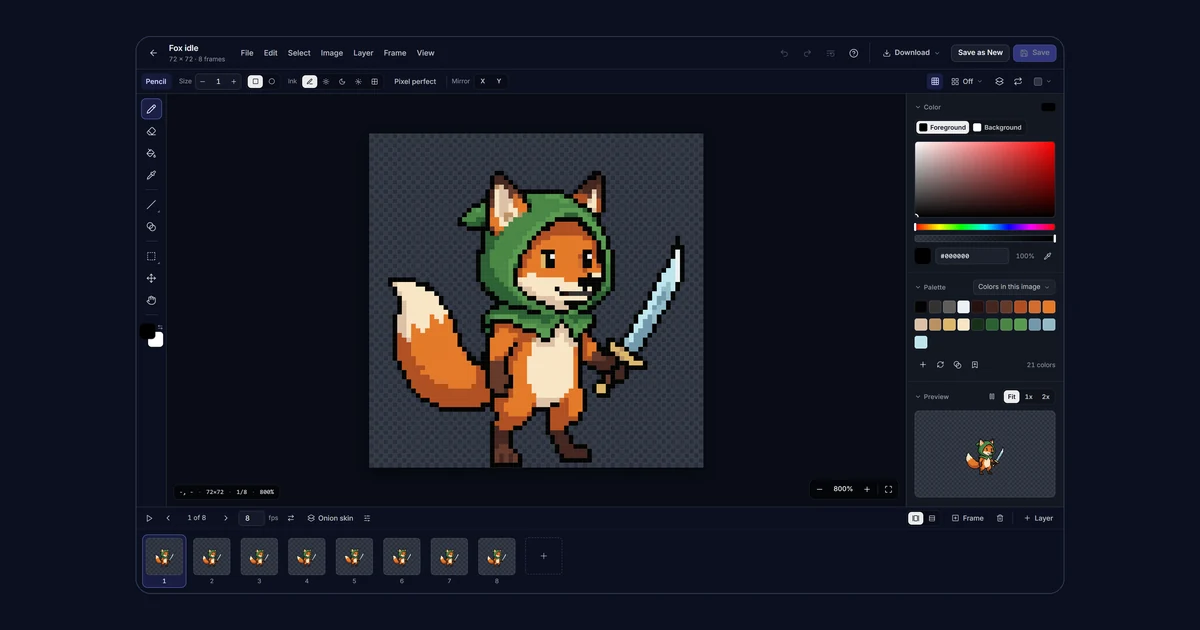
SpriteCook has a new Pixel Editor. We built it into SpriteCook from scratch, so a sprite you generate opens in it with all its frames, and you can fix it, change it and save it back without leaving the app.
It's now the default for editing by hand. If you know Aseprite you'll find your way around quickly: tools on the left, tool options along the top, color and palette on the right, and a timeline with layers and frames at the bottom. The shortcuts are the ones you're used to.
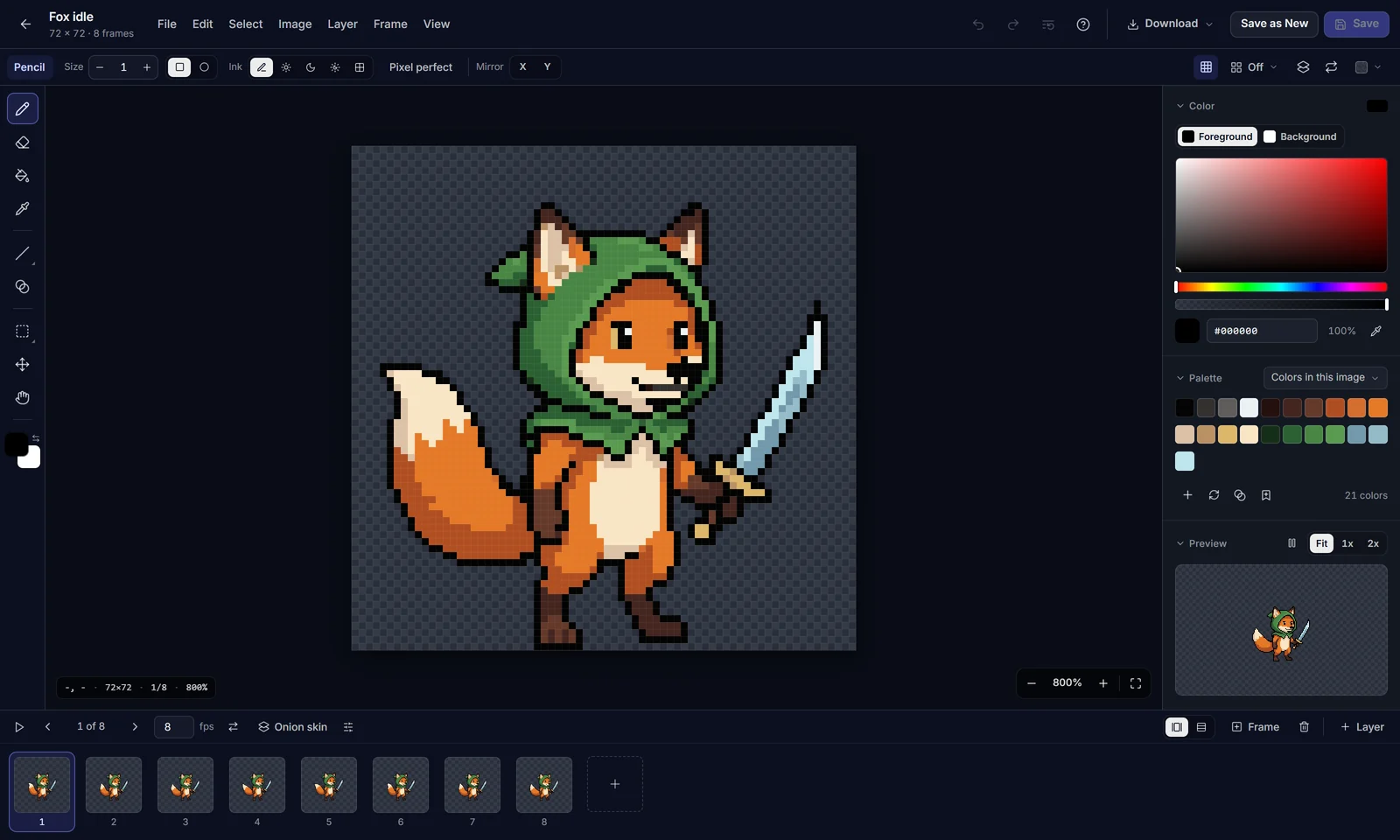
Manual editing is free on every plan and doesn't use credits. Open it from Manual Editor in the sidebar, from Advanced editor when you view an asset, or by right-clicking an asset and picking Manually Edit. It needs a desktop or laptop screen.
Animations open with every frame
Open an animation and every frame comes in, at the fps it was made with. Press Enter to play it, step through it with comma and period, and drag frames to reorder them.

Layers, frames and onion skin
Switch the timeline to Layers and frames to see every layer against every frame. Layers have opacity, hide and lock, and you can merge them or drag them into a new order. Onion skin (F3) shows the previous frame in red and the next one in blue, so you can line up a pose without guessing.
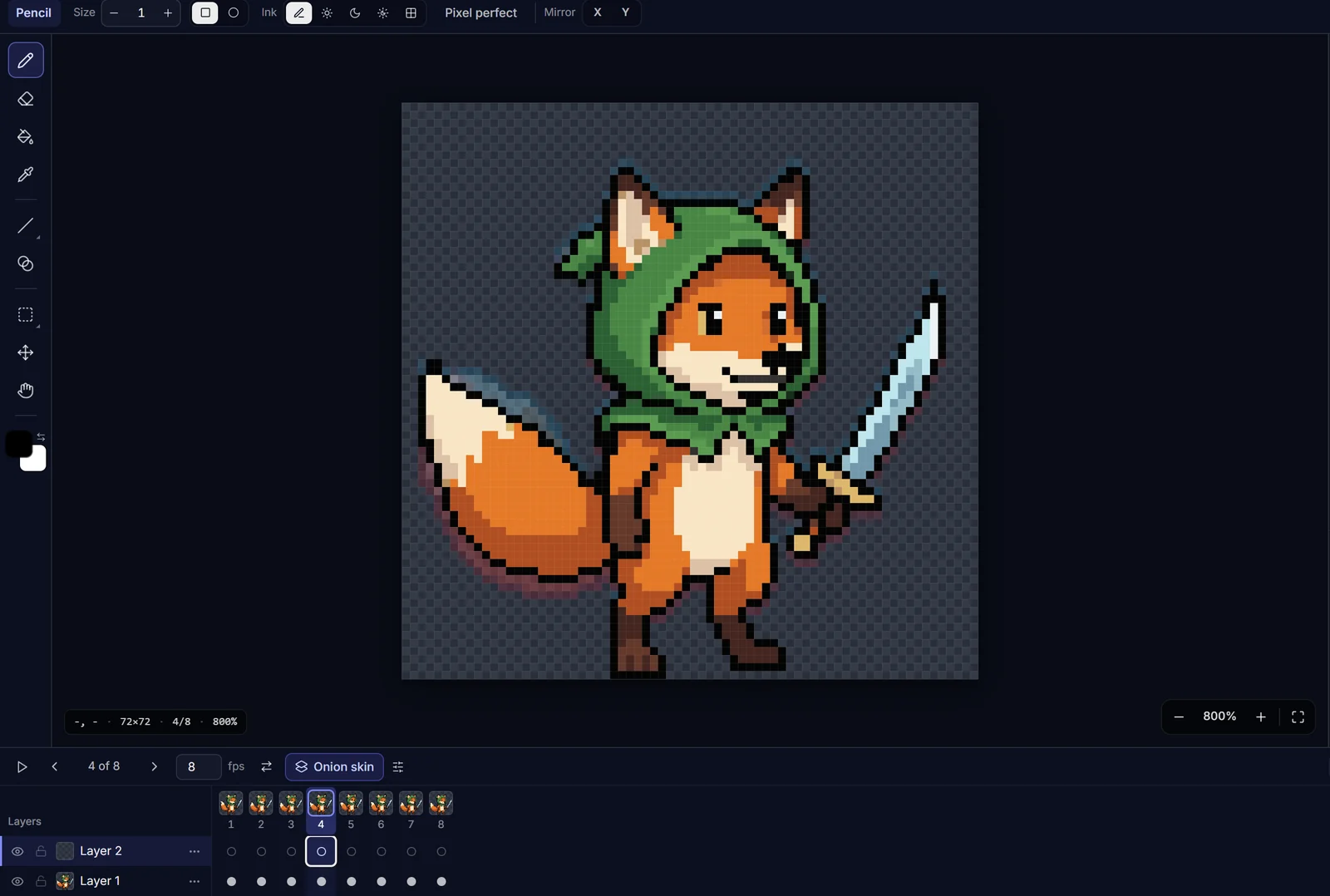
Generated animations sometimes shift a pixel or two between frames. Frame, Align frames lines every frame up with the current one by an anchor like the feet, and shows a looping preview before you apply it.
To put two assets together, File, Place from my assets drops another sprite on a new layer. An animation lands frame by frame on the matching frames, which is how you add a hat to a character or an effect over an attack.
Drawing tools
- Pencil, eraser, paint bucket, eyedropper, line, rectangle, ellipse and gradient, with brushes from 1 to 64 pixels.
- Pixel perfect removes the stair-step corners from freehand lines.
- Ink modes for Lighten, Darken, Shade (moves a pixel to the next color in the palette ramp) and Dither.
- Mirror X and Mirror Y for symmetrical sprites.
- The paint bucket and magic wand have a Tolerance setting, handy on generated art where colors are a little uneven.
Press F1 any time for the full list of shortcuts.
Select, move, scale and rotate
Rectangle select, lasso and magic wand all work the way you'd expect, with Shift to add and Alt to subtract. Once something is selected, a bar under the canvas has copy, cut, flip, rotate, scale and crop.
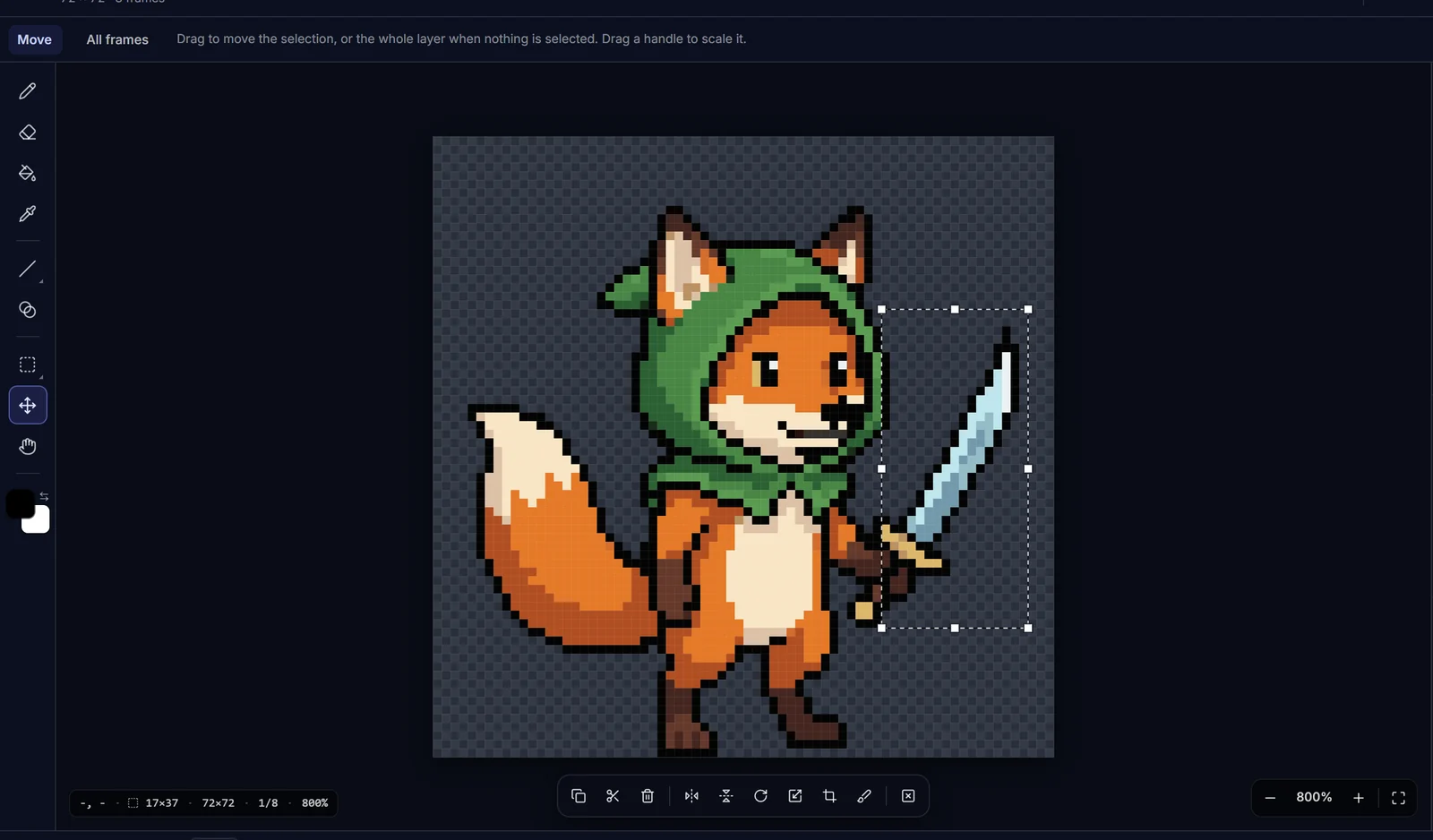
With the Move tool you get handles to scale the selection by dragging. It always scales from the original pixels, so detail doesn't get lost when you resize twice. Rotate by angle uses RotSprite, which keeps pixel art edges clean at angles like 30 or 45 degrees.
Cleanup for AI sprites
The Image menu has the tools you reach for after generating:
- Clean up pixels removes stray single pixels, makes half-transparent edges solid and can snap every color to the palette.
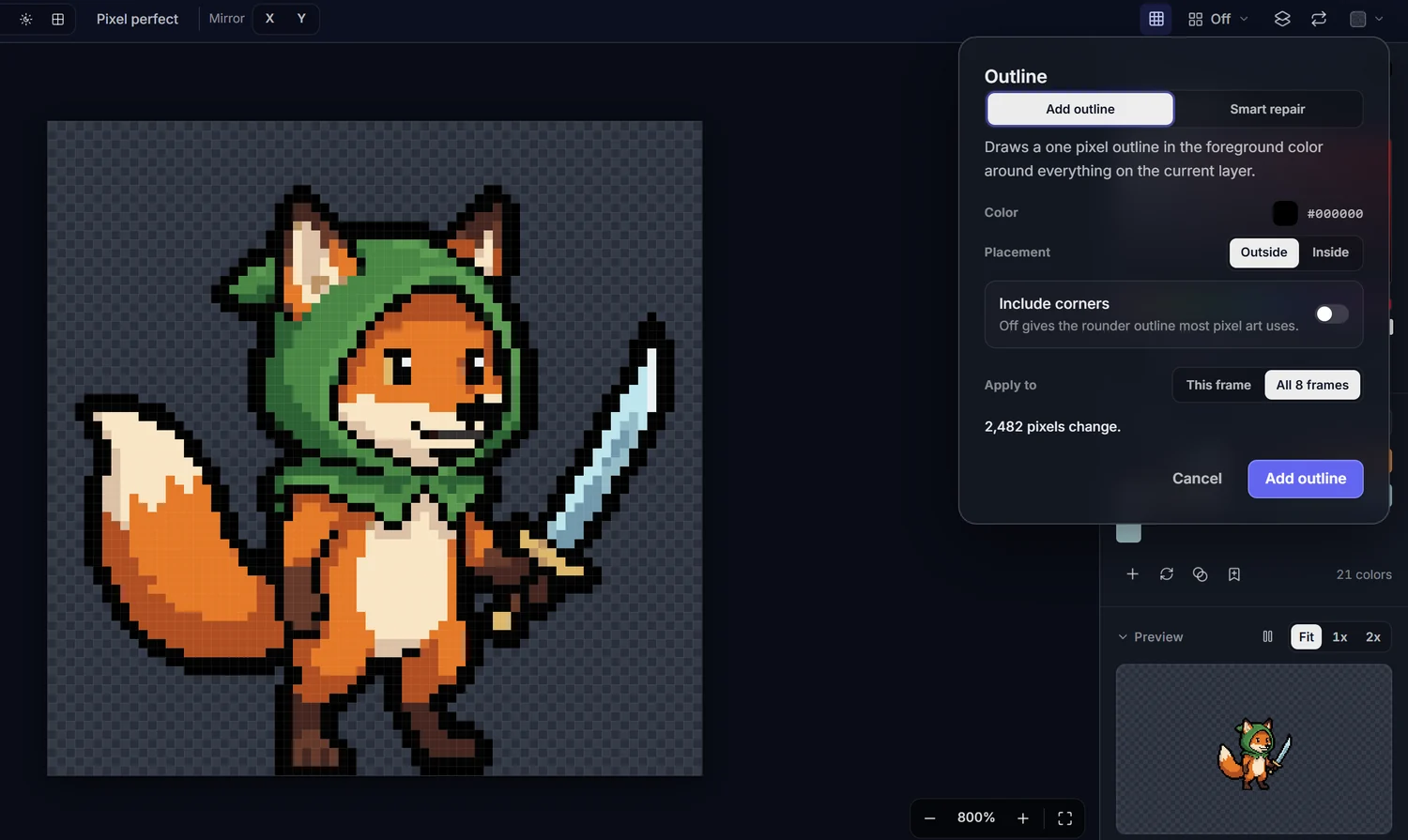
- Outline adds a one pixel outline, outside or inside. Its Smart repair tab fixes an outline the sprite already has instead, closing small gaps. It's the same idea as Smart outline repair.
- Reduce colors and Replace color for tidying up a palette.
Each one shows the result on the canvas, and how many pixels change, before you apply it. You can run it on one frame or on all of them.
Recolor with Adjust colors
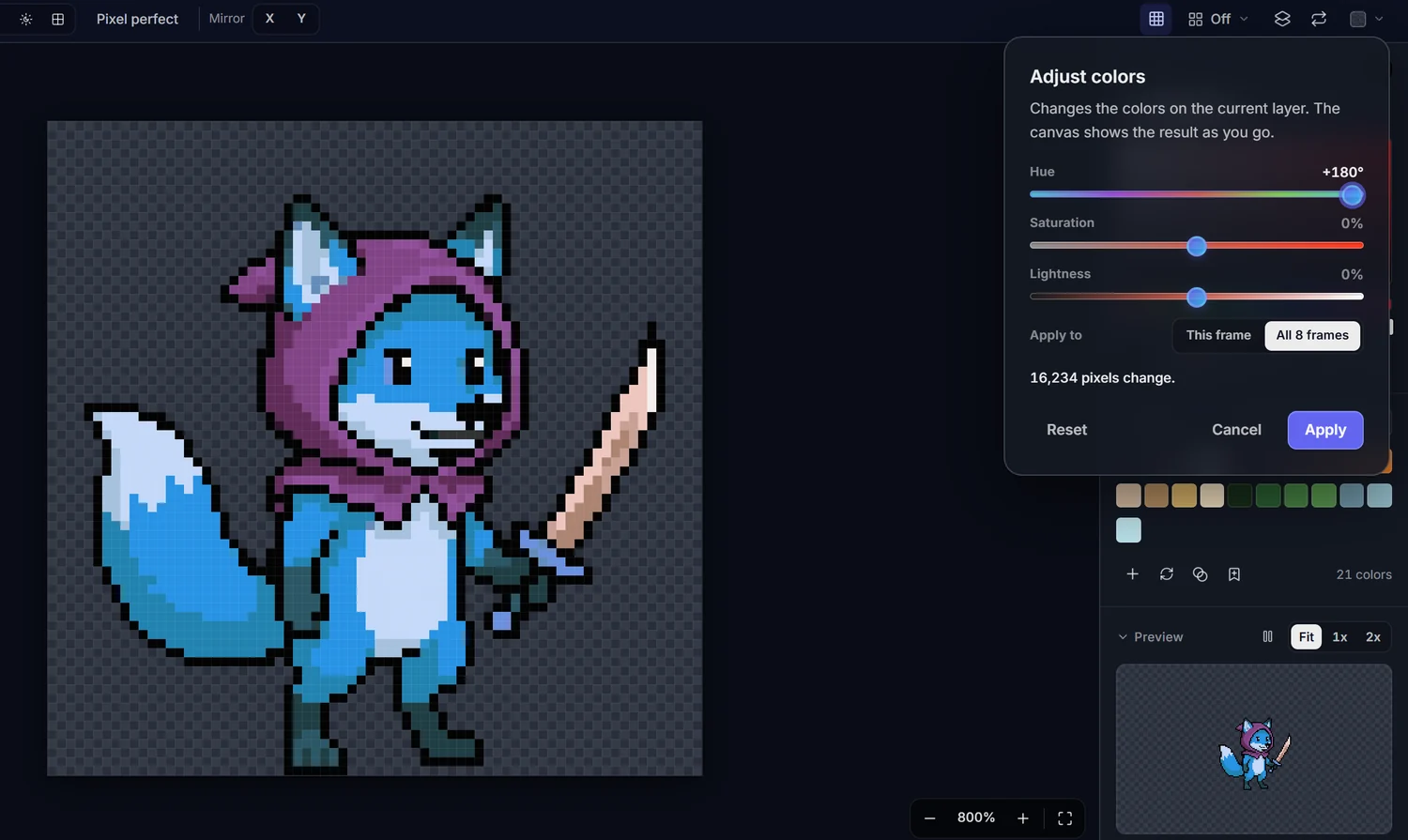
Adjust colors (Ctrl+U) shifts hue, saturation and lightness with sliders and updates the canvas while you drag. It's the quickest way to make a color variant of a character for a second team or an enemy version. Apply it to every frame and Save as New to keep the original.
Palettes
The palette starts with the colors in your sprite. You can switch to the palette the asset was generated with, one of your saved palettes, or classics like PICO-8 and DawnBringer 32. Palette files from Lospec (.hex), GIMP and Aseprite (.gpl) and JASC (.pal) open too. You can also build a five step shading ramp from any color, and save a palette to your account to use in the generator and in Recolor.
Import and export
Besides your SpriteCook assets, you can open a PNG, an animated GIF, WebP or APNG with all its frames, a spritesheet cut into frames, or an Aseprite file. You can also drop an image on the editor or paste it with Ctrl+V.
Save overwrites the asset. Save as New keeps the original and saves a copy. If the tab closes before you save, your work is kept in the browser and the editor offers to restore it next time.
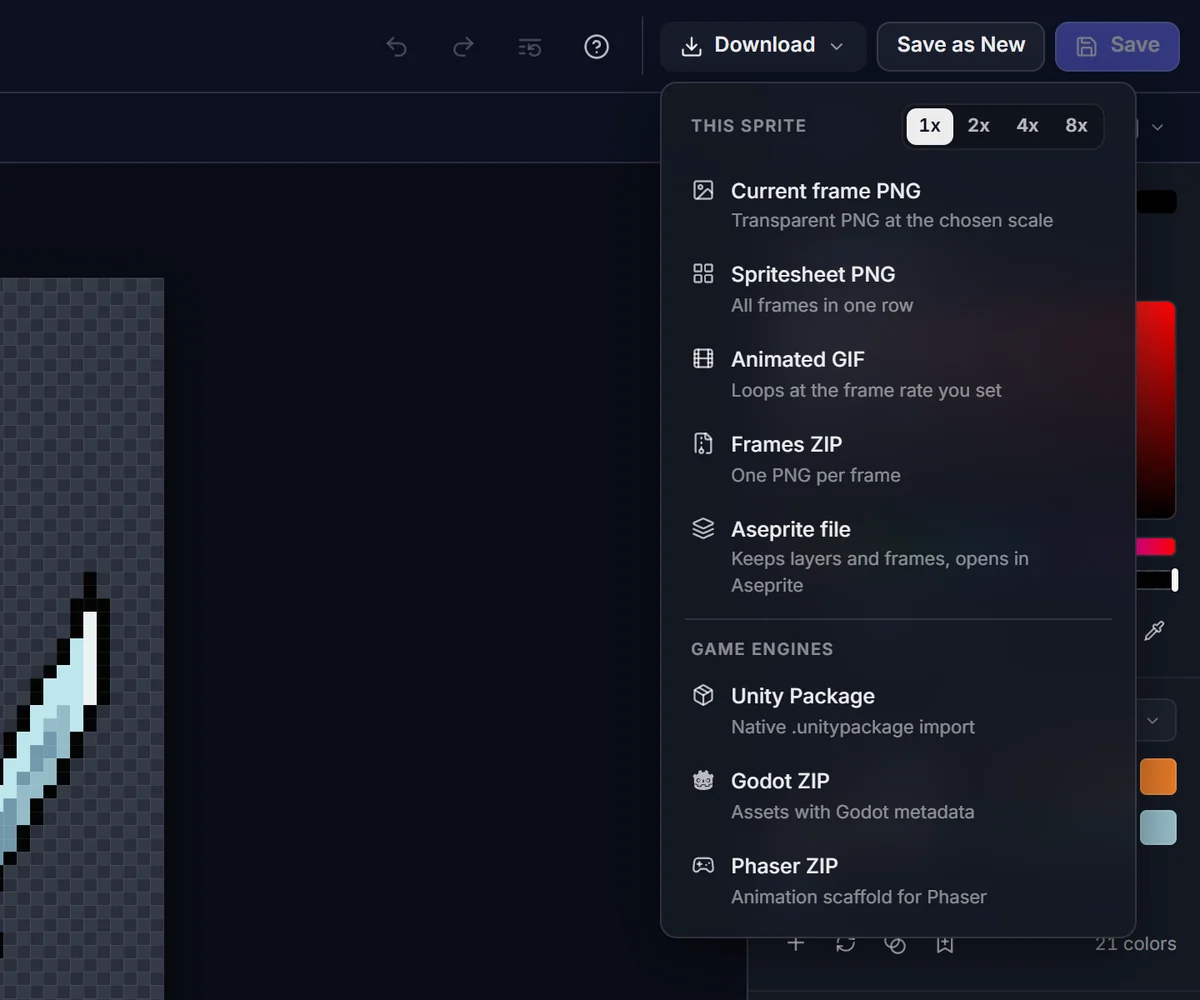
Downloads are free at 1x, 2x, 4x or 8x: the current frame as a PNG, a spritesheet, an animated GIF, a ZIP of frames, or an Aseprite file that keeps your layers and frames. Unity and Godot packages, and Phaser for animations, need the Starter plan or higher.
Prefer the old editor?
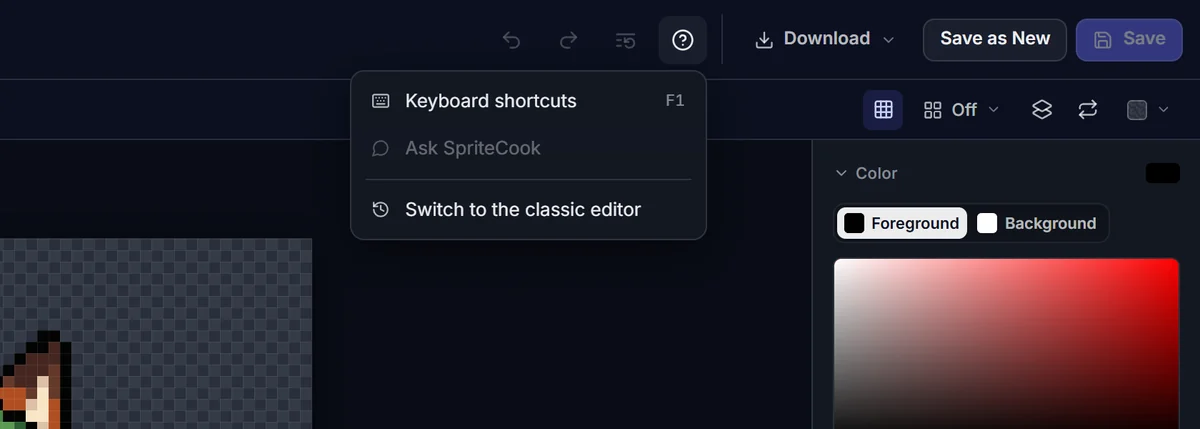
The old editor is still there for now. The first time you open the new one, it asks, and you can pick Use the classic editor. You can also switch any time from the Help menu with Switch to the classic editor. SpriteCook remembers your choice in that browser, and the classic editor has a Switch to the new editor button for when you want to come back.
Generate a sprite in the pixel art generator, animate it, and open it in the Pixel Editor to finish it by hand.