Pixel Engine Image, pixel art at the exact size you pick
Pixel Engine Image is a new model in SpriteCook that draws pixel art at an exact size from 16 to 128 pixels, background already removed. Here's how it works.
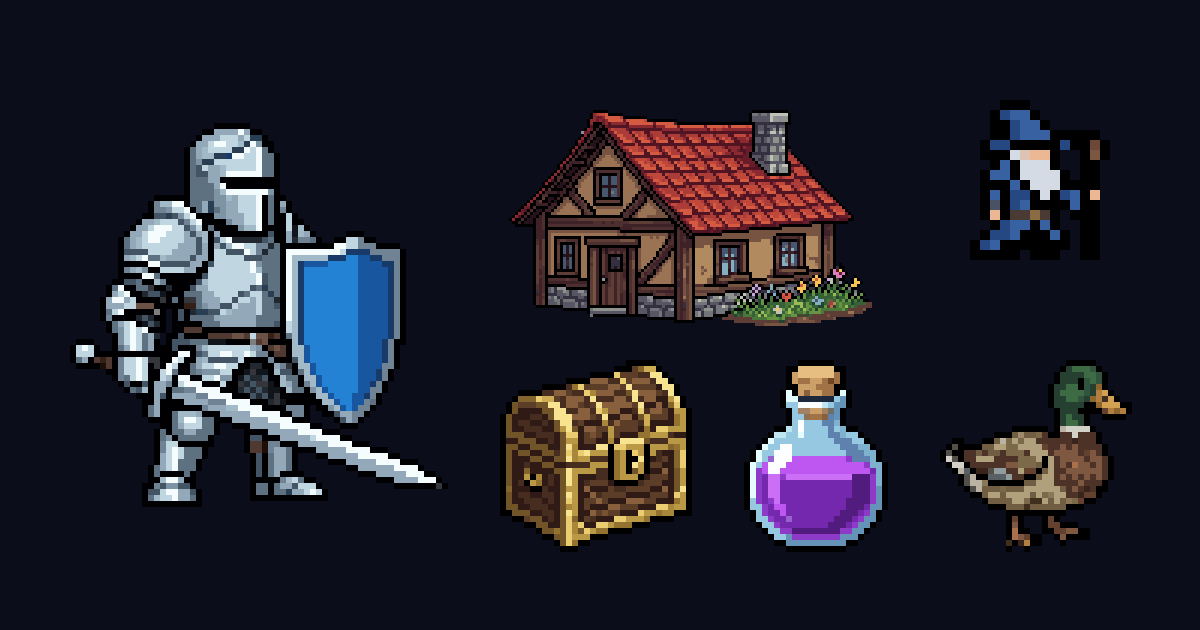
There's a new model in the SpriteCook model picker, Pixel Engine Image. It's the still-image model from Pixel Engine, the same team behind the Pixel Engine 1.5 animation model we already use for sprite animations.
What makes it different from the other image models is that it draws on a real pixel grid. Ask for 32 by 32 and you get a 32 by 32 image, with every pixel a pixel and the background already removed. No grid detection, no resizing, no cleanup step afterwards.
Why that matters
The usual image models, like Nano Banana and GPT Image, paint a large image that looks like pixel art. The pixels aren't snapped to a grid and the size is never exactly what you asked for, which is why SpriteCook runs grid detection and cleanup on everything they make. We wrote about that in why AI can't match pixel art resolution.
Pixel Engine Image skips that problem. The output is the sprite, at the size you'll use in your game.
What it makes
Here's a set made with it, shown at their real sizes and scaled up with sharp pixels.


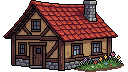
Each of these came out of one generation at the size in the caption, already transparent, with nothing changed afterwards.
How to use it
- Open Create and set the style to Pixel Art.
- In the model picker, pick Pixel Engine Image.
- Choose a Size of 16, 32, 64 or 128. That's the longest side. With Aspect Ratio 16:9 or 9:16 you get sizes like 128 by 72.
- Describe the sprite and generate.
It takes about 25 seconds and costs 6 credits per image. Keep Remove BG on for a transparent sprite. The model removes the background itself, so there's no separate cleanup pass, and with it off you get the sprite on a flat grey ground. Pixel Perfect and Smart Crop are hidden for this model, since it already draws on the grid at the size you picked. Colors still works if you want to limit the palette.
A tip for prompts: very short ones get expanded into a fuller description by the model itself. If you want it to stick closely to your words, write a sentence or two, like "a knight in silver armor holding a blue shield and a sword, side view".
What it doesn't do
It works from text only. There's no style reference and no image to edit, so it can't match an existing sprite's style or change one you already have. If you attach a reference or pick an image to edit, Create switches back to Nano Banana 2.1 for that job.
It's also pixel art only, for single sprites and UI pieces. It's not available for Detailed art, textures or tilesets.
When to use which model
Pixel Engine Image is the one for small sprites at an exact size, where you want to drop the result straight into your game. Icons, items, small characters and props at 16, 32 or 64 pixels.
For anything that needs to match a style you already have, Nano Banana 2.1 is still the better choice, because it takes style references and can edit an existing image. It's also stronger for bigger, busier scenes.
From your code editor
If you use SpriteCook through MCP, your agent can pick the model with model: "pixel-engine-image-v1" in generate_game_art. It draws exactly the width and height you send, from 16 to 128 pixels with sides no more than 4 to 1. The same works through the API.
Once you have a sprite you like, you can animate it in Animate with Pixel Engine 1.5, which keeps the same crisp pixel grid. Try it in the pixel art generator.