Generate game sprites in the Claude desktop app
Install the SpriteCook plugin in the Claude desktop app and generate sprites, animations, and tilesets straight from a chat. Setup takes two minutes.

The Claude desktop app supports plugins, and SpriteCook has one. Once it's installed, Claude can generate sprites, animations, and tilesets while you work. Ask for a character in chat and the file lands in your project folder.
If you're on Claude Code, Cursor, or another editor instead, the agent setup guide covers those. This post is about the desktop app, where installation works through the plugin marketplace and there's nothing to run in a terminal.
Prefer to watch? Here's the two-minute setup:
What you need
Add the marketplace
The plugin lives in a public GitHub repo. You add that repo as a marketplace once, then install the plugin from it.
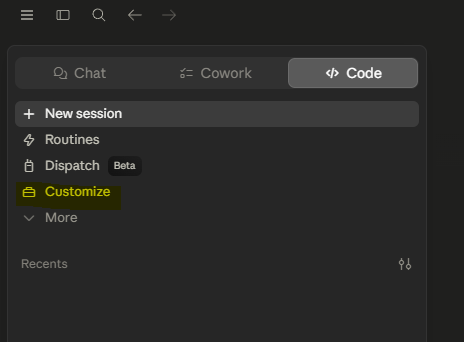
Open the Code tab and click Customize in the sidebar.
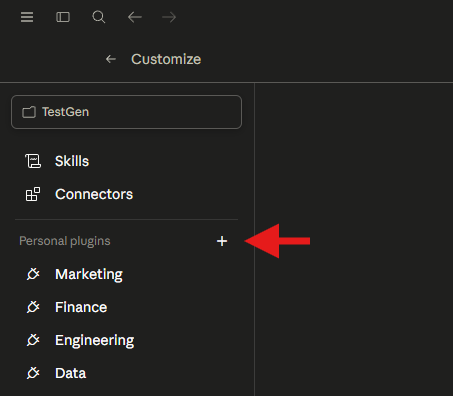
Click the + next to Personal plugins.
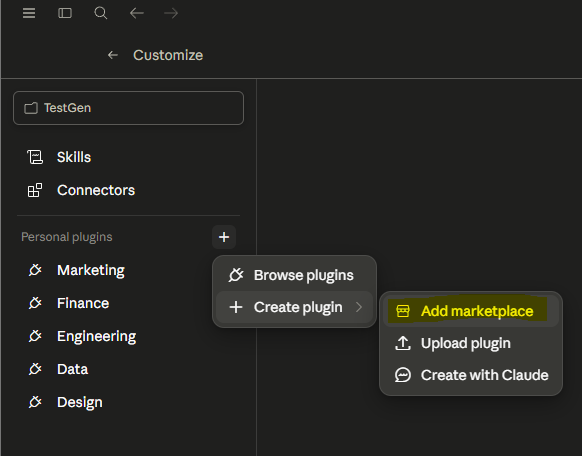
Hover Create plugin and pick Add marketplace.
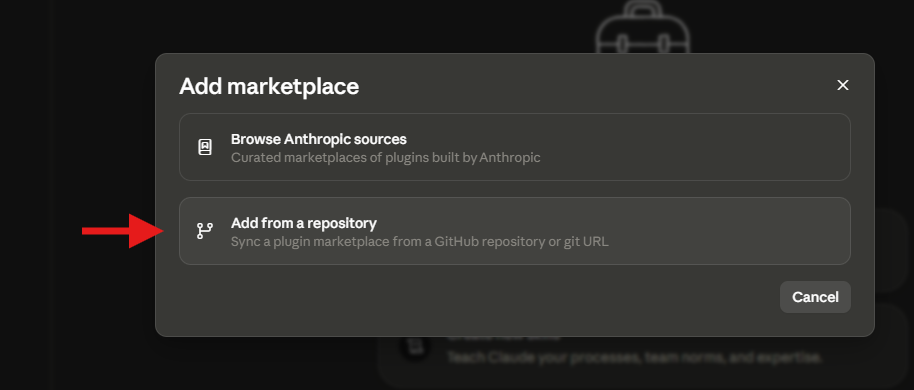
Choose Add from a repository.
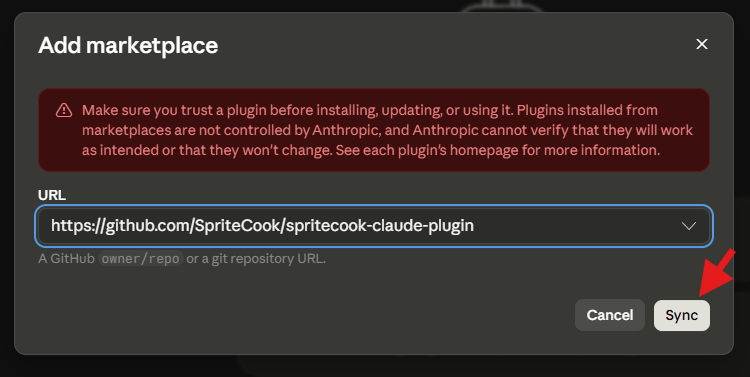
Paste the plugin repo URL:
https://github.com/SpriteCook/claude-plugin
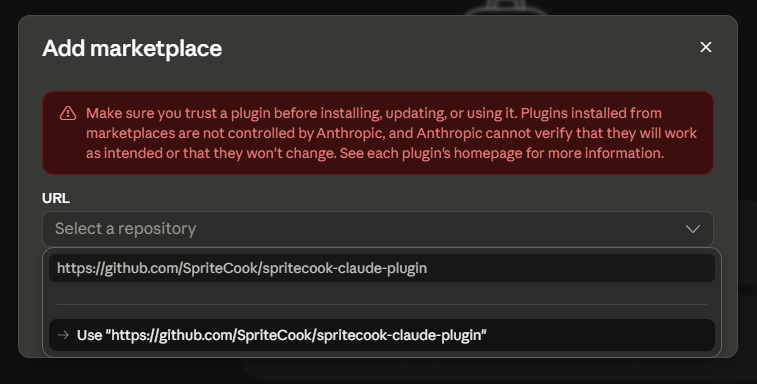
Hit Sync.
Install the plugin
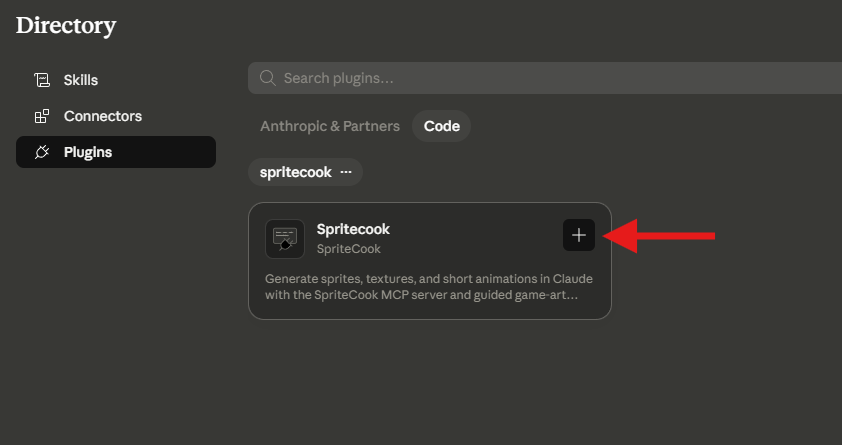
The spritecook marketplace now shows up in your plugin directory. Click the + on the Spritecook card.
Open the plugin and it should look like this. Five skills and one MCP connector.
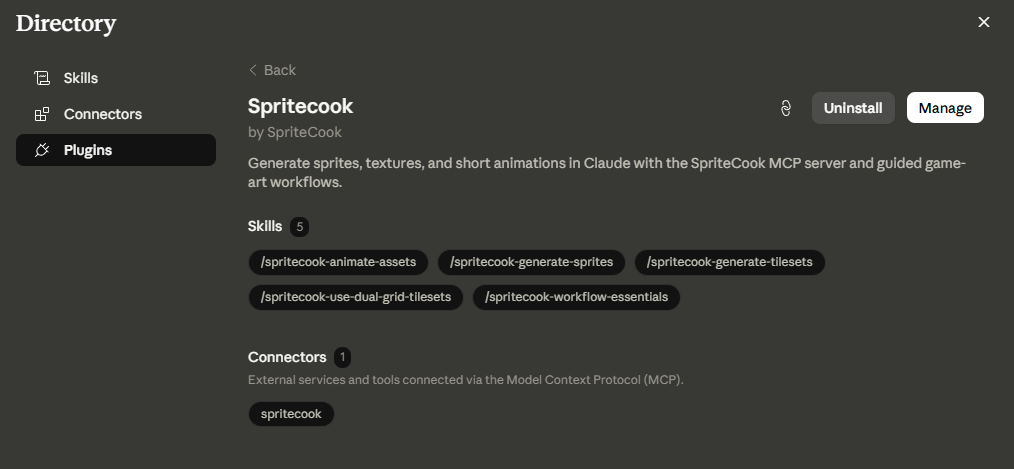
The connector is the MCP server that does the actual generating. The skills teach Claude how to use it well, like generating one hero asset first and reusing it as a style reference so your whole set stays consistent. More on that in the agent guide.
The first time Claude calls a SpriteCook tool, it asks you to connect your SpriteCook account in the browser. Approve it once and you're set.
Try it
Start a new session in the Code tab and ask for something.
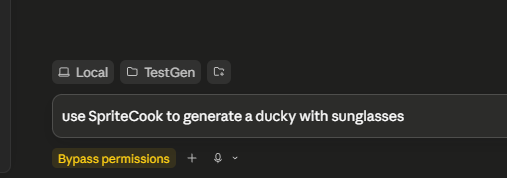
Claude kicks off the generation, waits for the job to finish, and saves the result into your project folder.

From here you can ask for whatever your game needs. The same options from the web app are available, so these guides apply:
Keeping it updated
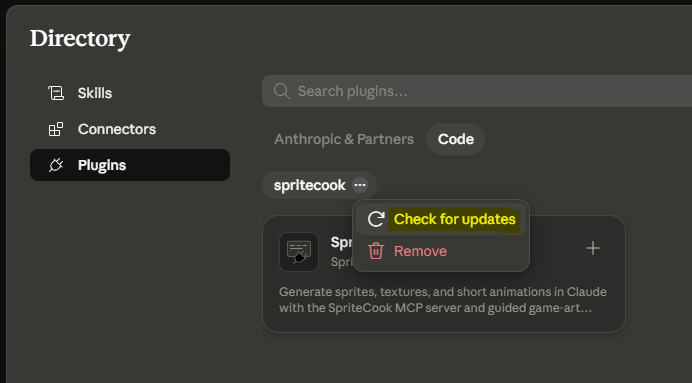
Marketplace plugins don't update on their own. Every now and then, click the ... next to spritecook in the directory and hit Check for updates.
That's the whole setup. Make something weird.