Generate game sprites in Cursor with the SpriteCook plugin
Install the SpriteCook plugin in Cursor with one command, then generate sprites, animations, and tilesets straight from the agent. Setup takes a couple of minutes.

Cursor can generate game art while it writes your game. The SpriteCook plugin adds the SpriteCook tools and a set of workflow skills to Cursor, so you can ask your agent for a sprite and the file lands in your project.
One command sets it up. If you're on a different editor, the agent setup guide covers those.
Prefer to watch? Here's the two-minute setup:
What you need
Run the install command
Open a terminal in Cursor. The Terminal menu has a "New Terminal" option, or use the Terminal panel at the bottom.
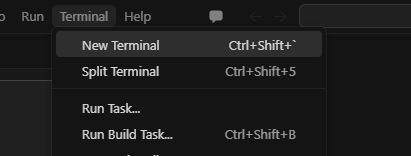
Paste the command for your system and hit Enter.
macOS or Linux:
bash -c "$(curl -fsSL https://spritecook.ai/install-cursor.sh)"
Windows (PowerShell):
iwr -useb https://spritecook.ai/install-cursor.ps1 | iex
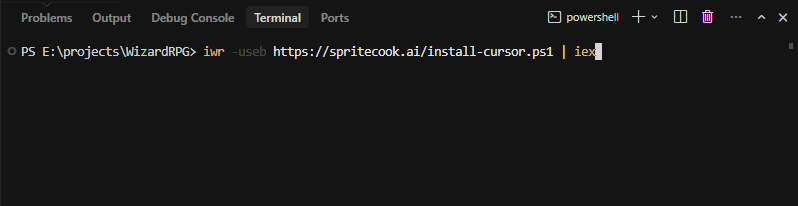
The installer drops the SpriteCook plugin into ~/.cursor/plugins/local/spritecook and adds the MCP connection. Nothing else in your Cursor setup is touched.
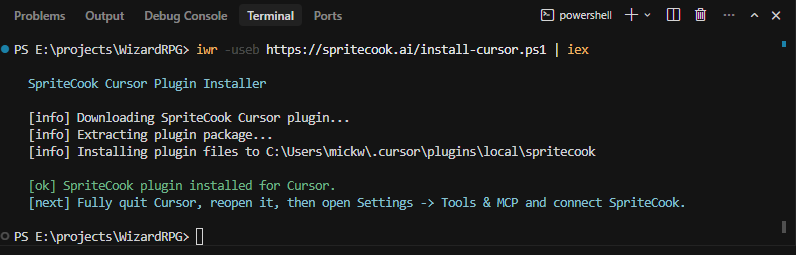
Connect your account
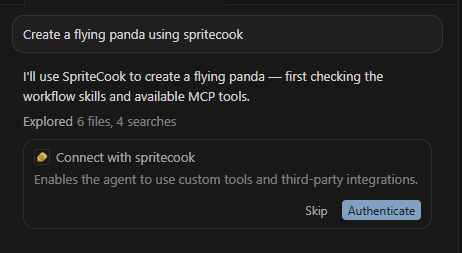
Start a new agent chat and ask for something.
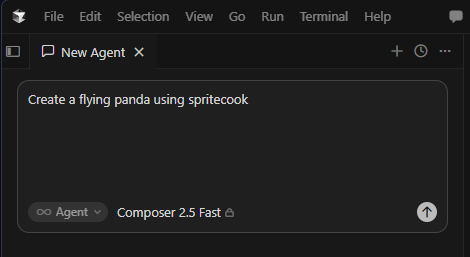
The first time the agent reaches for a SpriteCook tool, Cursor asks you to connect. Click Authenticate.
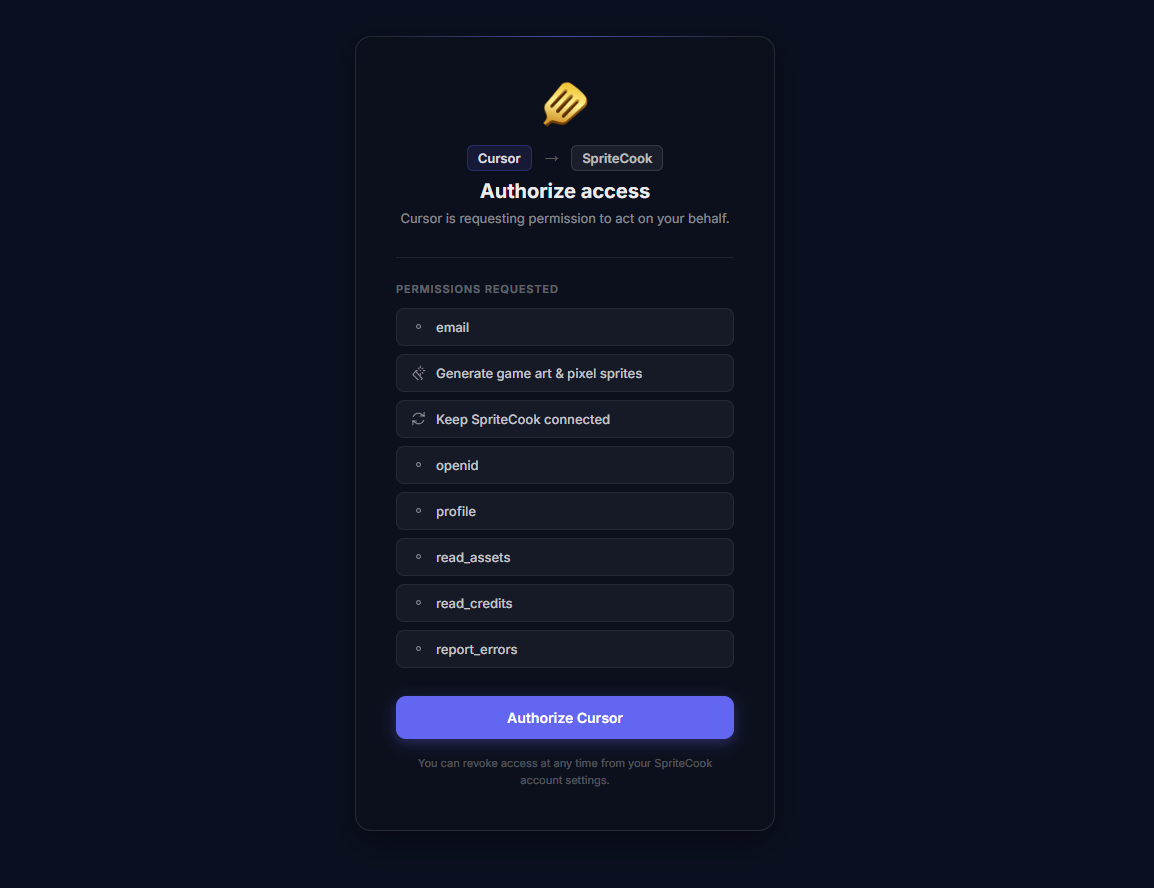
A browser opens. Approve the access and you're set. You only do this once. No API key needed.
Watch it work
With access granted, the agent generates the sprite, then animates it. The skills teach it to make one base asset first and reuse it, so a follow-up like "animate it flying" stays consistent with the original.
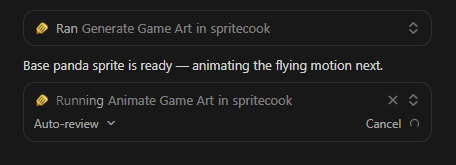
The result, a base sprite and a short fly loop:


From here you can ask for whatever your game needs. The same options from the web app are available, so these guides apply:
That's the whole setup. Go make something.