4 ways to keep the player visible behind trees and walls in a 2D game
Fade, dither, cutout and silhouette, the four standard ways to show a character who walks behind a tree or a wall. What each one does to pixel art, when to switch it on, the numbers, a tested Godot script with its shader, and the pitfalls.
Paste it into Claude Code, Codex, Cursor or any coding agent.
# Add a see-through effect to my game for when the player walks behind things

In my 2D game the player disappears when they walk behind a tree, a wall or a roof. Keep them visible with one of four looks: fade the object, dither a window into it, cut a hard hole in it, or draw the player's silhouette on top of it.

Before you write code, look at my project: the engine and language, how sprites are sorted by depth, where sprite origins sit, whether the things the player walks behind are their own sprites or tiles on a tilemap, which of them already have a shader, and at what scale the pixel art is drawn. Fit this into what is there instead of adding a second system. Keep my draw order and my art as they are. If I did not say which look I want, ask me. If the objects are tiles on one layer, tell me before you change that.

## How it works

- Every object the player can walk behind gets its own `amount`, eased between 0 (off) and 1 (fully on), and its own material, so only the object that covers the player opens.
- The behind test has two parts. Depth: the player's feet are behind the object's base (smaller y in a Y sorted scene). Cover: enough points on the player are over opaque pixels of the object.
- Fade lowers the object's opacity. It is the only look that blends colors.
- Dither and cutout are one fragment shader that drops the object's pixels near the player. A pixel is drawn or not drawn, never half transparent.
- Silhouette leaves the object alone and draws a flat-color copy of the player on top, clipped to the object's own pixels.

## Numbers that matter

Tested for a character of 20 x 36 px. Scale the radii with my character's height.

- Fade: the object goes to 40% opacity.
- Dither: nothing of the object is left closer than 18 px to the player's center. It is solid again 16 px further out, and a 4x4 Bayer pattern thins it out in between.
- Cutout: every pixel closer than 22 px to the center is hidden.
- Silhouette: one flat color, (118, 214, 255) here. Pick one my scene does not use.
- Ease: 0.2 s in both directions, linear, 12 frames at 60 fps.
- Cover test: a grid of 3 x 4 points over the character's box, on when 3 of the 12 are hidden.
- Expose all of these as settings. Fade at 100% opacity or a radius of 0 must turn that look off.

## Pseudo code

```
# on every object the player can walk behind
amount = 0                                   # 0 = off, 1 = fully on

every frame (dt):
    goal   = 1 if is_behind() else 0
    amount = move amount toward goal by dt / ease_time     # ease_time 0: amount = goal
    center = feet - (0, char_size.y / 2)                   # y grows downward
    FADE:       object.opacity = lerp(1, fade_to, amount)
    DITHER:     object.shader(target = center, amount, radius = clear_radius, soft = soft)
    CUTOUT:     object.shader(target = center, amount, radius = hole_radius, soft = 0)
    SILHOUETTE: while amount > 0, clip a flat-color copy of the character to the object's pixels
                and give the copy the character's position, frame and flip

function is_behind():
    if feet.y >= object.base_y: return false               # level with the base or in front of it
    if SILHOUETTE: return boxes_overlap(object, character)  # the clip mask does the exact part
    hidden = 0
    for ix in 0..2:
        for iy in 0..3:                                    # 3 x 4 points over the character's box
            p = feet + ((ix + 0.5) / 3 - 0.5, (iy + 0.5) / 4 - 1) * char_size
            if object has an opaque pixel at p: hidden += 1
    return hidden >= 1 and hidden >= cover_needed * 12     # cover_needed = 0.25

# fragment shader on the object, for DITHER and CUTOUT
BAYER = [ 0,  8,  2, 10,
         12,  4, 14,  6,
          3, 11,  1,  9,
         15,  7, 13,  5]
cell  = floor(world_position)                              # one decision per art pixel
d     = distance(cell + 0.5, target)
reach = (radius + soft) * amount                           # the window grows from nothing
if soft > 0: solid = clamp((d - reach) / soft + 1, 0, 1)
else:        solid = 1 if d >= reach else 0
if solid <= (BAYER[(cell.y mod 4) * 4 + (cell.x mod 4)] + 0.5) / 16:
    drop this pixel
```

Dropping a pixel is `discard` in Godot and GLSL and `clip()` in HLSL. The opaque pixel test is `Sprite2D.is_pixel_opaque` in Godot. Elsewhere, read the texture's alpha once into a bit mask. The clip is `clip_children = CLIP_CHILDREN_AND_DRAW` on the object in Godot with the copy as its child, a Sprite Mask plus Visible Inside Mask in Unity, and a stencil in a custom engine.

## Pitfalls

- Do not switch on by bounding box overlap. On the tested tree that came 10 px before the cover test.
- Do not dither the whole sprite. It is hard on the eyes and the player flickers behind it.
- Tiles on one tilemap layer share one opacity, so fading the layer fades every tree. Objects need to be their own sprites.
- A sprite holds one material. If an object already has a shader (wind, outline), add the pixel drop to that shader instead of replacing it.
- The code reads the character's position as its feet. With a centered origin the points and the window sit half a body too high.
- `floor(world_position)` is one art pixel only when the game renders at its art resolution. If sprites are scaled up in the scene, divide by that scale first.
- Turn the silhouette's clipping and copy off when `amount` is 0, and keep one copy per object.

## Check that it works

Write a small automated test if the engine allows it, otherwise add a debug key that cycles the four looks. Expected, with the numbers above:

- Feet level with the object's base or in front of it: never on. Feet 1 px behind the base and covered: on.
- Inside the object's bounding box but under none of its opaque pixels: stays off.
- 3 of the 12 points hidden: on. 2 hidden: off.
- At 60 fps, counting the first frame on which the behind test is true as frame 1: `amount` is 0.5 after frame 6 and 1 after frame 12. It is back at 0 after the 12th frame on which the test is false.
- Fade, fully on: opacity 0.4.
- A headless run has no renderer. Test the pixel drop rule as a plain function with the same math, or read back a rendered frame.
- Dither, fully on: no object pixel closer than 18 px to the center is drawn, every one farther than 34 px is, and none is partly transparent.
- Cutout, fully on: no object pixel closer than 22 px is drawn, every one farther is.
- Two objects, player behind one: only that one opens.
- Silhouette: the copy shows only where the object covers the player and follows the player's frame and flip.
- Fade at 100% or a radius of 0: the frame is identical to the game without the effect.

Then tell me which look and values you used and where I can tweak them.

Full guide with video, pictures and a tested Godot 4 script and shader: https://www.spritecook.ai/blog/2d-see-through-fade-dither-cutout-silhouette
In a top-down game the player walks behind things all the time, and a tree with a big canopy hides them completely. There are four standard fixes. Fade the tree, dither it open, cut a hole in it, or draw the player's silhouette on top of it. Here's what each one looks like, what it does to pixel art, and one small Godot script that does all four.
The same walk in all four panels, at 20 px a second. Each effect switches on when the tree really covers him, and takes 0.2 s to do it. The tree, the ground and the hero with his walk cycle were generated with SpriteCook, and a coding agent can do that for you.
Fade
Lower the tree's opacity while the player is behind it, here to 40%. It's one line of code, and it's what most forum threads suggest.
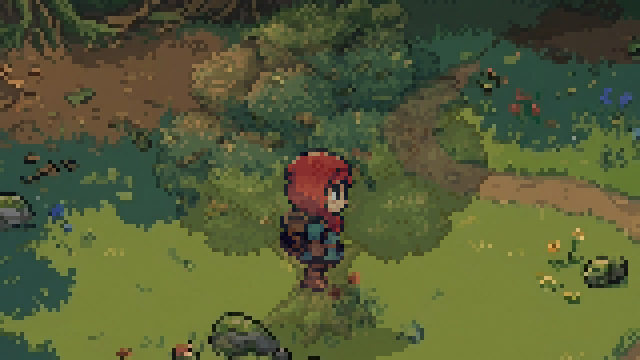
It's also the only one of the four that blends colors. Every faded pixel is a mix of the tree and whatever is behind it. In this scene that put over 3,000 colors on screen that are in none of the sprites. The other three add 0, 0 and 1. Fade fits art that already has soft edges. On strict pixel art it can look like a filter.
Dither
Drop some of the tree's pixels instead of blending them. Every pixel is either fully drawn or not drawn at all, so no new colors show up. A 4x4 Bayer pattern decides which pixels go first. It's the classic ordered dither.
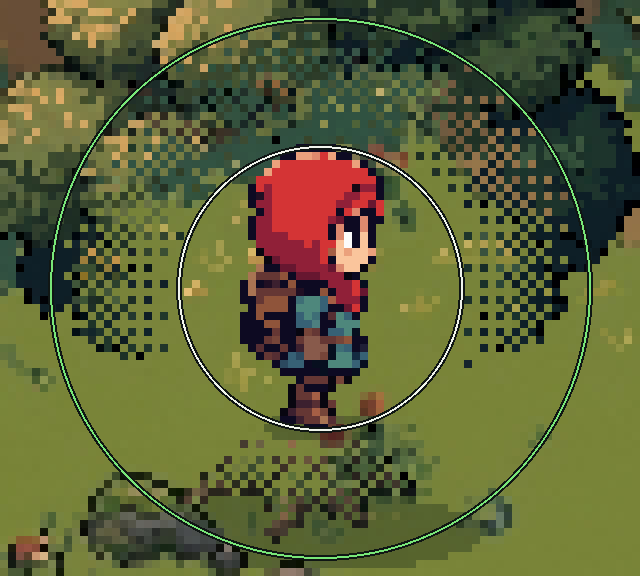
Keep it close to the player. Inside the white circle, 18 px from the player's center, nothing of the tree is left. From there the pattern fills the tree back in, and 16 px further out, at the green circle, it's solid again. You see the player's own sprite and most of the tree.
Old console games faked transparency with a checkerboard mesh like this, and a CRT TV blurred it smooth.
Cutout
The same window with a hard edge. Every pixel of the tree within 22 px of the player is hidden.
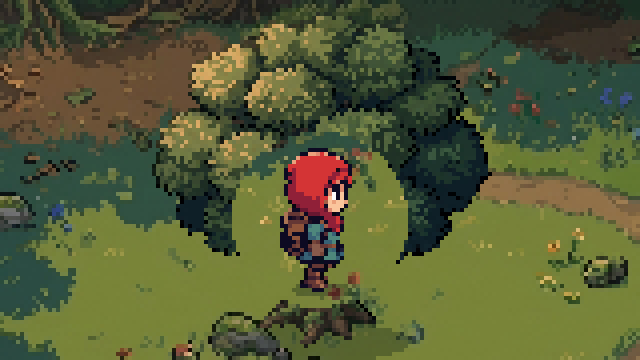
You also see what's standing next to the player, which helps when enemies or loot can be under the same tree.
Silhouette
Leave the tree alone and draw the player again on top of it in one flat color, only where the tree covers them.
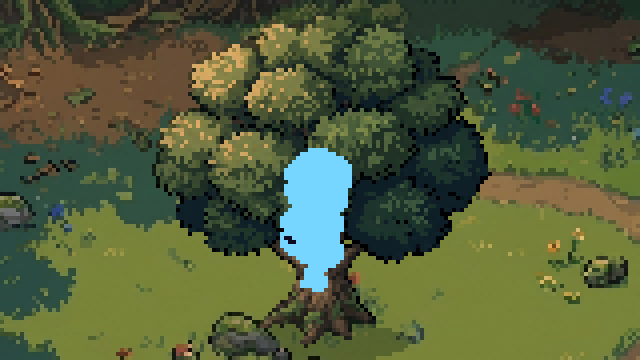
The scenery never changes, so it suits big things like buildings. You only get the player's shape, so pick a color that nothing else in the scene uses.
When to switch it on
The effect should start when the tree really covers the player. That takes two checks.
- Depth. The player's feet are behind the tree's foot, which is a smaller y in a Y sorted scene. A player standing in front of the trunk is never hidden.
- Cover. A few points on the player are tested against the tree's opaque pixels. The script tests a grid of 3 by 4 points and switches on when 3 of the 12 are hidden.
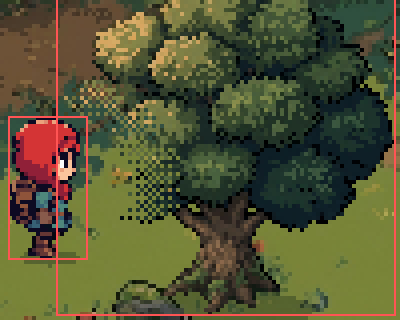
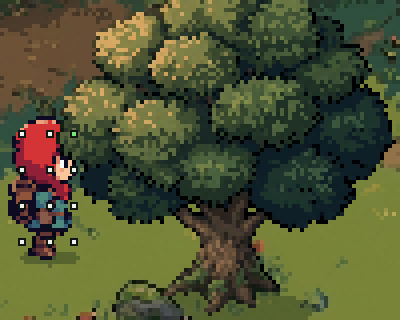
Comparing the two bounding boxes is the easy version, and it switches on too early, because a tree's box is mostly empty corners. On this tree the boxes overlap 10 px before the cover test switches on. That's half a second of walking with the tree open next to a player who is in plain view.
Then ease it. The switch takes 0.2 s in both directions, so a player who brushes the edge of the canopy doesn't make the tree blink.
The silhouette is the exception. The engine's clip mask already decides per pixel where the copy shows, so the box overlap is enough to switch it on.
The code
One Godot 4 script for all four, plus two small shaders. Put the script on the Sprite2D of anything the player can walk behind, point target at the player and pick a mode. The player and the sprite both need their origin at their feet, which is how a Y sorted scene is set up anyway.
# see_through.gd: keeps a character visible while it walks behind this sprite.
# Attach it to the Sprite2D of a tree, wall or roof and point `target` at the character.
# Both need their origin at their feet, the usual Y sort setup. Pick the look with `mode`.
extends Sprite2D

enum Mode { FADE, DITHER, CUTOUT, SILHOUETTE }

@export var mode := Mode.DITHER
@export var target: Node2D                  # the character, origin at its feet
@export var target_sprite: Node2D           # its Sprite2D or AnimatedSprite2D, only read by SILHOUETTE
@export var target_size := Vector2(20, 36)  # px, the character's visible size
@export var ease_time := 0.2                # s to switch on or off
@export var cover_grid := Vector2i(3, 4)    # points on the character that are tested against this sprite
@export var cover_needed := 0.25            # share of those points that must be hidden to switch on

@export_group("Looks")
@export var fade_to := 0.4                  # FADE: this sprite's opacity while the character is behind it
@export var clear_radius := 18.0            # DITHER: px around the character where nothing of this sprite is left
@export var soft := 16.0                    # DITHER: px over which it thins back to solid
@export var hole_radius := 22.0             # CUTOUT: px
@export var silhouette := Color8(118, 214, 255)

var amount := 0.0                           # 0 = off, 1 = fully on
var _window := ShaderMaterial.new()         # one per sprite, so every tree opens on its own
var _ghost: Node2D                          # SILHOUETTE: a flat-color copy of the character


func _ready() -> void:
	_window.shader = preload("see_through.gdshader")


func _process(delta: float) -> void:
	var goal := 1.0 if target != null and is_behind() else 0.0
	amount = move_toward(amount, goal, delta / ease_time) if ease_time > 0.0 else goal
	var on := amount > 0.0
	self_modulate.a = lerpf(1.0, fade_to, amount) if mode == Mode.FADE else 1.0
	if mode == Mode.DITHER or mode == Mode.CUTOUT:
		material = _window
		_window.set_shader_parameter("target", _center())
		_window.set_shader_parameter("amount", amount)
		_window.set_shader_parameter("clear_radius", clear_radius if mode == Mode.DITHER else hole_radius)
		_window.set_shader_parameter("soft", soft if mode == Mode.DITHER else 0.0)
	elif material == _window:
		material = null
	_show_ghost(on and mode == Mode.SILHOUETTE)


# True when this sprite is drawn over the character and really covers it.
func is_behind() -> bool:
	var feet := target.global_position
	if feet.y >= global_position.y:         # level with this sprite's foot or in front of it
		return false
	if mode == Mode.SILHOUETTE:             # the clip mask does the exact part, so the boxes are enough
		var box := Rect2(feet - Vector2(target_size.x * 0.5, target_size.y), target_size)
		return (get_global_transform() * get_rect()).intersects(box)
	var hidden := 0
	for ix in cover_grid.x:
		for iy in cover_grid.y:
			var at := Vector2((ix + 0.5) / cover_grid.x - 0.5, (iy + 0.5) / cover_grid.y - 1.0) * target_size
			if is_pixel_opaque(to_local(feet + at)):
				hidden += 1
	return hidden > 0 and hidden >= cover_needed * cover_grid.x * cover_grid.y


func _center() -> Vector2:
	return target.global_position - Vector2(0.0, target_size.y * 0.5) if target != null else Vector2.ZERO


# SILHOUETTE: this sprite clips a flat-color copy of the character, so the copy only shows where it is covered.
func _show_ghost(on: bool) -> void:
	clip_children = CLIP_CHILDREN_AND_DRAW if on else CLIP_CHILDREN_DISABLED
	if on and _ghost == null:
		_ghost = target_sprite.duplicate(0)
		var flat := ShaderMaterial.new()
		flat.shader = preload("flat_color.gdshader")
		_ghost.material = flat
		add_child(_ghost)
	if _ghost != null:
		_ghost.visible = on
	if on:
		_ghost.material.set_shader_parameter("color", silhouette)
		_ghost.global_transform = target_sprite.global_transform
		if _ghost is AnimatedSprite2D:
			_ghost.animation = target_sprite.animation
		_ghost.frame = target_sprite.frame
		_ghost.flip_h = target_sprite.flip_h
Dither and cutout share one shader. It throws pixels away with discard, so nothing is ever half transparent. Cutout is the dither with soft at 0.
// see_through.gdshader: opens a window in a sprite around a point, with no blending.
// Every pixel of the sprite is either drawn or dropped. soft > 0 gives a dithered edge, soft = 0 a hard hole.
shader_type canvas_item;

uniform vec2 target;                  // the character's center, in world pixels
uniform float amount = 0.0;           // 0 = the sprite is whole, 1 = the window is fully open
uniform float clear_radius = 18.0;    // px around the target where nothing of the sprite is left
uniform float soft = 16.0;            // px over which the sprite thins back to solid. 0 = a hard edge

// Bayer 4x4: the order in which the 16 pixels of every 4x4 block are dropped.
const float BAYER[16] = float[](0.0, 8.0, 2.0, 10.0, 12.0, 4.0, 14.0, 6.0, 3.0, 11.0, 1.0, 9.0, 15.0, 7.0, 13.0, 5.0);

varying vec2 world;

void vertex() {
	world = (MODEL_MATRIX * vec4(VERTEX, 0.0, 1.0)).xy;
}

void fragment() {
	vec2 cell = floor(world);                              // one decision per art pixel, at any zoom
	float d = distance(cell + 0.5, target);
	float reach = (clear_radius + soft) * amount;          // the window grows from nothing as amount goes up
	float solid = soft > 0.0 ? clamp((d - reach) / soft + 1.0, 0.0, 1.0) : step(reach, d);
	ivec2 c = ivec2(mod(cell, 4.0));
	if (solid <= (BAYER[c.y * 4 + c.x] + 0.5) / 16.0) {
		discard;
	}
}
The silhouette copy is drawn with this one. The tree clips the copy to its own pixels with Clip Children set to Clip + Draw.
// flat_color.gdshader: draws a sprite's shape in one color. Used for the silhouette copy of the character.
shader_type canvas_item;

uniform vec4 color : source_color = vec4(0.463, 0.839, 1.0, 1.0);

void fragment() {
	COLOR = vec4(color.rgb, step(0.5, texture(TEXTURE, UV).a) * color.a);
}
Tested in Godot 4.6. The logic ran headless. For the pixels, Godot rendered the scene in this post while the hero walked behind the tree, with the Compatibility renderer and with Forward+, and every frame was compared with a Python version of the same math.
- With the player's feet level with the tree's foot or in front of it, nothing switches on. With the feet 1 px behind it and the trunk over the player, it does.
- Inside the tree's box but under no leaves, it stays off. 3 of the 12 points hidden switches it on, 2 doesn't.
- The switch is half way after 6 frames at 60 fps and done after 12, in both directions. With
ease_timeat 0 it takes one frame. - Fade ends at 40% opacity, and the rendered frames match within 1 of 255.
- Dither, cutout and silhouette match exactly on all 44 frames of the walk, with the window opening and closing.
- Fade put over 3,000 colors on screen that are in none of the sprites. Dither and cutout put 0, the silhouette 1.
- With two trees, only the one the player is behind opens, and each tree has its own material.
- The silhouette copy takes the player's position, frame and flip, and an AnimatedSprite2D is copied with its animation and frame. Clipping and the copy are off again 12 frames after the player leaves.
- With
fade_toat 1,clear_radiusandsoftat 0, orhole_radiusat 0, the frames are identical to the plain scene.
Other engines
None of this was run outside Godot, so take it as a pointer.
- Fade is the sprite's color alpha in every engine. In Unity that's
SpriteRenderer.color. - Dither and cutout need a fragment shader that can drop a pixel. That's
discardin GLSL andclip()in HLSL. Pass in the player's position and measure the distance in world pixels. - Silhouette needs a mask in the tree's shape. In Unity, give the tree a Sprite Mask with its own sprite and set the flat-color copy of the player to Visible Inside Mask. With a stencil buffer, write the tree into the stencil and draw the copy where it is set.
Common pitfalls
Dithering the whole sprite. A mesh over a whole tree is hard on the eyes, and the player flickers behind it, because every step shows the other half of their pixels. Dither a window around the player and leave the rest solid.
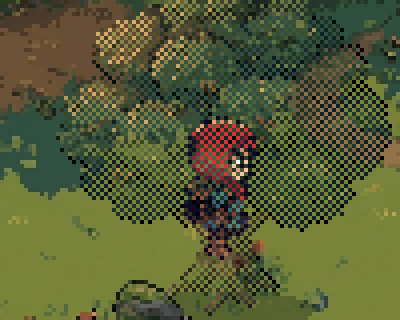
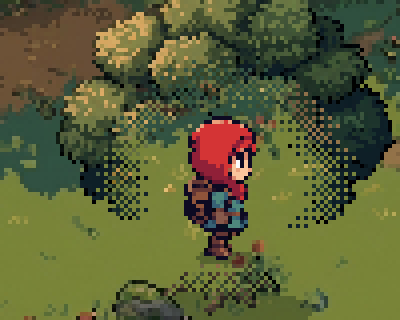
Switching on by bounding box. The tree opens while the player is still standing next to it. Check the feet first, then test against the sprite's opaque pixels. In Godot that's is_pixel_opaque.
Trees painted on a tilemap. A tile layer is one object with one opacity, so fading it fades every tree on it. Make anything the player can walk behind its own sprite, and each one switches on its own.
A sprite that already has a shader. A sprite holds one material. In dither and cutout mode the script puts its own on the tree, which replaces a wind shader or an outline shader. Copy the discard part into the shader you already have.
The origin is not at the feet. The script reads target's position as the player's feet, and places the cover points and the window from there. With a centered sprite they sit half a body too high. Move the origin to the feet, which Y sorting needs anyway.
Dots that don't match your pixels. The shader makes one decision per world pixel. That's one art pixel when the game renders at its art resolution. If you scale sprites up in the scene instead, divide world by that scale first, or the dots come out smaller than your pixels.
Where to next
- How to make pixel art trees move in the wind, for the trees the player walks behind
- How to make pixel art look like it's on a CRT, with the history of checkerboard transparency
- How to set up a pixel art game so it renders pixel perfect, so the dither dots stay the size of your pixels
- Dithering / Screen Door Transparency by KingToot on Godot Shaders, a dither for the whole sprite with an intensity slider
- Drawing a character's silhouette by GDQuest, a Godot 3 version built on a viewport that can also draw an outline
Add this to your game with your coding agent
The prompt has the numbers, pseudo code, pitfalls and checks from this guide, written so your agent can fit it into your own project.
# Add a see-through effect to my game for when the player walks behind things

In my 2D game the player disappears when they walk behind a tree, a wall or a roof. Keep them visible with one of four looks: fade the object, dither a window into it, cut a hard hole in it, or draw the player's silhouette on top of it.

Before you write code, look at my project: the engine and language, how sprites are sorted by depth, where sprite origins sit, whether the things the player walks behind are their own sprites or tiles on a tilemap, which of them already have a shader, and at what scale the pixel art is drawn. Fit this into what is there instead of adding a second system. Keep my draw order and my art as they are. If I did not say which look I want, ask me. If the objects are tiles on one layer, tell me before you change that.

## How it works

- Every object the player can walk behind gets its own `amount`, eased between 0 (off) and 1 (fully on), and its own material, so only the object that covers the player opens.
- The behind test has two parts. Depth: the player's feet are behind the object's base (smaller y in a Y sorted scene). Cover: enough points on the player are over opaque pixels of the object.
- Fade lowers the object's opacity. It is the only look that blends colors.
- Dither and cutout are one fragment shader that drops the object's pixels near the player. A pixel is drawn or not drawn, never half transparent.
- Silhouette leaves the object alone and draws a flat-color copy of the player on top, clipped to the object's own pixels.

## Numbers that matter

Tested for a character of 20 x 36 px. Scale the radii with my character's height.

- Fade: the object goes to 40% opacity.
- Dither: nothing of the object is left closer than 18 px to the player's center. It is solid again 16 px further out, and a 4x4 Bayer pattern thins it out in between.
- Cutout: every pixel closer than 22 px to the center is hidden.
- Silhouette: one flat color, (118, 214, 255) here. Pick one my scene does not use.
- Ease: 0.2 s in both directions, linear, 12 frames at 60 fps.
- Cover test: a grid of 3 x 4 points over the character's box, on when 3 of the 12 are hidden.
- Expose all of these as settings. Fade at 100% opacity or a radius of 0 must turn that look off.

## Pseudo code

```
# on every object the player can walk behind
amount = 0                                   # 0 = off, 1 = fully on

every frame (dt):
    goal   = 1 if is_behind() else 0
    amount = move amount toward goal by dt / ease_time     # ease_time 0: amount = goal
    center = feet - (0, char_size.y / 2)                   # y grows downward
    FADE:       object.opacity = lerp(1, fade_to, amount)
    DITHER:     object.shader(target = center, amount, radius = clear_radius, soft = soft)
    CUTOUT:     object.shader(target = center, amount, radius = hole_radius, soft = 0)
    SILHOUETTE: while amount > 0, clip a flat-color copy of the character to the object's pixels
                and give the copy the character's position, frame and flip

function is_behind():
    if feet.y >= object.base_y: return false               # level with the base or in front of it
    if SILHOUETTE: return boxes_overlap(object, character)  # the clip mask does the exact part
    hidden = 0
    for ix in 0..2:
        for iy in 0..3:                                    # 3 x 4 points over the character's box
            p = feet + ((ix + 0.5) / 3 - 0.5, (iy + 0.5) / 4 - 1) * char_size
            if object has an opaque pixel at p: hidden += 1
    return hidden >= 1 and hidden >= cover_needed * 12     # cover_needed = 0.25

# fragment shader on the object, for DITHER and CUTOUT
BAYER = [ 0,  8,  2, 10,
         12,  4, 14,  6,
          3, 11,  1,  9,
         15,  7, 13,  5]
cell  = floor(world_position)                              # one decision per art pixel
d     = distance(cell + 0.5, target)
reach = (radius + soft) * amount                           # the window grows from nothing
if soft > 0: solid = clamp((d - reach) / soft + 1, 0, 1)
else:        solid = 1 if d >= reach else 0
if solid <= (BAYER[(cell.y mod 4) * 4 + (cell.x mod 4)] + 0.5) / 16:
    drop this pixel
```

Dropping a pixel is `discard` in Godot and GLSL and `clip()` in HLSL. The opaque pixel test is `Sprite2D.is_pixel_opaque` in Godot. Elsewhere, read the texture's alpha once into a bit mask. The clip is `clip_children = CLIP_CHILDREN_AND_DRAW` on the object in Godot with the copy as its child, a Sprite Mask plus Visible Inside Mask in Unity, and a stencil in a custom engine.

## Pitfalls

- Do not switch on by bounding box overlap. On the tested tree that came 10 px before the cover test.
- Do not dither the whole sprite. It is hard on the eyes and the player flickers behind it.
- Tiles on one tilemap layer share one opacity, so fading the layer fades every tree. Objects need to be their own sprites.
- A sprite holds one material. If an object already has a shader (wind, outline), add the pixel drop to that shader instead of replacing it.
- The code reads the character's position as its feet. With a centered origin the points and the window sit half a body too high.
- `floor(world_position)` is one art pixel only when the game renders at its art resolution. If sprites are scaled up in the scene, divide by that scale first.
- Turn the silhouette's clipping and copy off when `amount` is 0, and keep one copy per object.

## Check that it works

Write a small automated test if the engine allows it, otherwise add a debug key that cycles the four looks. Expected, with the numbers above:

- Feet level with the object's base or in front of it: never on. Feet 1 px behind the base and covered: on.
- Inside the object's bounding box but under none of its opaque pixels: stays off.
- 3 of the 12 points hidden: on. 2 hidden: off.
- At 60 fps, counting the first frame on which the behind test is true as frame 1: `amount` is 0.5 after frame 6 and 1 after frame 12. It is back at 0 after the 12th frame on which the test is false.
- Fade, fully on: opacity 0.4.
- A headless run has no renderer. Test the pixel drop rule as a plain function with the same math, or read back a rendered frame.
- Dither, fully on: no object pixel closer than 18 px to the center is drawn, every one farther than 34 px is, and none is partly transparent.
- Cutout, fully on: no object pixel closer than 22 px is drawn, every one farther is.
- Two objects, player behind one: only that one opens.
- Silhouette: the copy shows only where the object covers the player and follows the player's frame and flip.
- Fade at 100% or a radius of 0: the frame is identical to the game without the effect.

Then tell me which look and values you used and where I can tweak them.

Full guide with video, pictures and a tested Godot 4 script and shader: https://www.spritecook.ai/blog/2d-see-through-fade-dither-cutout-silhouette
More game techniques
All techniques
 Coyote time, jump buffering and corner correction for 2D platformersThree small bits of forgiveness that make a platformer feel fair. A late jump off a ledge, an early jump before landing and a nudge past a corner, with the numbers, tested Godot code and the pitfalls.
 Hit stop, hit flash, knockback and 5 more ways to make hits feel heavyEight small effects that make a sword hit feel heavy in a 2D game, from hit stop to damage numbers, with the frame counts and pixel sizes for each, a tested Godot script and the pitfalls.
 How to set up a pixel art game so it renders pixel perfectWhy pixel art looks blurry, lumpy or pasted together in a game, and the eight rules that fix it. With the Godot and Unity settings, a tested script that audits a scene and the pitfalls.