How to Animate Detailed and HD Art with prompting
How to animate HD illustrations, painted characters, and detailed game art using the /animate page's detailed mode.
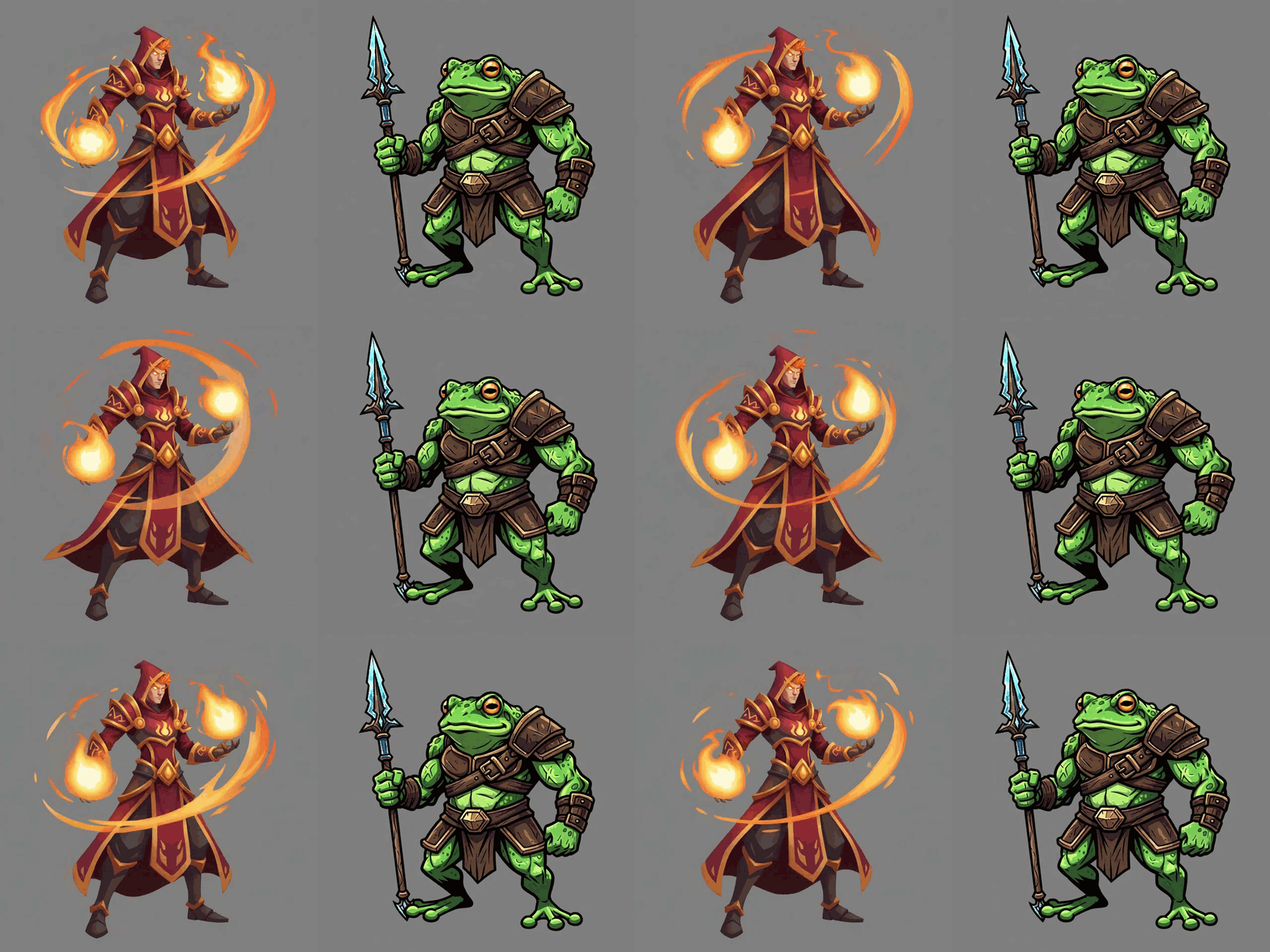
How to Animate Detailed and HD Art
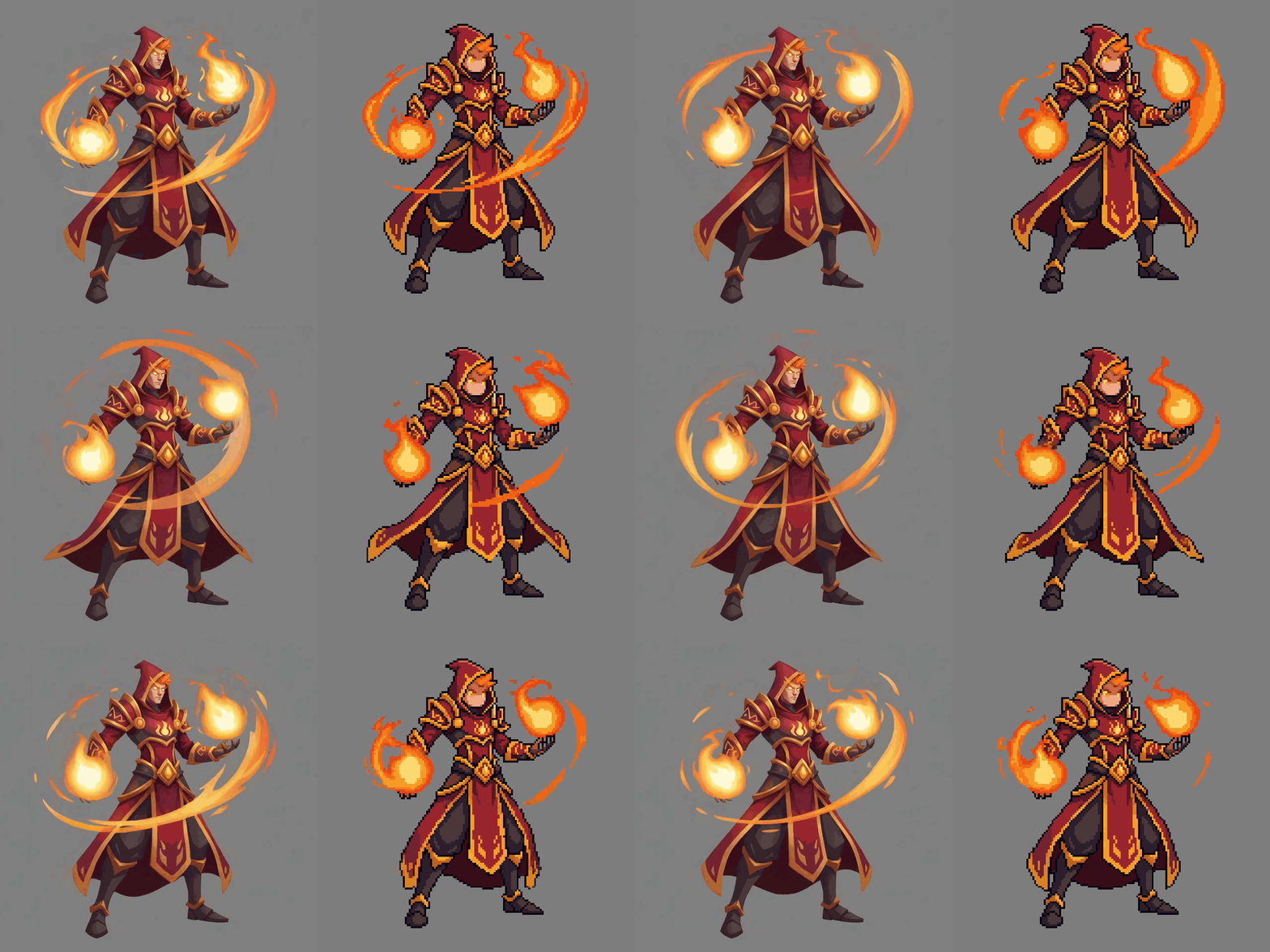

The /animate page now has a second mode. If you've used it for pixel art animations before, same idea, just for bigger, detailed art.
Pick your mode
There's a toggle at the top of the page. Pixel Art on the left, Detailed on the right.
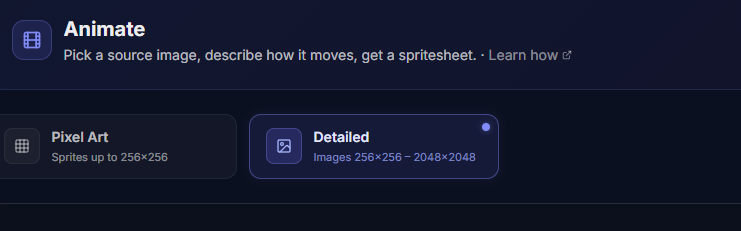
| Pixel Art | Detailed | |
|---|---|---|
| Source size | Up to 256x256 | 256x256 to 2048x2048 |
| Max frames | 16 | 24 |
| Best for | Sprites, tiles, small game assets | Illustrations, HD characters, larger art |
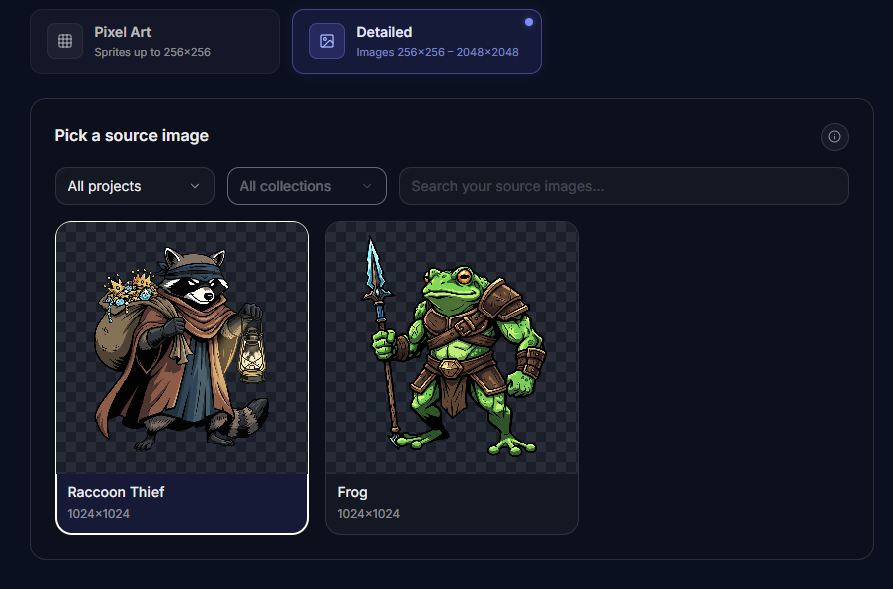
Step 1: Pick a source image
Select an image from your assets or drag one in. Detailed mode needs the source to be at least 256x256 and at most 2048x2048.
Step 2: Reframe
Same as pixel art mode. You can add margin and reposition the image inside the frame. Only add margin when the motion actually needs the room.
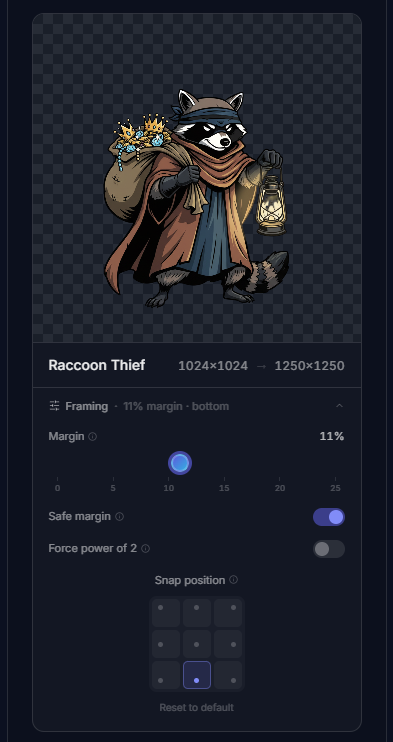
This step works the same as in the pixel art animation guide if you want more detail.
Step 3: Describe the motion
Write what you want the image to do. Keep Enhance prompt on if you're starting short.
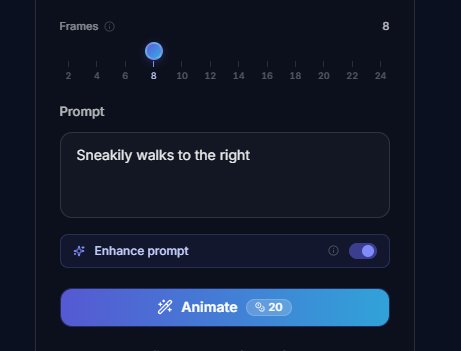
This can be anything, depending on what you're animating. A few examples:
- "character swings sword in a wide arc"
- "campfire flames flicker and sparks rise"
- "flag waves gently in the wind"
- "character breathes and blinks in idle pose"
Background removal
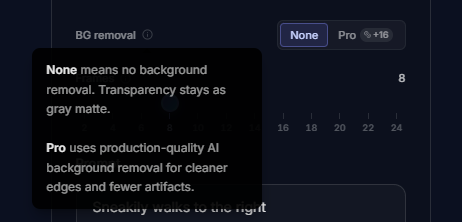
Detailed mode auto-switches to Pro background removal for cleaner edges. You can turn it off if your source already has the background you want.
Results

Try it
Open /animate, switch to Detailed, and pick a source image. If you don't have one yet, make something on /create first.