An AI Assistant That Helps You Make Game Art
Ask how to make a sprite, get pointed to the right tool, ask about a specific asset, or have it set up a generation for you. Here's how the in-app assistant works.

There are a lot of tools in SpriteCook now, and picking the right one for what you want isn't always obvious. So there's an assistant in the app. Ask it how to do something and it tells you, then gives you a button that opens the right tool.
Where to find it
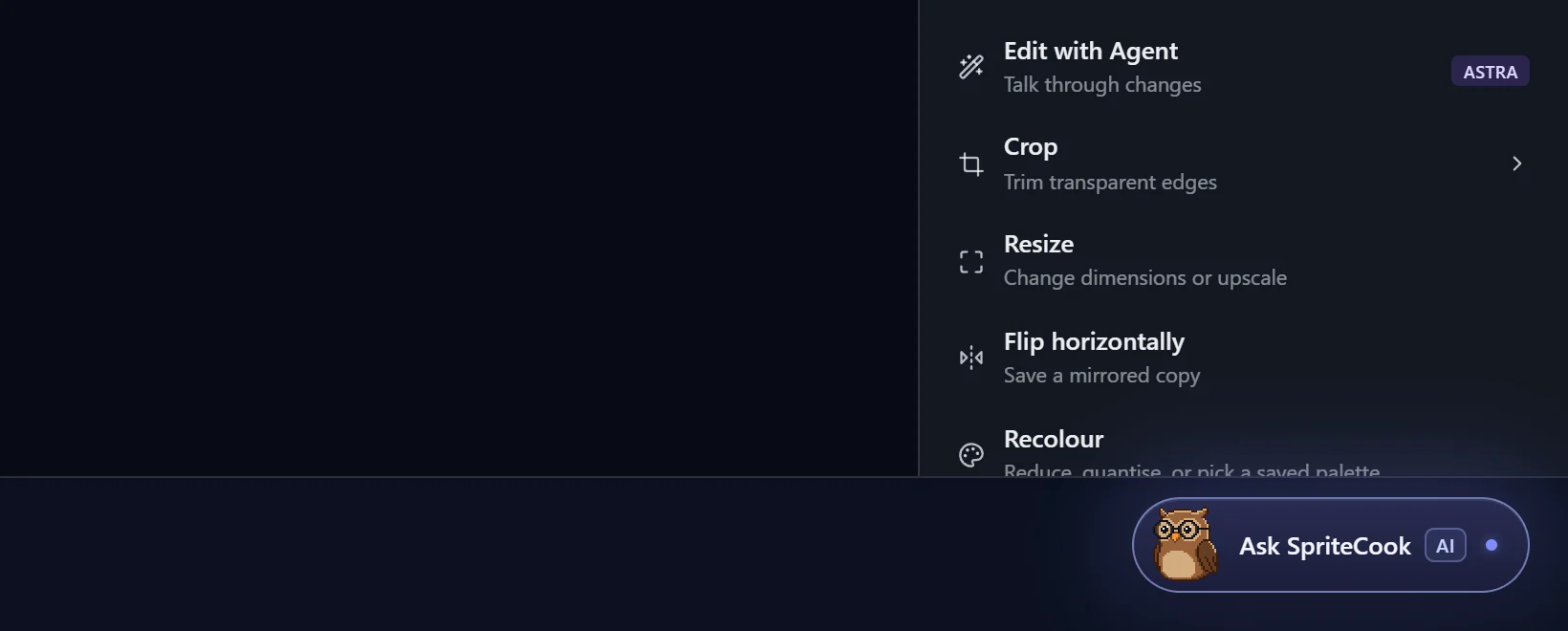

Click the owl in the bottom right corner of the app. You can also find Ask SpriteCook AI in the help menu.
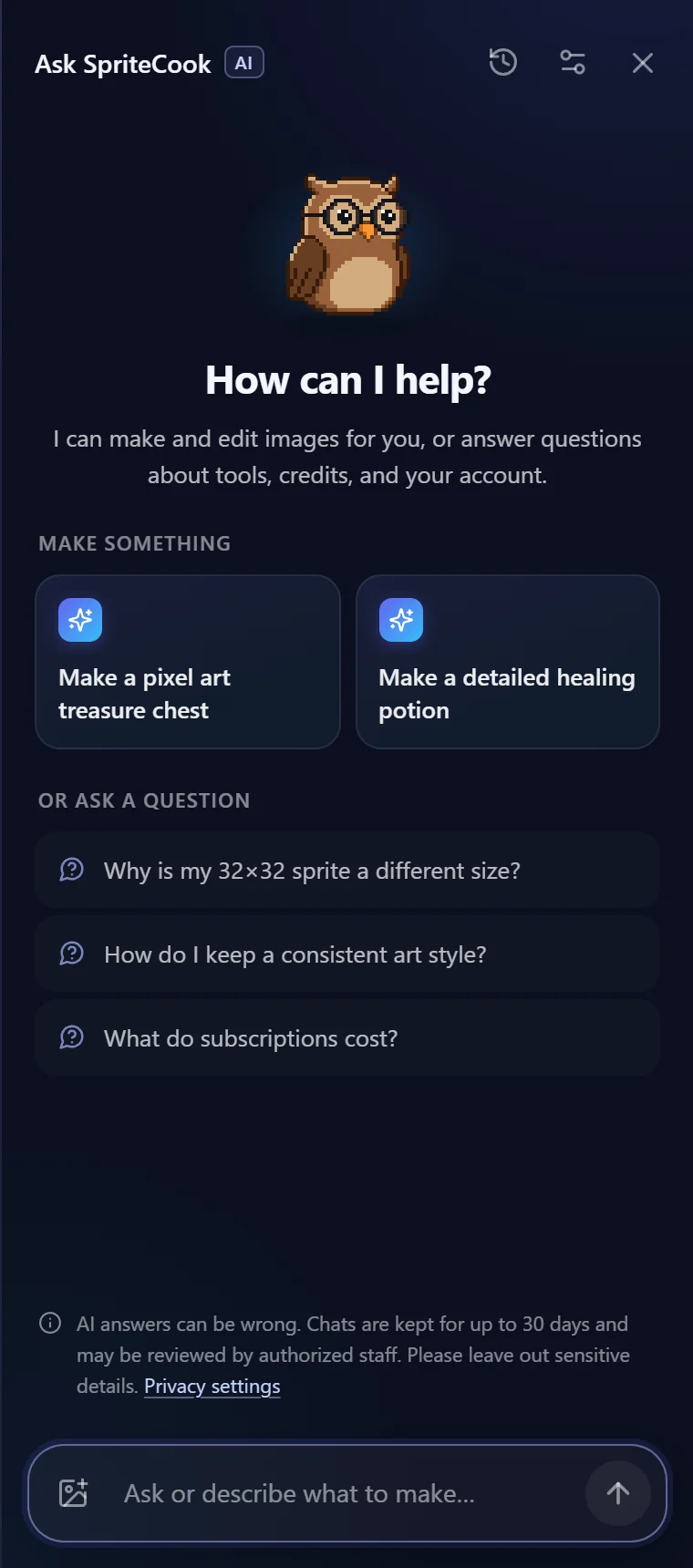
A new chat gives you a couple of things to make and a few common questions to start from. Or just type.
Ask how to do something
It answers from the SpriteCook guides and docs, and every answer comes with buttons that take you straight to the tool it's talking about.
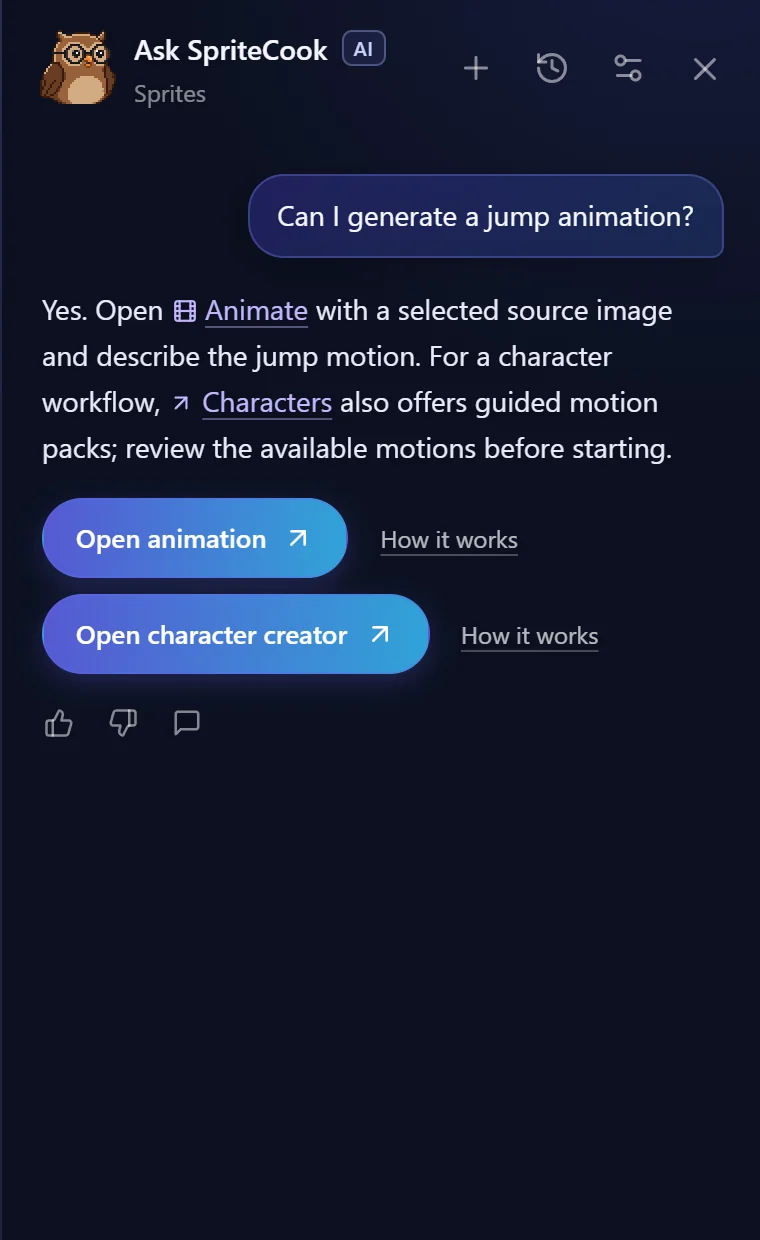
How it works next to a button opens a short guide right in the chat, in case you want the steps before you jump in. Some answers also link out to a longer docs page or blog guide.
The answers come from SpriteCook's own guides, so it knows the tools. It can still get things wrong, and if it isn't sure, it'll say so and send you to support.
Ask about a specific asset
Drag any asset onto the chat, or use the image button in the message box to pick one. After you generate something in Create, there's also an Ask SpriteCook button with the owl at the top of the side panel. It reads the asset's prompt, size and settings, so you can ask about that one thing.
On a wide screen the chat docks next to the asset, so you can look at the sprite while you ask about it.
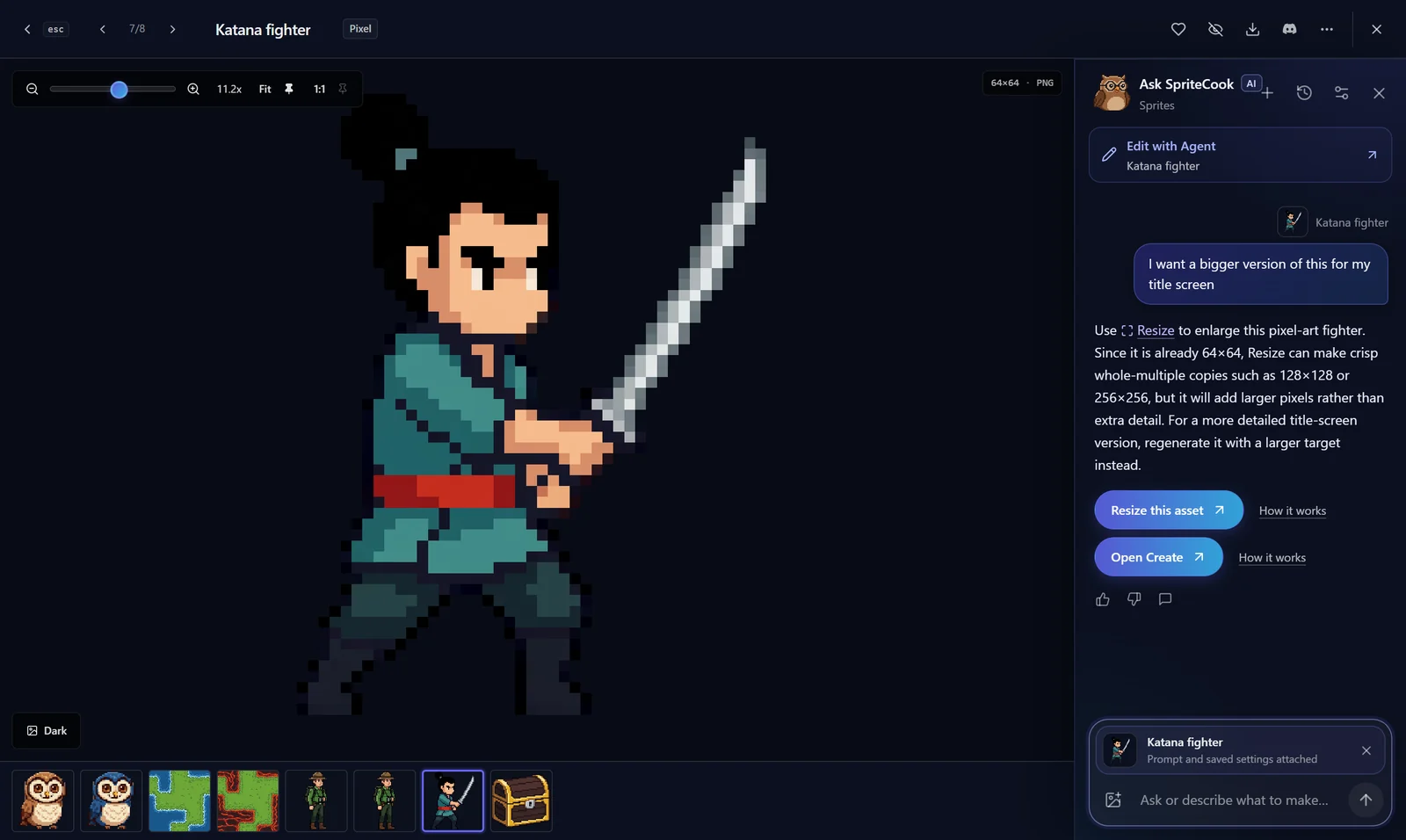
Here I asked for a bigger version of a 64x64 sprite for a title screen. It knew the size, explained that Resize scales pixel art up by whole numbers, and pointed out that a more detailed version needs a new generation instead.
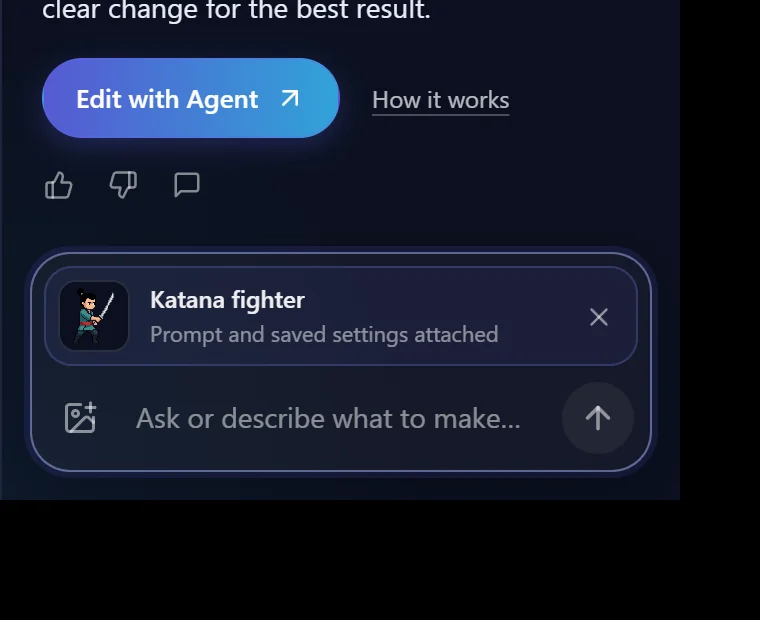
If you ask for a change to the sprite itself, it sends you to the tool that does that. Recolors and pixel fixes go to Edit with Agent.
Let it set up a generation
Ask for something and it fills in a generation for you. You get a card with the prompt and settings, the model, and what it costs. Nothing runs until you hit Create asset.
That chest is a real generation from the prompt it wrote. 12 credits. The result goes to My Assets like anything else you make.
It makes one image at a time. For bigger jobs like a full character with animations, a tileset or a UI kit, it points you to the tool built for that, like the Character Creator.
Good to know
- Chatting is free. You get 20 messages a day on Free, 100 on Starter, and 300 on Adventurer and Archmage. Anything it makes costs the normal credits.
- You can ask in your own language.
- Chats are kept for up to 30 days, and your old ones are under the history button. In Privacy & settings you can choose whether a chat can be reviewed to improve answers.
- It can't issue refunds or change your plan. For that, it points you to support.
Try it
Open the app and click the owl. If it gives you a bad answer, hit the thumbs down and tell me why. I read those and use them to fix its guides.