How to set up a pixel art game so it renders pixel perfect
Why pixel art looks blurry, lumpy or pasted together in a game, and the eight rules that fix it. With the Godot and Unity settings, a tested script that audits a scene and the pitfalls.
Paste it into Claude Code, Codex, Cursor or any coding agent.
# Set up pixel perfect rendering in my pixel art game

The pixel art in my game looks blurry, lumpy when the camera moves, or some sprites look pasted onto the rest. The art is fine. Set the project up so every game pixel is drawn as one hard square of the same whole-number size.

Before you write code, look at my project: the engine and version, the current window and viewport settings, the texture import settings, the camera, how UI is scaled, and the pixel size my sprites and tiles were drawn at. Change settings before you change code. Keep my art and my base resolution if it has one. If the art has mixed pixel sizes, list the files and ask me before resizing anything.

## How it works

- Blurry: a linear texture filter blends each pixel into its neighbors. Nearest copies it as a hard square.
- Lumpy: scaling the picture by a fraction makes some pixels wider than others. At 5.45x they are 5 and 6 screen pixels wide, and the wide columns crawl when the camera moves. Scale by whole numbers only and fill the rest of the window with black bars.
- Pasted together: a sprite drawn at scale 2 has pixels twice the size of everything around it. Everything is drawn at scale 1, at the game's resolution.

## Numbers that matter

- One base resolution for the whole game. 384 x 216 fills 1080p at 5x and 4K at 10x, and gets 6x with bars at 1440p. 320 x 180 fills 1080p, 1440p and 4K exactly at 6x, 8x and 12x.
- Scale = the biggest whole number that fits the window, never below 1.
- Every sprite, tile, effect and UI element at scale 1. Camera zoom in whole numbers. Rotation only in steps of 90 degrees.

## The rules

1. Texture filter Nearest everywhere. No mipmaps and no lossy compression on sprites.
2. One base resolution, scaled by whole numbers, black bars for the rest.
3. Snap the camera and every sprite position to whole game pixels when drawing.
4. One pixel size for everything. Nothing scaled by anything other than 1 (a flip is fine).
5. No runtime rotation of pixel art, except 90 degree steps or drawn rotations.
6. Pixel fonts at their native size, antialiasing off.
7. Particles and effects on the same pixel grid as the sprites.
8. Before a new asset goes in, check its pixel size against a tile at 1x.

## Pseudo code

```
function integer_scale(window_w, window_h, base_w, base_h):
    scale = max(1, min(floor(window_w / base_w), floor(window_h / base_h)))
    bar_x = floor((window_w - base_w * scale) / 2)      # black bars left and right
    bar_y = floor((window_h - base_h * scale) / 2)      # and top and bottom
    return scale, bar_x, bar_y

function pixel_size(image):          # 1 for native art, 2 for art scaled up 2x
    size = 0
    for every row and every column of the image:
        for every run of equal neighboring pixels in it:
            size = gcd(size, run length)
    return size

function audit(scene):               # run it in the game, print what it returns
    problems = []
    check the project: filter Nearest, whole-number scaling on, pixel snapping on
    for every node in the scene:
        its own texture filter is not Nearest            -> problem
        a sprite or tilemap whose total scale is not 1   -> problem (ignore the sign, flips are fine)
        a sprite rotated by something other than 90s     -> problem
        a camera whose zoom is not a whole number        -> problem
        text drawn with an antialiased font              -> problem
    return problems
```

Godot 4: Project Settings, Display > Window > Stretch > Mode `viewport` and Scale Mode `integer` (4.2 or newer), Size > Viewport Width and Height = the base resolution, Rendering > Textures > Canvas Textures > Default Texture Filter `Nearest`, Rendering > 2D > Snap > Snap 2D Transforms to Pixel and Snap 2D Vertices to Pixel on. Sprites imported Lossless, fonts with Antialiasing None. With those, the engine does `integer_scale` for you.

Unity: every sprite Filter Mode Point (no filter), Compression None, Generate Mip Maps off, the same Pixels Per Unit everywhere. A Pixel Perfect Camera set to the base resolution. Anti-aliasing off in Quality settings or the URP asset.

Custom engine or web: render the game to an off-screen target at the base resolution, then draw that target once at `scale` with nearest sampling at `(bar_x, bar_y)`. On a canvas, `imageSmoothingEnabled = false` and CSS `image-rendering: pixelated`.

## Pitfalls

- A project default of Nearest does not change a node or material that was set to Linear by hand. Find those.
- A sprite under a scaled parent is scaled too. Check total scale, not the node's own.
- UI drawn at 2x over a 1x game is two pixel sizes on one screen. Draw the UI at the base resolution.
- Do not stretch to fill the bars on odd screen sizes. That brings the uneven pixels back.
- A fractional camera zoom has the same effect as a fractional window scale.
- AI-generated "pixel art" usually has no clean grid, so `pixel_size` returns 1 for it even when its pixels look big. Flag those files to me, do not resize them blindly.

## Check that it works

- `integer_scale(1920, 1080, 384, 216)` is (5, 0, 0). `(2560, 1440, 384, 216)` is (6, 128, 72). `(1366, 768, 384, 216)` is (3, 107, 60). `(300, 200, 384, 216)` has scale 1.
- `pixel_size` is 1 for a native sprite, 2 for the same sprite scaled up 2x with nearest, and 1 for it scaled 1.5x.
- A screenshot of the running game at a window that is not a multiple of the base: every game pixel is the same whole number of screen pixels wide and tall, and the bars are black.
- A zoomed-in screenshot has no in-between colors on sprite edges.
- The audit on a test scene with one clean sprite, one at scale 2, one under a parent at scale 1.5, one rotated 30 degrees, one with a Linear filter, a camera at zoom 1.5 and a label with an antialiased font lists exactly those six. A flipped sprite, a sprite rotated 270 degrees and a camera at zoom 2 are not listed.

Then tell me what you changed, which assets break rule 4 or 8, and where the base resolution is set.

Full guide with video, the Godot settings block and a tested audit script: https://www.spritecook.ai/blog/pixel-perfect-pixel-art-game-settings
Pixel art goes wrong on screen in three ways. It looks blurry, it looks lumpy, or one sprite looks pasted onto the rest. The art is usually fine in all three. The game is drawing it wrong, and each one has a setting or a rule that fixes it. A fresh Godot or Unity project gets the first one wrong by default.
The game renders at 384 x 216 and the clip shows it on a 1920 x 1080 screen, with each mistake made on purpose. The frog and the temple were generated by a coding agent with SpriteCook.
Blurry: the texture filter
A linear filter blends every pixel into its neighbors when the picture is scaled up. That's right for photos and wrong for pixel art. Set the filter to Nearest, which copies each pixel as a hard square.
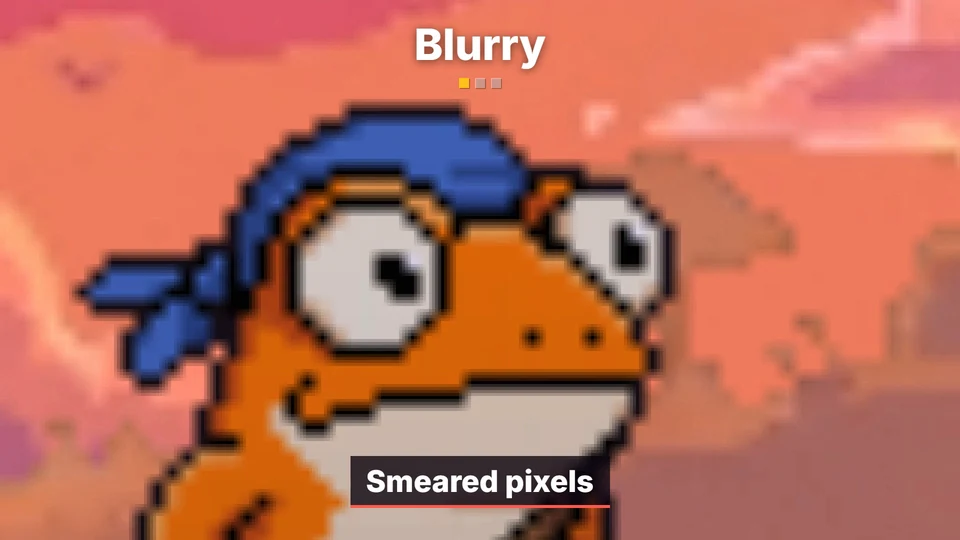
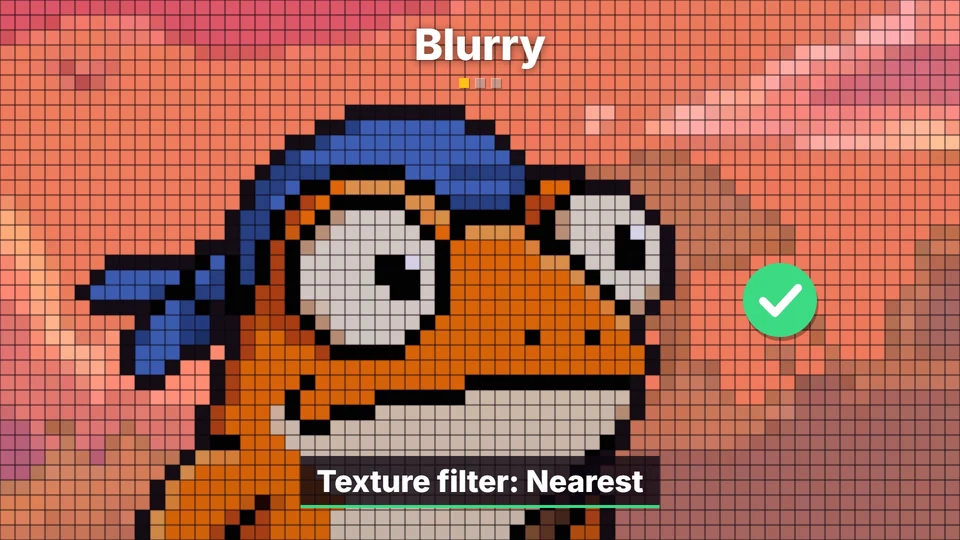
Godot's Default Texture Filter starts on Linear, and Unity imports textures with Filter Mode Bilinear. Mipmaps and lossy texture compression smear pixels the same way, so turn both off for sprites.
Lumpy: scale by whole numbers
Stretch 384 game pixels over 1920 screen pixels and every game pixel is exactly 5 wide. Stretch 352 over 1920, which is 5.45x, and some come out 5 wide and some 6. Standing still it looks lumpy. When the camera moves, the wide columns crawl across the art.
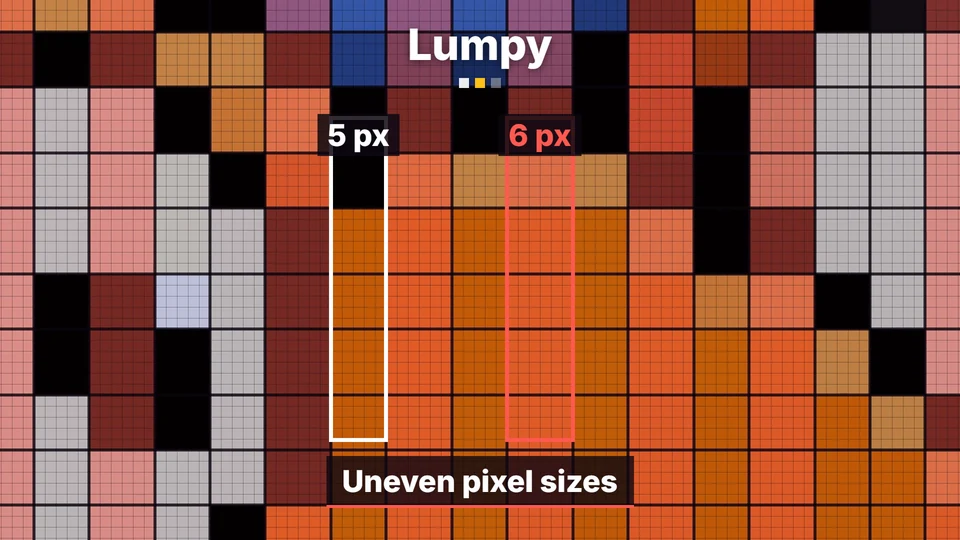
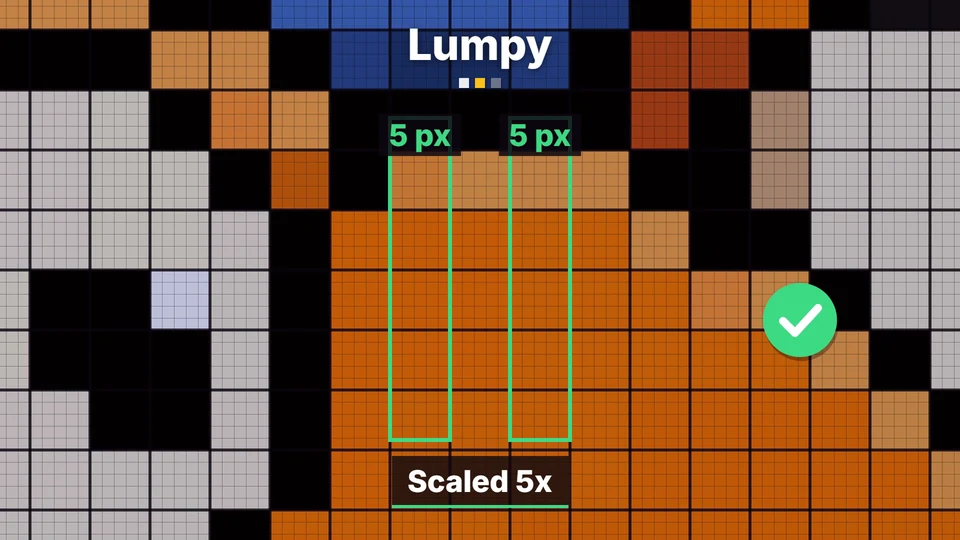
Pick one base resolution, scale it by the biggest whole number that fits the window, and fill what's left with black bars:
def integer_scale(window_w, window_h, base_w, base_h):
    """The biggest whole-number scale that fits, and the black bars left over (left/right, top/bottom)."""
    scale = max(1, min(window_w // base_w, window_h // base_h))
    return scale, (window_w - base_w * scale) // 2, (window_h - base_h * scale) // 2
A 384 x 216 base fills 1080p at 5x and 4K at 10x. At 1440p it would be 6.67x, with pixels 6 and 7 wide, so it gets 6x with bars of 128 px left and right and 72 px top and bottom. A 320 x 180 base fills all three exactly, at 6x, 8x and 12x.
Pasted together: one pixel size
Scale one sprite up 2x and its pixels are twice the size of the pixels around it. Pixel artists call those mixels. The sprite stops looking like part of the scene, even when the colors and style match.
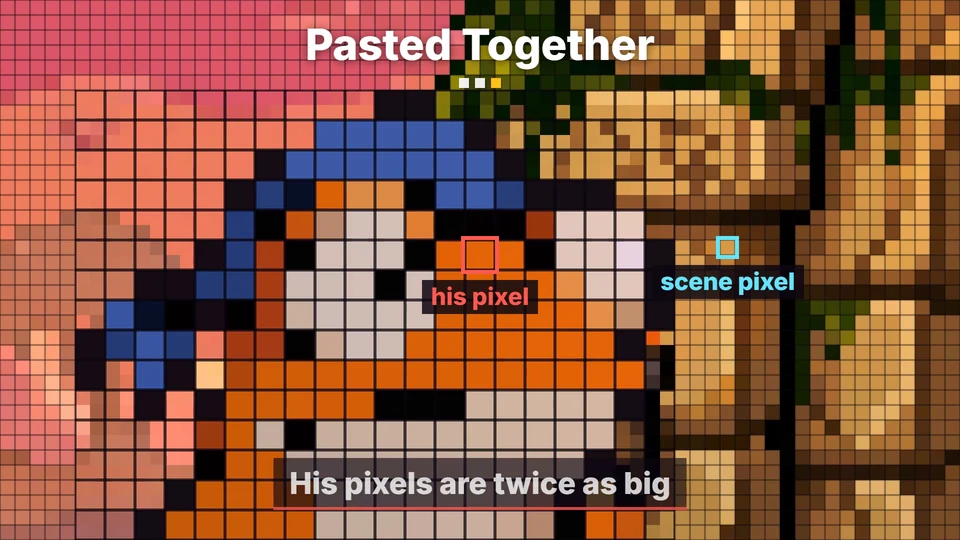
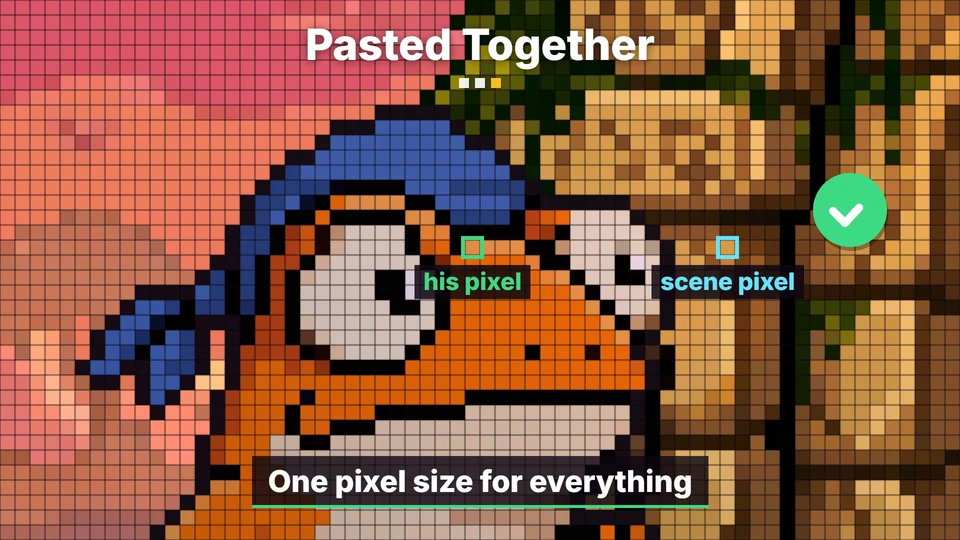
Make every sprite, tile, effect and UI element at the game's resolution and draw all of them at scale 1. Before a new asset goes in, measure it. This returns how many image pixels one art pixel covers, 1 for native art and 2 for art that was scaled up 2x:
def pixel_size(image):
    """How many image pixels wide one art pixel is: 1 for native art, 2 for art that was scaled up 2x.
    It is the largest size that every run of equal pixels, across and down, is a multiple of."""
    rgba = image.convert("RGBA")
    w, h = rgba.size
    px = rgba.load()
    size = 0
    for across in (True, False):
        for a in range(h if across else w):
            run = 1
            for b in range(1, (w if across else h) + 1):
                here = b < (w if across else h) and (px[b, a] if across else px[a, b])
                before = px[b - 1, a] if across else px[a, b - 1]
                if here == before:
                    run += 1
                else:
                    size = math.gcd(size, run)
                    run = 1
            if size == 1:
                return 1
    return size
AI art is where this rule breaks most often. Image models paint pixels at whatever size they like, and rarely on a clean grid, so the function above usually returns 1 for them even when the pixels look big. The free pixel grid detector finds the grid an image was really drawn on and rebuilds the sprite at its true size.
Five more rules
- Snap to whole pixels. Round the camera and every sprite position to whole game pixels when drawing. Half a pixel of offset puts a sprite between two columns.
- No mipmaps, no lossy compression on sprites. Both blend pixels.
- Don't rotate pixel art at runtime. Use drawn rotations, or steps of 90 degrees.
- Pixel fonts at their native size, with antialiasing off.
- Particles and effects on the same grid. A 1.5 px spark next to 1 px art is a mixel too.
The settings in Godot
All of it is in Project Settings. As lines in project.godot:
[display]

window/size/viewport_width=384
window/size/viewport_height=216
window/size/window_width_override=1920
window/size/window_height_override=1080
window/stretch/mode="viewport"
window/stretch/scale_mode="integer"

[rendering]

textures/canvas_textures/default_texture_filter=0
2d/snap/snap_2d_transforms_to_pixel=true
2d/snap/snap_2d_vertices_to_pixel=true
In the editor those are Display > Window > Size and Stretch (Mode viewport, Scale Mode integer), Rendering > Textures > Canvas Textures > Default Texture Filter (Nearest) and Rendering > 2D > Snap. The window override only makes the game start at 5x on a desktop. On import, keep sprites on Compress Mode Lossless and set fonts to Antialiasing None.
Settings don't catch a sprite someone scaled in the scene. This script walks a running scene and lists what breaks the rules:
# pixel_audit.gd: lists what will make the pixel art in a scene look blurry, lumpy or pasted together.
# Use, from any script in the running game:
#   for line in PixelAudit.audit(get_tree().root): print(line)
class_name PixelAudit
extends RefCounted


static func audit(root: Node) -> PackedStringArray:
	var out := PackedStringArray()
	var window := root.get_window()
	var viewport := root.get_viewport()
	if viewport.canvas_item_default_texture_filter != Viewport.DEFAULT_CANVAS_ITEM_TEXTURE_FILTER_NEAREST:
		out.append("Project: Default Texture Filter is not Nearest")
	if window.content_scale_mode != Window.CONTENT_SCALE_MODE_VIEWPORT:
		out.append("Project: Stretch Mode is not viewport")
	if window.content_scale_stretch != Window.CONTENT_SCALE_STRETCH_INTEGER:
		out.append("Project: Stretch Scale Mode is not integer")
	if not viewport.snap_2d_transforms_to_pixel:
		out.append("Project: Snap 2D Transforms to Pixel is off")
	if not viewport.snap_2d_vertices_to_pixel:
		out.append("Project: Snap 2D Vertices to Pixel is off")
	_walk(root, out)
	return out


static func _walk(node: Node, out: PackedStringArray) -> void:
	if node is CanvasItem and not node.texture_filter in [CanvasItem.TEXTURE_FILTER_PARENT_NODE, CanvasItem.TEXTURE_FILTER_NEAREST]:
		out.append("%s: its own texture filter is not Nearest" % node.get_path())
	if node is Sprite2D or node is AnimatedSprite2D or node is TileMapLayer:
		var size: Vector2 = node.global_scale.abs()
		if not size.is_equal_approx(Vector2.ONE):          # a flip (-1) is fine, a resize is not
			out.append("%s: drawn at scale %s, so its pixels are not the size of the others" % [node.get_path(), size])
		var turn := fmod(absf(node.global_rotation_degrees), 90.0)
		if minf(turn, 90.0 - turn) > 0.01:
			out.append("%s: rotated %d degrees, pixel art only survives 90 degree steps" % [node.get_path(), roundi(node.global_rotation_degrees)])
	if node is Camera2D and not node.zoom.is_equal_approx(node.zoom.round()):
		out.append("%s: zoom %s is not a whole number" % [node.get_path(), node.zoom])
	if node is Label:
		var font: Font = node.get_theme_font("font")
		if not font is FontFile or font.antialiasing != TextServer.FONT_ANTIALIASING_NONE:
			out.append("%s: its font is antialiased" % node.get_path())
	for child in node.get_children():
		_walk(child, out)
Tested in Godot 4.6 on a scene with one clean sprite and one offender per rule:
- In a project with the settings above it lists exactly the six offenders: a sprite at scale 2, a sprite under a parent at scale 1.5, one rotated 30 degrees, one with its own Linear filter, a camera at zoom 1.5 and a label with the default font.
- A flipped sprite, a sprite rotated 270 degrees, a camera at zoom 2 and a label with an unantialiased font pass.
- In a project with Godot's defaults it also lists all five project settings.
The settings in Unity
- Every sprite: Filter Mode Point (no filter), Compression None, Generate Mip Maps off, and the same Pixels Per Unit on all of them.
- A Pixel Perfect Camera component, set to your base resolution and the same Pixels Per Unit.
- Anti-aliasing off, in Quality settings or the URP asset.
Common pitfalls
One node with its own filter. A project default of Nearest doesn't change a node that was set to Linear by hand. The audit script catches those.
A fractional camera zoom. Zoom 1.5 gives the same uneven pixels as a 5.45x window. Zoom in whole numbers.
UI at another scale. A HUD drawn at 2x over a 1x game is two pixel sizes on one screen. Draw the UI at the game's resolution too.
A base resolution that fits one screen. Check your base against 1080p, 1440p and 4K with the function above before you draw a lot of art for it.
Stretching to fill the bars. It's tempting on odd screen sizes, and it brings back the uneven pixels. Keep the bars, or show a bit more of the level in them.
Where to next
- Why AI sometimes can't match your sprite's resolution, on where mixed pixel sizes in AI art come from
- How to make pixel art look like it's on a CRT, which needs this setup first
- Unity pixel art import settings for crisp sprites, the Unity side in more detail
- Coyote time, jump buffering and corner correction, with the same frog
Add this to your game with your coding agent
The prompt has the numbers, pseudo code, pitfalls and checks from this guide, written so your agent can fit it into your own project.
# Set up pixel perfect rendering in my pixel art game

The pixel art in my game looks blurry, lumpy when the camera moves, or some sprites look pasted onto the rest. The art is fine. Set the project up so every game pixel is drawn as one hard square of the same whole-number size.

Before you write code, look at my project: the engine and version, the current window and viewport settings, the texture import settings, the camera, how UI is scaled, and the pixel size my sprites and tiles were drawn at. Change settings before you change code. Keep my art and my base resolution if it has one. If the art has mixed pixel sizes, list the files and ask me before resizing anything.

## How it works

- Blurry: a linear texture filter blends each pixel into its neighbors. Nearest copies it as a hard square.
- Lumpy: scaling the picture by a fraction makes some pixels wider than others. At 5.45x they are 5 and 6 screen pixels wide, and the wide columns crawl when the camera moves. Scale by whole numbers only and fill the rest of the window with black bars.
- Pasted together: a sprite drawn at scale 2 has pixels twice the size of everything around it. Everything is drawn at scale 1, at the game's resolution.

## Numbers that matter

- One base resolution for the whole game. 384 x 216 fills 1080p at 5x and 4K at 10x, and gets 6x with bars at 1440p. 320 x 180 fills 1080p, 1440p and 4K exactly at 6x, 8x and 12x.
- Scale = the biggest whole number that fits the window, never below 1.
- Every sprite, tile, effect and UI element at scale 1. Camera zoom in whole numbers. Rotation only in steps of 90 degrees.

## The rules

1. Texture filter Nearest everywhere. No mipmaps and no lossy compression on sprites.
2. One base resolution, scaled by whole numbers, black bars for the rest.
3. Snap the camera and every sprite position to whole game pixels when drawing.
4. One pixel size for everything. Nothing scaled by anything other than 1 (a flip is fine).
5. No runtime rotation of pixel art, except 90 degree steps or drawn rotations.
6. Pixel fonts at their native size, antialiasing off.
7. Particles and effects on the same pixel grid as the sprites.
8. Before a new asset goes in, check its pixel size against a tile at 1x.

## Pseudo code

```
function integer_scale(window_w, window_h, base_w, base_h):
    scale = max(1, min(floor(window_w / base_w), floor(window_h / base_h)))
    bar_x = floor((window_w - base_w * scale) / 2)      # black bars left and right
    bar_y = floor((window_h - base_h * scale) / 2)      # and top and bottom
    return scale, bar_x, bar_y

function pixel_size(image):          # 1 for native art, 2 for art scaled up 2x
    size = 0
    for every row and every column of the image:
        for every run of equal neighboring pixels in it:
            size = gcd(size, run length)
    return size

function audit(scene):               # run it in the game, print what it returns
    problems = []
    check the project: filter Nearest, whole-number scaling on, pixel snapping on
    for every node in the scene:
        its own texture filter is not Nearest            -> problem
        a sprite or tilemap whose total scale is not 1   -> problem (ignore the sign, flips are fine)
        a sprite rotated by something other than 90s     -> problem
        a camera whose zoom is not a whole number        -> problem
        text drawn with an antialiased font              -> problem
    return problems
```

Godot 4: Project Settings, Display > Window > Stretch > Mode `viewport` and Scale Mode `integer` (4.2 or newer), Size > Viewport Width and Height = the base resolution, Rendering > Textures > Canvas Textures > Default Texture Filter `Nearest`, Rendering > 2D > Snap > Snap 2D Transforms to Pixel and Snap 2D Vertices to Pixel on. Sprites imported Lossless, fonts with Antialiasing None. With those, the engine does `integer_scale` for you.

Unity: every sprite Filter Mode Point (no filter), Compression None, Generate Mip Maps off, the same Pixels Per Unit everywhere. A Pixel Perfect Camera set to the base resolution. Anti-aliasing off in Quality settings or the URP asset.

Custom engine or web: render the game to an off-screen target at the base resolution, then draw that target once at `scale` with nearest sampling at `(bar_x, bar_y)`. On a canvas, `imageSmoothingEnabled = false` and CSS `image-rendering: pixelated`.

## Pitfalls

- A project default of Nearest does not change a node or material that was set to Linear by hand. Find those.
- A sprite under a scaled parent is scaled too. Check total scale, not the node's own.
- UI drawn at 2x over a 1x game is two pixel sizes on one screen. Draw the UI at the base resolution.
- Do not stretch to fill the bars on odd screen sizes. That brings the uneven pixels back.
- A fractional camera zoom has the same effect as a fractional window scale.
- AI-generated "pixel art" usually has no clean grid, so `pixel_size` returns 1 for it even when its pixels look big. Flag those files to me, do not resize them blindly.

## Check that it works

- `integer_scale(1920, 1080, 384, 216)` is (5, 0, 0). `(2560, 1440, 384, 216)` is (6, 128, 72). `(1366, 768, 384, 216)` is (3, 107, 60). `(300, 200, 384, 216)` has scale 1.
- `pixel_size` is 1 for a native sprite, 2 for the same sprite scaled up 2x with nearest, and 1 for it scaled 1.5x.
- A screenshot of the running game at a window that is not a multiple of the base: every game pixel is the same whole number of screen pixels wide and tall, and the bars are black.
- A zoomed-in screenshot has no in-between colors on sprite edges.
- The audit on a test scene with one clean sprite, one at scale 2, one under a parent at scale 1.5, one rotated 30 degrees, one with a Linear filter, a camera at zoom 1.5 and a label with an antialiased font lists exactly those six. A flipped sprite, a sprite rotated 270 degrees and a camera at zoom 2 are not listed.

Then tell me what you changed, which assets break rule 4 or 8, and where the base resolution is set.

Full guide with video, the Godot settings block and a tested audit script: https://www.spritecook.ai/blog/pixel-perfect-pixel-art-game-settings
More game techniques
All techniques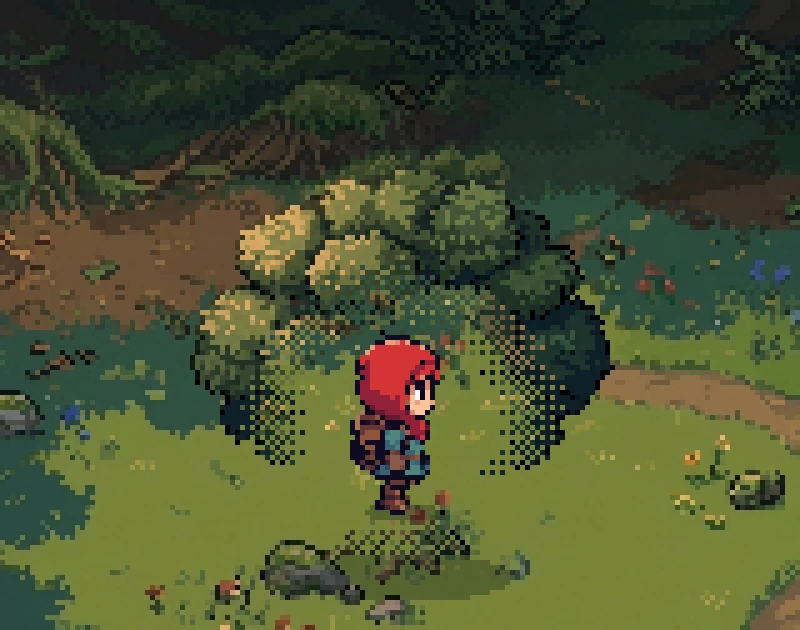
 4 ways to keep the player visible behind trees and walls in a 2D gameFade, dither, cutout and silhouette, the four standard ways to show a character who walks behind a tree or a wall. What each one does to pixel art, when to switch it on, the numbers, a tested Godot script with its shader, and the pitfalls.
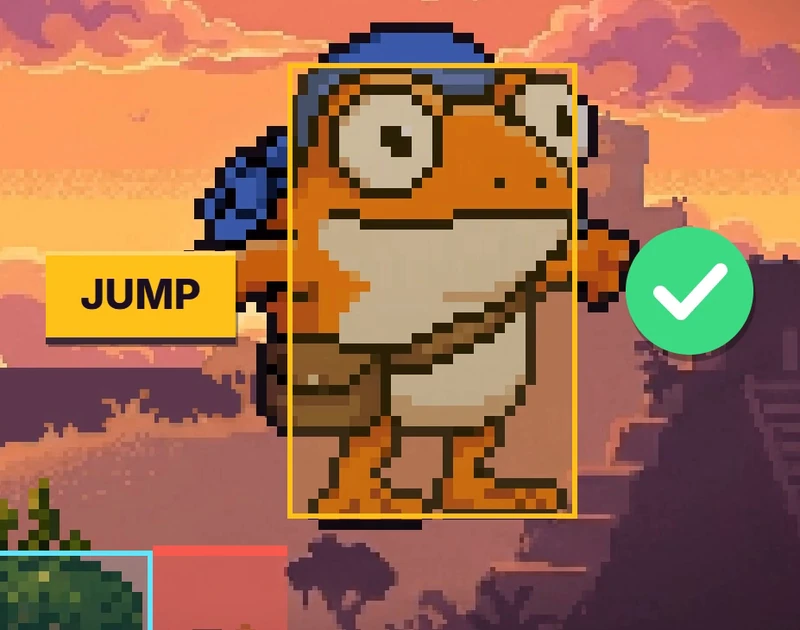
 Coyote time, jump buffering and corner correction for 2D platformersThree small bits of forgiveness that make a platformer feel fair. A late jump off a ledge, an early jump before landing and a nudge past a corner, with the numbers, tested Godot code and the pitfalls.
 Hit stop, hit flash, knockback and 5 more ways to make hits feel heavyEight small effects that make a sword hit feel heavy in a 2D game, from hit stop to damage numbers, with the frame counts and pixel sizes for each, a tested Godot script and the pitfalls.