Eight 2D camera follow techniques, from dead zone to look-ahead
A camera that sits on the player works, but it doesn't help them. Eight ways a 2D camera can follow, from smoothing and a dead zone to look-ahead, points of interest and framing two targets, with the numbers, tested Godot code and the Cinemachine setup for Unity.
Paste it into Claude Code, Codex, Cursor or any coding agent.
# Add a better follow camera to my 2D game

My 2D camera sits on the player, so the screen jerks with every step. Give me a follow camera with these modes to pick from: locked, smooth, dead zone, room by room, look-ahead, points of interest, aim offset and two targets.

Before you write code, look at my project: the engine, my current camera, how the player moves (fixed physics step or not), my view size in pixels, rooms or one open map, mouse aiming, and anything else worth framing. Fit this into my existing camera, and keep my view size, zoom and screen shake. Ask me which modes I want, and where, before building all eight.

## How it works

- Each mode computes a goal position (and for two targets, a view size) every tick, then the camera eases toward the goal with a rate per second: `step = (goal - camera) * (1 - exp(-rate * dt))`. Locked, room by room and look-ahead set the position directly instead.
- Use the engine's built-in follow features where they exist and write a short script for the rest.
- A mode's distances and shares at 0 give the locked camera back. A rate of 0 should mean no easing (snap to the goal), not a frozen camera.
- Run the camera after the player moves, in the same step, or the view shimmers.

## Numbers that matter

All in pixels for a 128 x 128 px view at 60 ticks a second. Scale the pixel numbers with my view size.

- Smooth: rate 2.6 per second. With the formula above that is 4.24% of the gap per tick, and a 100 px jump is within 1 px after 107 ticks. Godot's built-in smoothing moves speed x dt instead, 4.33% and 104 ticks (1.73 s). Either is fine.
- Dead zone: a box of +-22 px across and +-18 px up and down around the screen centre (a third of the view). The camera does not move while the player is inside it, and past it keeps the player exactly on the box edge.
- Room by room: rooms the size of the view (128 x 128). When the player's position enters a new room, slide from wherever the camera is to the new room's centre over 0.55 s (33 ticks) with smoothstep, `t * t * (3 - 2 * t)`. On the first tick, snap to the starting room.
- Look-ahead: lead = 32 px (a quarter of the view) along the direction the player moved this tick, eased at rate 3.4. At rest the goal is 0. After 1 s of walking the lead is 30.9 px, after 1 s at rest 1.0 px. Direction only: running gives the same 32 px.
- Points of interest: mark objects with a group or tag. For each, weight = smoothstep from 0 at 60 px to 1 at 24 px from the player. Goal = player + sum(0.6 x weight x (object - player)). Ease at rate 3.5. Settled offsets: 0 px at 60 px, 14.0 px at 40 px, 14.4 px at 24 px.
- Aim offset: goal = player + 0.45 x (cursor - player), eased at rate 8. A cursor 100 px away gives 45 px.
- Two targets: camera eases at rate 4.5 to the midpoint. View size = max(|dx|, |dy|) + 104 px, clamped to 128 to 240 px, eased at rate 3.5. Zoom = 128 / view size (use the view's width when it isn't square). 100 px apart: 204 px view; 200 px apart: 240 px.

## Pseudo code

```
camera_tick(dt):
    p = player.position
    match mode:
        LOCKED:  cam = p
        SMOOTH:  cam += (p - cam) * (1 - exp(-2.6 * dt))
        DEAD_ZONE:
            cam.x = clamp(cam.x, p.x - 22, p.x + 22)
            cam.y = clamp(cam.y, p.y - 18, p.y + 18)
        ROOMS:
            c = floor(p / ROOM) * ROOM + ROOM / 2
            if c != room_to: room_from = cam; room_to = c; t = 0
            t += dt
            cam = lerp(room_from, room_to, smoothstep(min(t / 0.55, 1)))
        LOOK_AHEAD:
            moved = p - last_p; last_p = p
            goal = normalize(moved) * 32 if length(moved) > 0 else (0, 0)
            lead += (goal - lead) * (1 - exp(-3.4 * dt))
            cam = p + lead
        POINTS:
            goal = p
            for o in marked_objects:
                w = smoothstep_between(60, 24, distance(o, p))   # 0 at 60, 1 at 24
                goal += (o - p) * w * 0.6
            cam += (goal - cam) * (1 - exp(-3.5 * dt))
        AIM:
            goal = p + (cursor_world - p) * 0.45
            cam += (goal - cam) * (1 - exp(-8 * dt))
        TWO_TARGETS:
            q = second.position
            need = clamp(max(abs(q.x - p.x), abs(q.y - p.y)) + 104, 128, 240)
            view += (need - view) * (1 - exp(-3.5 * dt))
            cam += ((p + q) / 2 - cam) * (1 - exp(-4.5 * dt))
            zoom = 128 / view
```

Engine mapping: Godot's Camera2D has `position_smoothing_speed` (smooth) and drag margins as a share of half the screen, 22/64 = 0.34375 and 18/64 = 0.28125 (dead zone); set its process callback to Physics and make it run after the player (a child of the player, or a higher `process_physics_priority`). Unity: a CinemachineCamera with a Position Composer covers smooth (damping), dead zone and look-ahead, and a Target Group with Group Framing covers two targets; script the rest. Custom engine: run this after the player update.

## Pitfalls

- Smoothing that moves a fixed share each frame changes speed with the frame rate. Use the per-second rate as above, or the engine's smoothing.
- A smooth camera lands between pixels. With pixel art, snap the camera to whole pixels or render at screen resolution; ask me which. Snapping the camera but not the player makes him shake.
- The cursor's world position moves with the camera, so with a still mouse the camera settles at about 0.82 of the cursor's offset from the screen centre. For exactly 0.45 of that offset, use goal = player + 0.45 x (cursor on screen - screen centre).
- Points of interest close together pull the camera back and forth. Keep them further apart than the pull distance.
- Two targets: clamp the zoom, and drop the second target past a distance you ask me for, or the view grows without end. Zooming pixel art leaves the whole-pixel scale; ask me whether a soft zoom is fine or it should zoom in whole steps.
- Add to a camera offset the game already uses for shake, don't overwrite it.

## Check that it works

- Smooth: after a 100 px jump the camera is within 1 px after about 104 ticks (1.73 s at 60).
- Dead zone: moving the player 20 px from the centre leaves the camera still. Moving him 40 px puts the camera at 18 px (40 - 22), and 40 px down at 22 px (40 - 18).
- Rooms: walking into the next room moves the camera exactly one room in 33 ticks; inside a room it doesn't move.
- Look-ahead: after 1 s of walking the camera is 30 to 32 px ahead, after 1 s at rest within about 1 px of the player.
- Points of interest: with an object 24 px from the player the settled offset is 14.4 px toward it; at 60 px it is 0.
- Aim: a cursor 60 px away settles the camera 27 px toward it (fixed cursor position, not the mouse).
- Two targets: 100 px apart the view is 204 px wide and the camera is halfway.
- Every mode with its distances and shares at 0 behaves like the locked camera. Add a small automated test if the engine allows one.

Full guide with a video of all eight, tested Godot code and the Unity Cinemachine setup: https://www.spritecook.ai/blog/2d-camera-follow-dead-zone-look-ahead
The first camera in most 2D games sits on the player. It works, but the screen jerks with every step, you see as much behind the player as in front, and it can't show two things at once. A good follow camera fixes that with a few lines each: a little smoothing, a box the player can move in, a lead in the direction they walk. Here are eight of them, each one a bit smarter than the last.
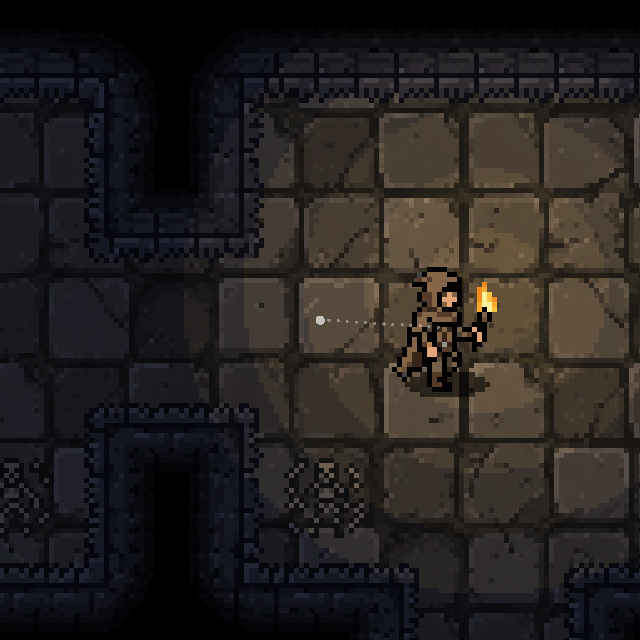
All eight in one walk. The dot is the camera's centre, the dotted line runs to what it follows. The view is 128 x 128 px, drawn at 8x. The hero, his walk and idle, the slime and its hop, and the dungeon tiles were all generated by a coding agent with SpriteCook.
1. Locked
The camera's position is the player's position. Nothing to tune and nothing to get wrong, so start here, and keep it when your game wants a perfectly steady player on screen.
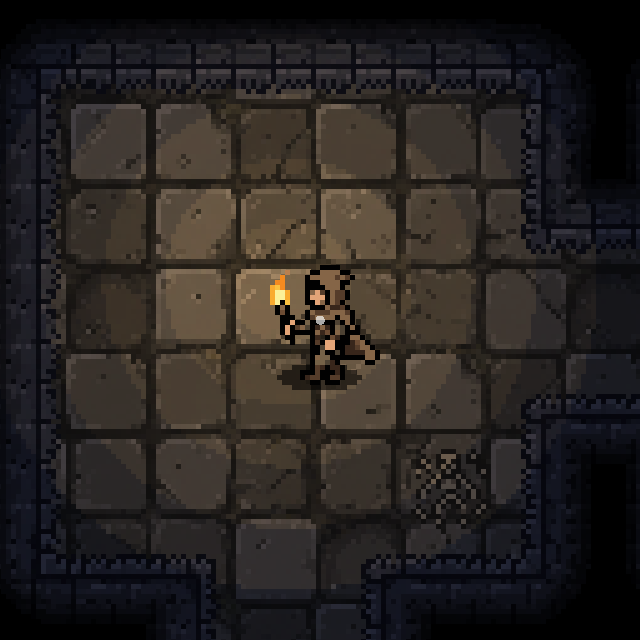
The cost: every step moves the whole screen, and at a stop the world halts the same instant he does.
2. Smooth
Each frame the camera moves part of the way to the player instead of all of it. Here that's 2.6 per second, about 4% of the gap each frame at 60 fps. The camera trails a little while he walks and drifts in after he stops, which reads as weight.
3. Dead zone
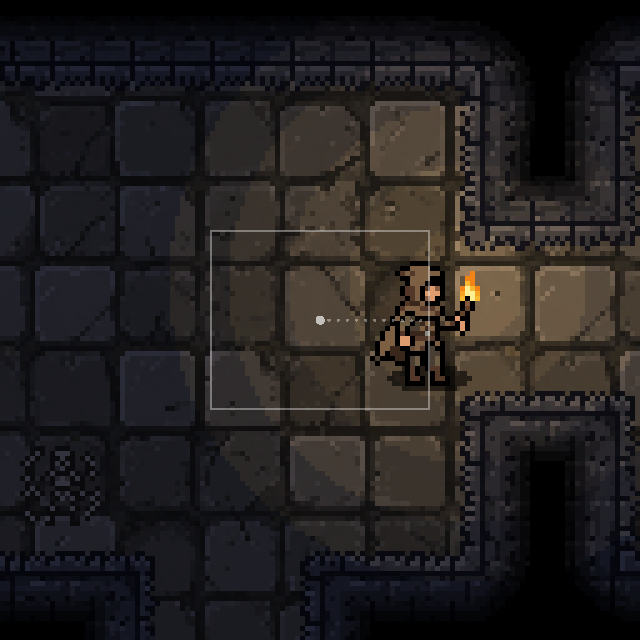
The camera only moves when the player pushes past a box in the middle of the screen. Here the box is 44 x 36 px in a 128 px view. Small moves, like turning around or dodging, leave the screen still, which keeps the view calm in a fight.
4. Room by room
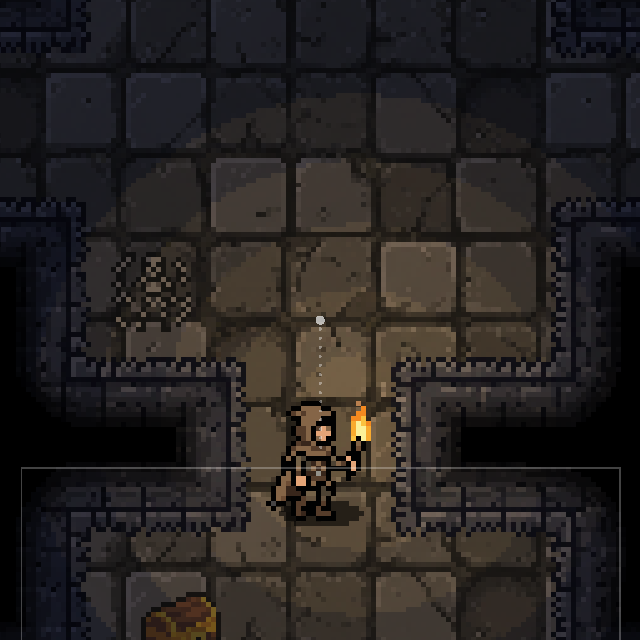
The camera holds the room the player is in and slides to the next one when they walk through a door. Rooms here are exactly one screen, and the slide takes 0.55 s with an ease in and out. This is the old Zelda camera: the whole room is always on screen, so you can design each one as a single picture.
5. Look-ahead
The camera leads in the direction the player moves, so they see more of where they're going. Here the lead is 32 px, a quarter of the view, and it eases in and out at 3.4 per second. When the player stops, the lead goes back to zero and the camera settles on them. Some games keep the lead on the side the player faces even at rest. That's a matter of taste.
6. Points of interest
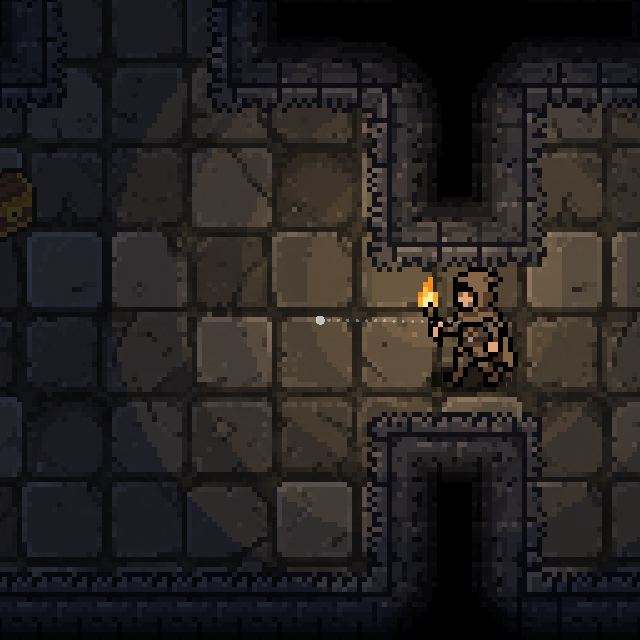
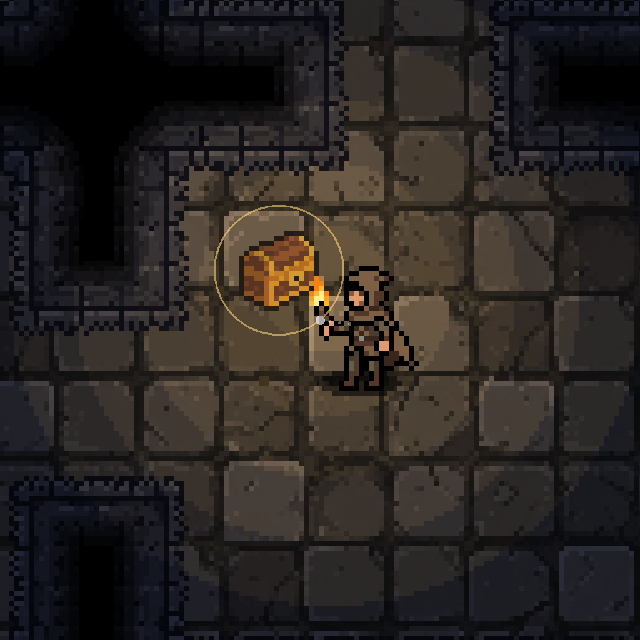
Mark the things worth seeing, a chest or a door, and let the camera lean toward them when the player gets close. The pull starts 60 px away and is full at 24 px, where the camera has moved 60% of the way toward the chest. Walk away and it lets go. Players notice the chest without being told.
7. Aim offset
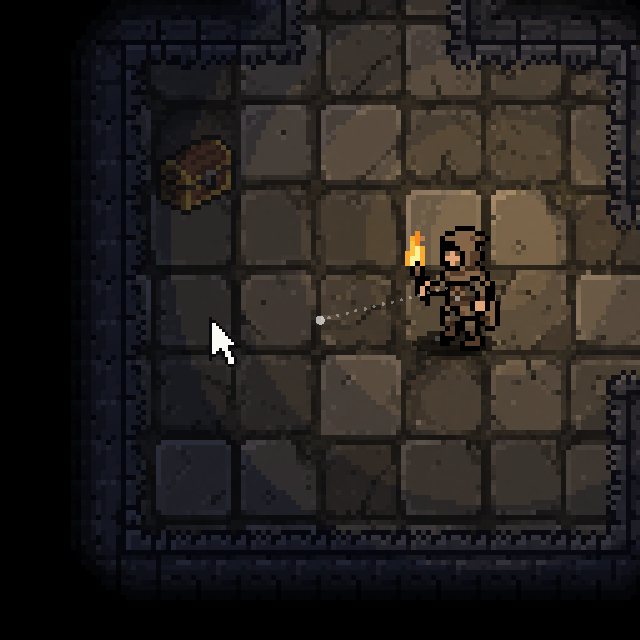
In a game you aim with the mouse, the camera sits between the player and the cursor. Here it's 0.45 of the way to the cursor, so aiming far shows more of the room that way while the player stays on screen. Twin-stick shooters like Enter the Gungeon feel this way.
8. Two targets
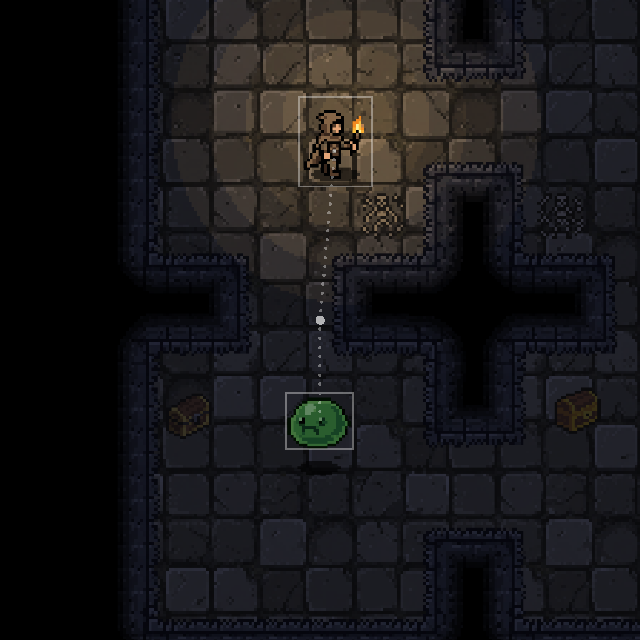
When two things matter, a player and an enemy or two players, the camera aims at the point between them and zooms out as they spread. Here the view is the gap plus 104 px, between 128 and 240 px. With pixel art the zoom leaves the whole-pixel scale, so either accept a slightly soft image while zoomed, or zoom in whole steps.
The code
Levels 1 to 3 are built into Godot's Camera2D, so they're only settings. Levels 4 to 8 are one short script each: put it on a Camera2D, drag your player into target, and make that camera current. The numbers are the defaults, in pixels for a 128 px view, so scale them with your view size.
Locked is a plain Camera2D that follows the player. Make it a child of the player, or set target on any of the scripts below with its setting at 0. Set Process Callback to Physics when your player moves in _physics_process, or the camera reads his position a frame late and the edges shimmer.
[gd_scene format=3]

[node name="LockedCamera" type="Camera2D"]
process_callback = 0
Smooth turns on Position Smoothing. Godot moves the camera by speed x delta of the gap each frame, so 2.6 at 60 frames a second is 4.33% a frame.
[gd_scene format=3]

[node name="SmoothCamera" type="Camera2D"]
process_callback = 0
position_smoothing_enabled = true
position_smoothing_speed = 2.6
Dead zone turns on the drag margins. They're a share of half the screen, so 22 px of a 64 px half is 0.34375, and 18 px is 0.28125.
[gd_scene format=3]

[node name="DeadZoneCamera" type="Camera2D"]
process_callback = 0
drag_horizontal_enabled = true
drag_vertical_enabled = true
drag_left_margin = 0.34375
drag_top_margin = 0.28125
drag_right_margin = 0.34375
drag_bottom_margin = 0.28125
Room by room:
# Room by room: the camera holds the centre of the player's room and slides to the next room when he walks into it.
extends Camera2D

@export var target: Node2D
@export var room_size := Vector2(128, 128)   # one screen per room
@export var slide_time := 0.55               # seconds; 0 cuts straight to the new room

var _from := Vector2.ZERO
var _to := Vector2.ZERO
var _time := 0.0


func _ready() -> void:
	_to = room_centre(target.global_position)
	_from = _to
	global_position = _to


func _physics_process(delta: float) -> void:
	var centre := room_centre(target.global_position)
	if centre != _to:
		# He crossed into another room: slide from wherever the camera is now.
		_from = global_position
		_to = centre
		_time = 0.0
	_time += delta
	var t := 1.0 if slide_time <= 0.0 else minf(_time / slide_time, 1.0)
	# smoothstep eases in and out, so the slide starts and stops gently.
	global_position = _from.lerp(_to, smoothstep(0.0, 1.0, t))


func room_centre(point: Vector2) -> Vector2:
	return (point / room_size).floor() * room_size + room_size / 2.0
Look-ahead:
# Look-ahead: the camera leads the player in the direction he moves, so he sees more of what is coming.
extends Camera2D

@export var target: Node2D
@export var lead_distance := 32.0   # px ahead while he moves; 0 locks the camera on him
@export var lead_rate := 3.4        # how fast the lead grows and fades, per second

var _lead := Vector2.ZERO
var _last := Vector2.ZERO


func _ready() -> void:
	_last = target.global_position
	global_position = _last


func _physics_process(delta: float) -> void:
	var pos := target.global_position
	var moved := pos - _last
	_last = pos
	# Only the direction counts, so walking and running get the same lead. At rest the goal is zero.
	var goal := moved.normalized() * lead_distance
	# Ease the lead, never the camera: he stays put on screen and the view slides ahead of him.
	_lead += (goal - _lead) * (1.0 - exp(-lead_rate * delta))
	global_position = pos + _lead
Points of interest. Add any chest, door or NPC to the camera_poi group:
# Points of interest: near a chest or a door the camera leans toward it, so the player notices it.
# Add any node to the "camera_poi" group to make it a point of interest.
extends Camera2D

@export var target: Node2D
@export var group := "camera_poi"
@export var pull := 0.6          # how far toward a point the camera leans at full weight; 0 turns it off
@export var near := 24.0         # full weight at this distance and closer
@export var far := 60.0          # no weight from this distance out
@export var follow_rate := 3.5   # per second


func _ready() -> void:
	global_position = target.global_position


func _physics_process(delta: float) -> void:
	var pos := target.global_position
	var goal := pos
	for poi in get_tree().get_nodes_in_group(group):
		var to_poi: Vector2 = poi.global_position - pos
		# 0 at `far`, 1 at `near`, eased in between so the lean fades in without a bump.
		var weight := smoothstep(far, near, to_poi.length())
		goal += to_poi * weight * pull
	# Exponential ease: the same feel at any frame rate.
	global_position += (goal - global_position) * (1.0 - exp(-follow_rate * delta))
Aim offset. With use_mouse off you can feed it a gamepad stick or a locked-on enemy instead:
# Aim offset: the camera moves part of the way toward the cursor, so the player sees further where he aims.
extends Camera2D

@export var target: Node2D
@export var aim_share := 0.45     # share of the way to the cursor; 0 keeps the camera on the player
@export var follow_rate := 8.0    # per second; quick, because aiming should feel direct
@export var use_mouse := true     # off: set aim_point yourself (a gamepad stick, a locked-on enemy)

var aim_point := Vector2.ZERO


func _ready() -> void:
	global_position = target.global_position


func _physics_process(delta: float) -> void:
	if use_mouse:
		aim_point = get_global_mouse_position()
	var pos := target.global_position
	var goal := pos + (aim_point - pos) * aim_share
	global_position += (goal - global_position) * (1.0 - exp(-follow_rate * delta))
Two targets:
# Two targets: the camera frames the player and a second target, and zooms out as they move apart.
extends Camera2D

@export var target: Node2D
@export var second: Node2D
@export var padding := 104.0     # px of view around the gap, so neither ends up on the edge
@export var min_view := 128.0    # the normal view; never zoom in past it
@export var max_view := 240.0    # never zoom out past this
@export var move_rate := 4.5     # per second
@export var zoom_rate := 3.5     # per second

var _view := 128.0               # px of the world the camera shows across


func _ready() -> void:
	global_position = target.global_position
	_view = min_view


func _physics_process(delta: float) -> void:
	var a := target.global_position
	var b := second.global_position
	var gap := (b - a).abs()
	var need := clampf(maxf(gap.x, gap.y) + padding, min_view, max_view)
	# Ease the view size and the position separately: zoom changes are easier to notice, so they go slower.
	_view += (need - _view) * (1.0 - exp(-zoom_rate * delta))
	global_position += ((a + b) / 2.0 - global_position) * (1.0 - exp(-move_rate * delta))
	# Zoom below 1 shows more of the world: a 128 px screen at zoom 0.5 shows 256 px.
	zoom = Vector2.ONE * get_viewport_rect().size.x / _view
Tested in Godot 4.6, at 60 physics ticks a second in a 128 x 128 px view:
- Locked: the camera is on the player on every tick, through a 100 px jump and a walk.
- Smooth: each tick the camera closes 2.6 / 60 = 4.33% of the gap, so a 100 px jump is within 1 px after 104 ticks (1.73 s). Smoothing off is the locked camera.
- Dead zone: the camera stays still while the player is within 22 px of the centre left or right. Past that it follows and keeps him 22 px from the centre (18 px up or down). Margins at 0 are the locked camera.
- Room by room: the camera holds the room centre while he walks inside the room, and crossing into the next room slides it 128 px with a smoothstep over 33 ticks (0.55 s), to the side or down. Slide time 0 cuts on the crossing tick.
- Look-ahead: the lead grows as 32 px x (1 - e^(-3.4 t)): 30.9 px after 1 s of walking, 1.0 px after 1 s at rest. Running three times as fast aims at the same 32 px, and walking diagonally the 32 px lie along the walk. Lead 0 is the locked camera.
- Points of interest: the settled offset is 0 px with the chest 60 px away or further, 14.0 px at 40 px and 14.4 px at 24 px, eased at 3.5 per second. Two points at 24 px add up. Pull 0 keeps the camera on the player.
- Aim offset: 45 px toward a cursor 100 px away, 27 px toward one 60 px away, eased at 8 per second (44.2 of the 45 px after 0.5 s). Share 0 keeps the camera on the player.
- Two targets: 100 px apart the camera sits halfway and shows 204 px (zoom 0.627); 200 px apart the view stops at 240 px (zoom 0.533); the larger of the two gaps counts; close together it never zooms in past 128 px. With the second target on the player it's the locked camera at zoom 1.
Unity with Cinemachine
In Unity, Cinemachine 3 does most of this with no code. Put a CinemachineBrain on the Main Camera (orthographic), add a CinemachineCamera with Position Control set to Position Composer, and point its Tracking Target at the player. At 16 px per unit, the 128 px view is an orthographic size of 4.
Cinemachine's Damping is a time, not a rate. To get an ease of rate per second, set Damping to 4.605 / rate: 1.7712 for 2.6, 1.3158 for 3.5, 0.5756 for 8.
| Level | Setup |
|---|---|
| Locked | Position Composer, Damping 0 |
| Smooth | Damping 1.7712 on x and y |
| Dead zone | Damping 0, Dead Zone on, Size (0.34375, 0.28125), a share of the whole screen |
| Room by room | Track RoomFocus below, Damping 0 |
| Look-ahead | Damping 0, Lookahead on, Time 0.5333, Smoothing 4 |
| Points of interest | Track PoiFocus below, Damping 1.3158, and add CameraPoi to each chest or door |
| Aim offset | Track AimFocus below, Damping 0.5756 |
| Two targets | Track a CinemachineTargetGroup (both members Weight 1, Radius 3.25), Position Control None, add CinemachineGroupFraming with Framing Size 1, Damping 1.1513 and Ortho Size Range (4, 7.5) |
Cinemachine's look-ahead predicts where the player will be, so its lead grows with speed: 32 px at a 60 px/s walk, about 92 px at three times that. When the lead should stay the same at any speed, move a focus object like the three below instead. The Group Framing radius of 3.25 units is half of the 104 px padding, and its one Damping eases both position and zoom.
The three focus scripts move an object the camera follows, and the Position Composer's damping does the easing:
using UnityEngine;

// Room by room: this object sits on the centre of the player's room and slides to the next room
// when he walks into it. Point a CinemachineCamera at it (Position Composer, Damping 0).
[DefaultExecutionOrder(-100)] // move before the CinemachineBrain places the camera
public class RoomFocus : MonoBehaviour
{
    public Transform player;
    public Vector2 roomSize = new(8, 8);   // one screen per room: 128 px at 16 px per unit
    public float slideTime = 0.55f;        // seconds; 0 cuts straight to the new room

    Vector2 from, to;
    float time;

    void Start()
    {
        from = to = RoomCentre(player.position);
        transform.position = to;
    }

    void LateUpdate()
    {
        var centre = RoomCentre(player.position);
        if (centre != to)
        {
            // He crossed into another room: slide from wherever the focus is now.
            from = transform.position;
            to = centre;
            time = 0;
        }
        time += Time.deltaTime;
        float t = slideTime > 0 ? Mathf.Clamp01(time / slideTime) : 1;
        // SmoothStep eases in and out, so the slide starts and stops gently.
        transform.position = Vector2.Lerp(from, to, Mathf.SmoothStep(0, 1, t));
    }

    Vector2 RoomCentre(Vector2 point)
    {
        var room = new Vector2(Mathf.Floor(point.x / roomSize.x), Mathf.Floor(point.y / roomSize.y));
        return Vector2.Scale(room, roomSize) + roomSize / 2;
    }
}
using UnityEngine;

// Points of interest: near a CameraPoi this object leans from the player toward it.
// Point a CinemachineCamera at it (Position Composer, Damping 1.32 = a 3.5 per second ease).
[DefaultExecutionOrder(-100)] // move before the CinemachineBrain places the camera
public class PoiFocus : MonoBehaviour
{
    public Transform player;
    public float pull = 0.6f;    // how far toward a point the camera leans at full weight; 0 turns it off
    public float near = 1.5f;    // full weight at this distance and closer (24 px)
    public float far = 3.75f;    // no weight from this distance out (60 px)

    void LateUpdate()
    {
        Vector2 pos = player.position;
        Vector2 goal = pos;
        foreach (var poi in CameraPoi.All)
        {
            Vector2 toPoi = (Vector2)poi.transform.position - pos;
            // 0 at `far`, 1 at `near`, eased in between so the lean fades in without a bump.
            float weight = Mathf.SmoothStep(0, 1, Mathf.InverseLerp(far, near, toPoi.magnitude));
            goal += toPoi * weight * pull;
        }
        transform.position = goal;
    }
}
using System.Collections.Generic;
using UnityEngine;

// Marks a point of interest (a chest, a door) that PoiFocus leans the camera toward.
public class CameraPoi : MonoBehaviour
{
    public static readonly List<CameraPoi> All = new();

    void OnEnable() => All.Add(this);
    void OnDisable() => All.Remove(this);
}
using UnityEngine;
using UnityEngine.InputSystem;

// Aim offset: this object sits part of the way from the player to the cursor.
// Point a CinemachineCamera at it (Position Composer, Damping 0.58 = an 8 per second ease).
[DefaultExecutionOrder(-100)] // move before the CinemachineBrain places the camera
public class AimFocus : MonoBehaviour
{
    public Transform player;
    [Range(0, 1)] public float aimShare = 0.45f; // share of the way to the cursor; 0 keeps the camera on the player
    public bool useMouse = true;                 // off: set aimPoint yourself (a gamepad stick, a locked-on enemy)
    public Vector2 aimPoint;

    void LateUpdate()
    {
        if (useMouse && Mouse.current != null)
            aimPoint = Camera.main.ScreenToWorldPoint(Mouse.current.position.ReadValue());
        Vector2 pos = player.position;
        transform.position = pos + (aimPoint - pos) * aimShare;
    }
}
Tested in Unity 6000.3 with Cinemachine 3.1.7, in Play Mode tests at 60 frames a second:
- Locked: the camera stays exactly on the player.
- Smooth: Damping 1.7712 closes 4.24% of the gap each frame, the same ease as the rate 2.6 above.
- Dead zone: the camera holds while the player moves 22 px, then follows with him on the box edge.
- Room by room: the camera holds the room centre and reaches the next room on frame 33 (0.55 s).
- Look-ahead: walking at 60 px/s it leads 30.7 px, and a second after he stops it is back on him.
- Points of interest: the lean is 0 px at 60 px, 14.0 px at 40 px and 14.4 px at 24 px, and two points add up.
- Aim offset: it settles 45 px toward a cursor 100 px away.
- Two targets: the view is 204 px with them 100 px apart and stops at 240 px, with the camera at the midpoint.
The mouse reading in AimFocus uses the Input System package; the tests set the aim point directly.
Common pitfalls
Smoothing tied to the frame rate. A camera that moves a fixed 4% each frame catches up twice as fast at 120 fps. Use a rate per second (1 - exp(-rate * delta)), or the engine's built-in smoothing, which scales with delta.
Sub-pixel jitter. A smooth camera lands between pixels. With pixel art, either snap the camera to whole pixels (and accept a little stepping) or render the world at the screen's resolution so it can move in fractions of a pixel. Snapping the camera but not the player makes the player shake.
A dead zone that's too big. If the box is most of the screen, the player walks to the edge before anything moves and can't see what's coming. Keep it to about a third of the view.
Look-ahead that flips on every turn. Tapping left and right swings the whole screen. Ease the lead in over a moment, as here, or only change direction after the player has moved a few pixels the new way.
Points of interest that fight each other. Two chests next to each other pull the camera back and forth. Add the pulls together, as here, and keep the pull distance shorter than the gap between them.
Two targets that zoom forever. If one target runs off, the view grows without end. Clamp the zoom, and drop a target from the frame when it's too far away.
Where to next
- Make every hit in your game feel heavy, which adds screen shake on top of any of these cameras
- Pixel perfect settings for a pixel art game, for the camera snapping in pitfall two
- Shadowcasting for torchlight and fog of war, the same dungeon with real light
- Scroll Back: The Theory and Practice of Cameras in Side-Scrollers by Itay Keren, the classic catalogue of these and many more
- Camera2D in the Godot docs and Cinemachine in the Unity docs
Add this to your game with your coding agent
The prompt has the numbers, pseudo code, pitfalls and checks from this guide, written so your agent can fit it into your own project.
# Add a better follow camera to my 2D game

My 2D camera sits on the player, so the screen jerks with every step. Give me a follow camera with these modes to pick from: locked, smooth, dead zone, room by room, look-ahead, points of interest, aim offset and two targets.

Before you write code, look at my project: the engine, my current camera, how the player moves (fixed physics step or not), my view size in pixels, rooms or one open map, mouse aiming, and anything else worth framing. Fit this into my existing camera, and keep my view size, zoom and screen shake. Ask me which modes I want, and where, before building all eight.

## How it works

- Each mode computes a goal position (and for two targets, a view size) every tick, then the camera eases toward the goal with a rate per second: `step = (goal - camera) * (1 - exp(-rate * dt))`. Locked, room by room and look-ahead set the position directly instead.
- Use the engine's built-in follow features where they exist and write a short script for the rest.
- A mode's distances and shares at 0 give the locked camera back. A rate of 0 should mean no easing (snap to the goal), not a frozen camera.
- Run the camera after the player moves, in the same step, or the view shimmers.

## Numbers that matter

All in pixels for a 128 x 128 px view at 60 ticks a second. Scale the pixel numbers with my view size.

- Smooth: rate 2.6 per second. With the formula above that is 4.24% of the gap per tick, and a 100 px jump is within 1 px after 107 ticks. Godot's built-in smoothing moves speed x dt instead, 4.33% and 104 ticks (1.73 s). Either is fine.
- Dead zone: a box of +-22 px across and +-18 px up and down around the screen centre (a third of the view). The camera does not move while the player is inside it, and past it keeps the player exactly on the box edge.
- Room by room: rooms the size of the view (128 x 128). When the player's position enters a new room, slide from wherever the camera is to the new room's centre over 0.55 s (33 ticks) with smoothstep, `t * t * (3 - 2 * t)`. On the first tick, snap to the starting room.
- Look-ahead: lead = 32 px (a quarter of the view) along the direction the player moved this tick, eased at rate 3.4. At rest the goal is 0. After 1 s of walking the lead is 30.9 px, after 1 s at rest 1.0 px. Direction only: running gives the same 32 px.
- Points of interest: mark objects with a group or tag. For each, weight = smoothstep from 0 at 60 px to 1 at 24 px from the player. Goal = player + sum(0.6 x weight x (object - player)). Ease at rate 3.5. Settled offsets: 0 px at 60 px, 14.0 px at 40 px, 14.4 px at 24 px.
- Aim offset: goal = player + 0.45 x (cursor - player), eased at rate 8. A cursor 100 px away gives 45 px.
- Two targets: camera eases at rate 4.5 to the midpoint. View size = max(|dx|, |dy|) + 104 px, clamped to 128 to 240 px, eased at rate 3.5. Zoom = 128 / view size (use the view's width when it isn't square). 100 px apart: 204 px view; 200 px apart: 240 px.

## Pseudo code

```
camera_tick(dt):
    p = player.position
    match mode:
        LOCKED:  cam = p
        SMOOTH:  cam += (p - cam) * (1 - exp(-2.6 * dt))
        DEAD_ZONE:
            cam.x = clamp(cam.x, p.x - 22, p.x + 22)
            cam.y = clamp(cam.y, p.y - 18, p.y + 18)
        ROOMS:
            c = floor(p / ROOM) * ROOM + ROOM / 2
            if c != room_to: room_from = cam; room_to = c; t = 0
            t += dt
            cam = lerp(room_from, room_to, smoothstep(min(t / 0.55, 1)))
        LOOK_AHEAD:
            moved = p - last_p; last_p = p
            goal = normalize(moved) * 32 if length(moved) > 0 else (0, 0)
            lead += (goal - lead) * (1 - exp(-3.4 * dt))
            cam = p + lead
        POINTS:
            goal = p
            for o in marked_objects:
                w = smoothstep_between(60, 24, distance(o, p))   # 0 at 60, 1 at 24
                goal += (o - p) * w * 0.6
            cam += (goal - cam) * (1 - exp(-3.5 * dt))
        AIM:
            goal = p + (cursor_world - p) * 0.45
            cam += (goal - cam) * (1 - exp(-8 * dt))
        TWO_TARGETS:
            q = second.position
            need = clamp(max(abs(q.x - p.x), abs(q.y - p.y)) + 104, 128, 240)
            view += (need - view) * (1 - exp(-3.5 * dt))
            cam += ((p + q) / 2 - cam) * (1 - exp(-4.5 * dt))
            zoom = 128 / view
```

Engine mapping: Godot's Camera2D has `position_smoothing_speed` (smooth) and drag margins as a share of half the screen, 22/64 = 0.34375 and 18/64 = 0.28125 (dead zone); set its process callback to Physics and make it run after the player (a child of the player, or a higher `process_physics_priority`). Unity: a CinemachineCamera with a Position Composer covers smooth (damping), dead zone and look-ahead, and a Target Group with Group Framing covers two targets; script the rest. Custom engine: run this after the player update.

## Pitfalls

- Smoothing that moves a fixed share each frame changes speed with the frame rate. Use the per-second rate as above, or the engine's smoothing.
- A smooth camera lands between pixels. With pixel art, snap the camera to whole pixels or render at screen resolution; ask me which. Snapping the camera but not the player makes him shake.
- The cursor's world position moves with the camera, so with a still mouse the camera settles at about 0.82 of the cursor's offset from the screen centre. For exactly 0.45 of that offset, use goal = player + 0.45 x (cursor on screen - screen centre).
- Points of interest close together pull the camera back and forth. Keep them further apart than the pull distance.
- Two targets: clamp the zoom, and drop the second target past a distance you ask me for, or the view grows without end. Zooming pixel art leaves the whole-pixel scale; ask me whether a soft zoom is fine or it should zoom in whole steps.
- Add to a camera offset the game already uses for shake, don't overwrite it.

## Check that it works

- Smooth: after a 100 px jump the camera is within 1 px after about 104 ticks (1.73 s at 60).
- Dead zone: moving the player 20 px from the centre leaves the camera still. Moving him 40 px puts the camera at 18 px (40 - 22), and 40 px down at 22 px (40 - 18).
- Rooms: walking into the next room moves the camera exactly one room in 33 ticks; inside a room it doesn't move.
- Look-ahead: after 1 s of walking the camera is 30 to 32 px ahead, after 1 s at rest within about 1 px of the player.
- Points of interest: with an object 24 px from the player the settled offset is 14.4 px toward it; at 60 px it is 0.
- Aim: a cursor 60 px away settles the camera 27 px toward it (fixed cursor position, not the mouse).
- Two targets: 100 px apart the view is 204 px wide and the camera is halfway.
- Every mode with its distances and shares at 0 behaves like the locked camera. Add a small automated test if the engine allows one.

Full guide with a video of all eight, tested Godot code and the Unity Cinemachine setup: https://www.spritecook.ai/blog/2d-camera-follow-dead-zone-look-ahead
More game techniques
All techniques
 Sprite stacking for fake 3D pixel art cars and propsTurn a top-down car to any angle from one small sheet of flat slices. How sprite stacking works, how to cut the slices from four flat views, and tested Python and Godot code.
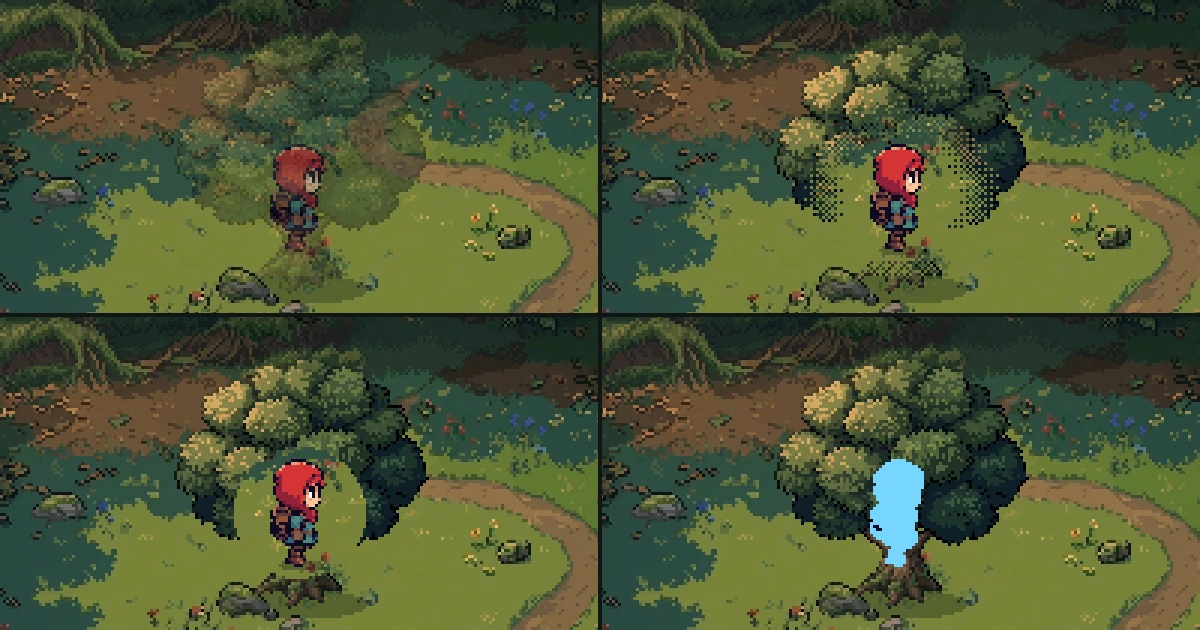 4 ways to keep the player visible behind trees and walls in a 2D gameFade, dither, cutout and silhouette, the four standard ways to show a character who walks behind a tree or a wall. What each one does to pixel art, when to switch it on, the numbers, a tested Godot script with its shader, and the pitfalls.
 Coyote time, jump buffering and corner correction for 2D platformersThree small bits of forgiveness that make a platformer feel fair. A late jump off a ledge, an early jump before landing and a nudge past a corner, with the numbers, tested Godot code and the pitfalls.